28Analytics · 6 min read
Visitors
In the appCustomers → Visitors
A visitor counter is a small object you place in your shop. It notes the name of every avatar who comes by. It’s optional, but it feeds the conversion figures on your Dashboard and enforces Level 3 bans. You’ll find it in your Plurion [Starter Pack] folder (your Plurion objects).
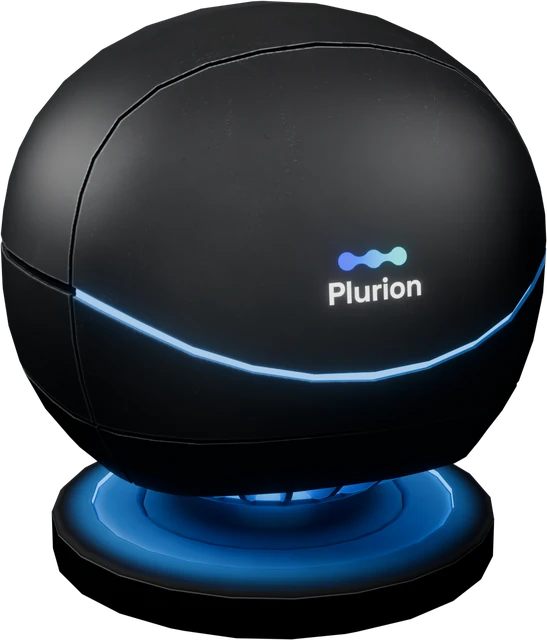
In your inventory — rez it in your shopPlurion [Visitors]
Set up your counter
- In Second LifeRez it where your shoppers areDrag
Plurion [Visitors]from your inventory onto the floor of your shop, near the entrance. It doesn’t need to be in plain sight. After a few seconds, red text appears above it: “NOT LINKED - touch me for your link”. - In Second LifeTouch it, then click Go to pageClick Go to page in the window that opens (the link is in your chat too). If nothing opens, touch it again in a few seconds.
- On the webConnect it to your shopSign in if asked. With one shop, it connects by itself. With several, pick the shop and click Connect to …. You land on the counter’s own page (connecting an object).
- On the webChoose how it countsA new counter starts in Radius mode (avatars within 30 m). If your shop is its own parcel, click Edit settings, choose Parcel, then Save changes. The counter applies it within 5 minutes, or at once if you touch it and choose Sync now.
- In Second LifeCheck that it countsStay near it for a minute, then look at the counter’s page. Your own name appears under
Right now. You count like any visitor.
If something’s off
- Nothing happens when you touch it → only the owner gets an answer. Check that the counter is yours (right-click → Edit, General tab).
- “ALREADY LINKED - delete on dashboard, then touch” → this object was connected to a shop before and lost its memory. On
Visitors, open that counter, click Delete, then touch the object again. - The numbers look low for a busy shop → it’s probably still in Radius mode (30 m, 16 avatars at most per scan). Switch it to Parcel (step 4).
Choosing how it counts
Change it any time with Edit settings on the counter’s page. Counting goes on, with nothing to redo in-world.
| Mode | Good for |
|---|---|
Parcel | Most shops: a shop on its own parcel, owned or rented. |
Radius | A booth in a mall, one room, a corner of a busy sim. It undercounts a crowded spot. |
Region | A shop or an event that fills the whole region. |
You don’t need to own the land to count visitors.
Reading the numbers
At the top of Visitors, four figures cover the last 30 days across all your counters: Unique visitors, Conversion · 30d, Returning rate and Spend / visitor. Below is Monthly visitors, a chart you can switch to today, 7, 30 or 90 days. Then comes one line per counter, with its visits today, over 7 and over 30 days.
Unique visitors counts each avatar once, and the charts count an avatar once per day. The Today, 7d and 30d columns count one visit for each hour an avatar stays. Someone who spends the afternoon in your shop is one visitor but four visits.
Conversion is the share of visitors who bought. It’s green above 5%, neutral from 1 to 5%, and soft amber below 1%. A dash means no visitor in the last 30 days. With visitors but no sale, it reads 0%.
One counter in detail
Click a counter to open its page. Right now lists the avatars it detected in the last 5 minutes, with customers who already bought from you in green. Below come its own visitors chart, Peak hours (switch UTC / SLT), and three views of the people who came by:
| View | What it is for |
|---|---|
| Swarm | A cloud of dots: the shape of your traffic at a glance |
| Funnel | First visit → Returning → Customer → Top customer, with the drop-off between each |
| Table | One line per person: filter by tier, search, sort by visits or spend |
Touch a connected counter (as its owner) for its menu. Sync now sends its name, region and latest visits at once. Use it after renaming the object or changing its settings. Print Info writes its details in your chat. Reset identity starts it over as a new counter (see below).
Copying, moving or removing a counter
- Another counter: Shift-drag a connected counter, or Take Copy and rez it. The copy joins the same shop with the same mode and radius.
- In another region: rez the copy there the same way. It takes a few minutes to become its own counter. Until then, the dashboard may show the original in the copy’s region.
- Moving it: take it into your inventory and rez it again. It stays the same counter, with nothing to redo.
- Wrong shop, or the object is gone: on the counter’s page, click Delete (Owner or Admin), then Delete it. Its visits stay in your stats. If the object still exists, it starts over as a new counter at its next check-in. Touch it for a fresh link. In-world, Reset identity in its menu does the same.