29Moving from another system · 11 min read
Migrating to Plurion
In the appAdmin → Migrate
Watch first changes nothing in your shop. Plurion only reads your sales, so you can try the dashboard on your real numbers. Full migration also converts your vendors. No other system yet? See Start here. Only the shop’s owner and its admins see Migrate.
Three questions, then your plan
The first time you open Migrate, it asks three questions. Your answers decide which cards appear on your plan:
- What you sell with today. Tick every system you use: CasperVend, MD Vendor, Allomancy, Other vendors.
- Whether you also sell on the SL Marketplace: Yes or No.
- Your goal: Watch first, Full migration or Not sure yet (starts as Watch first).
Then Your migration plan lists your steps in the recommended order. You can open any card at any time. Adjust profile reopens the questions, and How it works sums up each step.
Which cards appear, and when
| Card | Appears if you answered |
|---|---|
| Connect CasperVend | CasperVend |
| Import your history | CasperVend, MD Vendor or Allomancy |
| Connect Marketplace | Yes, you sell on the Marketplace |
| Sync your catalog | CasperVend, MD Vendor or Allomancy |
| Convert your vendors | Full migration, or only Other vendors |
The cards your answers left out wait, folded, under More steps.
What you can undo, and what you can’t
Four cards out of five only add information to Plurion, and your current system keeps working. Converting your vendors is the exception. It happens in-world, and it’s final.
| Step | To go back |
|---|---|
| Connect CasperVend | Disconnect in the step. Sales already mirrored stay in Plurion. |
| Import your history | Imported sales stay. You can delete one from its detail in Sales. |
| Connect Marketplace | Disconnect in the step, then put your previous notification address back in your Marketplace settings. |
| Sync your catalog | Reset mapping on a name. Products it created stay in Products, where you can delete them. |
| Convert your vendors | No undo. The old system’s scripts, notecards and textures are deleted. Try one vendor first. |
Connect CasperVend (live feed)
Only CasperVend sends Plurion each sale as it happens. For MD Vendor and Allomancy, import a newer export to catch up. The Webhook Salt that CasperVend gives you lets Plurion check that each sale really comes from CasperVend.
- On the webCopy Plurion’s addressOn your plan, open Connect CasperVend. Under
Paste this URL into My Casper, click Copy. - On the webPaste it into My CasperIn My Casper, open the Overview tab → Webhooks. Paste the address, tick Product purchase and SL Marketplace purchase, and save.
- On the webBring the salt backMy Casper then shows a Webhook Salt. Copy it, paste it under
Paste back the Webhook Saltand click Save.
Mirrored sales are records only. CasperVend still delivers the item, and Plurion delivers nothing and takes no commission on them.
Import your history
One CSV export brings years of sales, and the customers behind them, into Plurion. Plurion recognizes CasperVend, MD Vendor and Allomancy exports on its own. Imported sales are history, and Plurion delivers nothing for them. Keep the file as a backup.
| You sell with | Where to export (as the import page tells you) |
|---|---|
| CasperVend | My Casper → Sales → Export CSV |
| MD Vendor | Admin panel → Reports → Export |
| Allomancy | dashboard → Sales → CSV |
- On the webOpen the cardOn your plan, open Import your history.
- On the webChoose your fileClick Choose CSV file. Plurion shows the format it detected and four counts:
Ready,Skipped,Date range,Total paid. - On the webImportIf the dates and the total look right, click Import … sales and wait for
Import complete.
If something’s off
Unrecognized CSV format…→ the file isn’t a sales export from one of those three systems. Export the sales report again.- Lines counted as
Skipped→ openWhy some lines were skipped, under the counts, to see why. - More sales since? Import a newer export. Sales already in Plurion are skipped.
Connect the Marketplace (optional)
If you also sell on the SL Marketplace, Linden Lab can tell Plurion about each Marketplace sale directly.
- On the webCopy Plurion’s addressOpen Connect Marketplace. Under
Paste this URL into Automatic Notifications (ANS), click Copy. - On the webPaste it on the MarketplaceOn the SL Marketplace, open My merchant home → Automatic Notifications (ANS) and click Edit. Replace the address there with Plurion’s, and save.
- On the webBring the salt backThe Marketplace then shows the
Notification saltunder the address. Copy it, paste it underPaste back the salt LL gives youand click Save.
Several brands on one Marketplace store
Once the feed is connected, Advanced settings appears at the bottom of the step. If your account owns other shops, Multi-shop routing (Marketplace) sends each Marketplace sale to the right shop by a keyword in the listing title, in the order you set. A sale that matches no rule stays on this shop.
Set the rules on the shop that holds the Marketplace connection, since a rule saved on another shop never fires. Rules apply to new sales only.
The same panel is where you declare co-creator shares on your listings, under Marketplace co-creators. See Marketplace sales in Splits.
Sync your catalog
Syncing links each product name from your imported sales to a product in your catalog. That lets past buyers redeliver, your updates reach them, and the migration kit recognize your vendors.
- On the webLet auto-sync do most of the workOpen Sync your catalog. When the
Auto-sync matched productsbanner appears, click Review & sync. It lists the products Plurion can create: imported names that exactly match an item in your DropBoxes and sold above L$0. - On the webCheck, then syncUntick anything that looks wrong and click Sync the … kept. Each product takes the price of your most recent sale of that item. If that sale was discounted, fix the price in
Products. - On the webLink the rest by handClick a remaining name, then either Create new Plurion product and Sync to Plurion, or Match to existing, pick a product and Map to selected. For a name you no longer sell, click Mark as no longer sold.
To fix a wrong link, open the name and click Reset mapping. Synced names are remembered for later imports. If you’re not ready, Skip for now on the card lets you move on.
Convert your vendors
The migration kit turns each existing vendor into a Plurion vendor where it stands. The object, its place and its picture stay, and there’s nothing to re-rez. You drop the kit on each vendor in turn, and each one takes about 30 seconds.
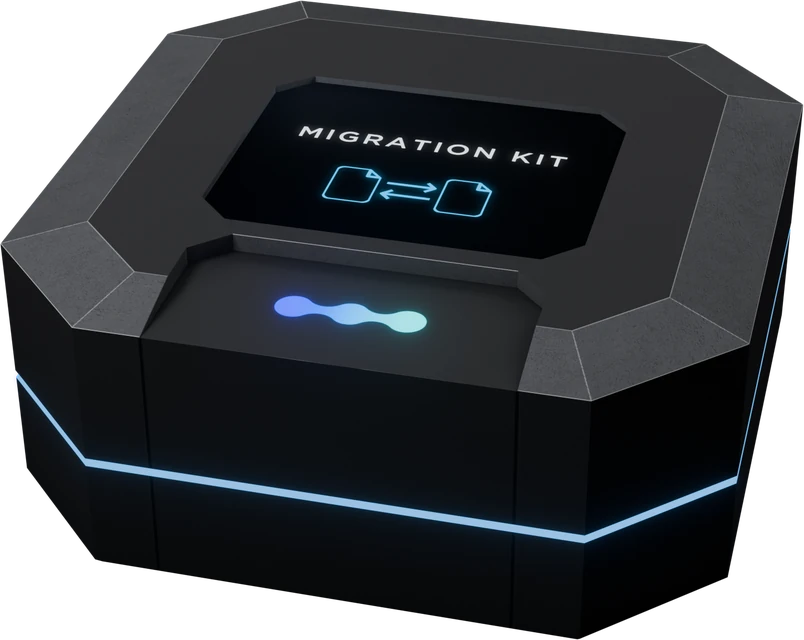
Rez it from your Starter Pack, then left-clickPlurion [Migration Kit]
What to prepare, system by system
| Leaving | Before converting |
|---|---|
| CasperVend | Connect the live feed early. A vendor that sells in the meantime gets its product created for it. |
| MD Vendor | Put the item each vendor holds in your DropBox and make it a product, from the Inbox in Products or with auto-sync when your MD history uses the same names. The kit recognizes the vendor by that item. |
| Allomancy | The kit recognizes the vendors by their name, which must match a synced name exactly. |
| Other systems, plain prims | Create your products first (Products). A vendor that holds the item is recognized by it. Otherwise you pick each product by touching the vendor. |
How the kit finds each vendor’s product
At the drop, Plurion looks for the vendor’s product in this order and stops at the first match:
- Its own past sales. CasperVend records which vendor made each sale. If you synced that product’s name, the vendor gets that product.
- The item inside it. MD and CasperVend keep a copy of the item they sell in the vendor. If one of your products delivers an item of exactly that name, the vendor gets that product.
- Its name. The vendor’s name must be exactly an imported name you synced. A trailing “Vendor”, as Allomancy’s Quick Setup adds, doesn’t count.
- Nothing found. The vendor still converts, then waits for you to pick its product (
Needs setup, below).
What the kit removes, and what stays
The kit deletes every script, notecard and texture inside the vendor whose name doesn’t start with “Plurion”. Everything else stays in the prim: objects (including the item the vendor used to give), sounds, animations, landmarks. The vendor keeps its name and its picture, which is painted on the prim.
Prepare the kit (once)
- In Second LifeUnpack the kitIn your inventory, open the
Plurion [Starter Pack]folder (your Plurion objects). RezPlurion [Migration Kit]on your land, left-click it → Copy to Inventory. A folderPlurion [Migration Kit]appears in your inventory. From now on, use that folder, not the box. - On the webCreate your configIn
Migrate, open Convert your vendors. Check that the shop at the top of the sidebar is the right one, then tick I understand: they’re deleted for good. Click Create config, then Copy under2 · In-world. Your config works for 7 days, for this shop only. - In Second LifePaste it into the kitIn the new folder, open the
Plurion [Config]notecard. Paste your config (two lines) under the text that starts with #, then click Save. Keep it private.
Convert one vendor, then the rest
- In Second LifeTry one vendorPick a quiet vendor. Drag the
Plurion [Migration Kit]folder from your inventory onto the vendor. It pulses blue for up to 25 seconds while the kit reads its picture. - In Second LifeAccept the debit permissionSecond Life asks whether the vendor may take money from you. Click Allow access. Each converted vendor asks once. Without it, the vendor shows “Paused: accept DEBIT” and no Pay button (why Plurion needs it).
- On the webCheck the feedOn Convert your vendors, the vendor appears in the
Live conversion feedwithin seconds.Matchedmeans it found its product; the other statuses are explained below. - In Second LifeDo the rest, about ten in a rowDrop the same folder on the next vendors and accept each permission. If you drop it on too many at once, some conversions miss their turn. If your chat then says “backend unreachable - touch to retry”, touch that vendor.
The live conversion feed
| Status | What it means | What to do |
|---|---|---|
Matched | Linked to its product. It sells as soon as you allow access. | Nothing. |
Needs setup | Converted, but its product wasn’t found. It shows no Pay button, and your chat says “linked - touch to pick the product”. | Touch it, open the page it offers (“Set up this vendor”) and click its product, as for a new vendor (Vendors). Then allow access. |
Needs photo pick | Two pictures were equally likely on the vendor. | Click Candidate 1 or Candidate 2 in the feed, then look at the vendor in-world. |
Photo locked | The kit couldn’t read the vendor’s picture. | Give the product a picture in Products. |
If something’s off
- Nothing happens when you drop the folder → you can only drop items into an object you own and can modify.
Whenever the kit doesn’t convert, it removes itself and leaves the old system’s scripts in place. Its lines start with “[Plurion] Migrate kit:”.
| The chat says… | What to do |
|---|---|
| “waiting for the 'Plurion [Config]' notecard...” | Nothing. The folder’s items are still arriving. |
| “no 'Plurion [Config]' notecard in the kit…” | The notecard is missing or renamed. Keep its exact name, Plurion [Config], then drop the folder again. |
| “paste your 2 lines from … into 'Plurion [Config]'…” | Paste your config, click Save, drop the folder again. |
| “your 2 lines are expired or wrong…” | Create a new config on Convert your vendors, replace it in the notecard, drop again. |
| “couldn't reach Plurion…” | Drop the folder again. |
| “nothing to convert here…” | That object holds no other system. It’s already a Plurion vendor, or empty. An empty prim now holds a Plurion vendor script, so delete it from its Content if you don’t want a vendor there. |
| “this is a Plurion object, nothing to convert…” | Drop the folder on a vendor instead. Then delete the items the kit added from that Plurion object’s Content. |
Rarely, after a stopped attempt, the old vendor no longer shows its Pay button. Reset its scripts from your viewer’s Build menu (Scripts → Reset Scripts).
After the switch
- Check your prices in
Products, since products created during the migration take your most recent sale price. - The objects you stocked in your vendors are still inside. Leave them or take them back.
- Keep Connect CasperVend connected while a CasperVend vendor is still selling, or while CasperVend forwards your Marketplace sales.
- When you’re through, click Mark as done on the
Convert your vendorscard. It only ticks the card, and you can undo it.
Common questions
Will I lose my sales history?
Does my shop close while I convert?
Needs setup, once you pick its product. Vendors you haven’t converted keep selling with your old system.