05Set up your shop · 4 min read
DropBoxes: where your items live
In the appStore → DropBoxes
A DropBox holds the items you sell. It works while its region is up, even when you’re offline.
- Customer pays a vendor
- Plurion records the sale
- Your DropBox gives the item
- The customer receives it
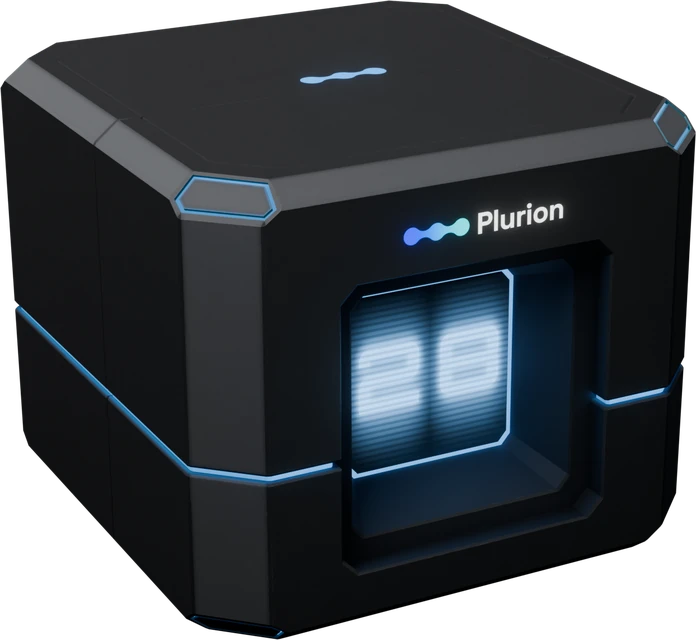
In your Starter PackPlurion [Dropbox]
Set up your DropBox
You need the box from your Starter Pack (where to get it), the items you sell (transferable for you, or the box can’t give them), and land where scripts run and objects stay (no sandbox, no auto-return).
- Rez
Plurion [Dropbox]on your land. A red “NOT LINKED” text appears above it after a few seconds. - Click it (only its owner can) and choose Go to page. Your dashboard connects it to your shop. With several shops, pick one first (how it works).
- Right-click it → Edit → Content, and drag in your items. Check their next-owner permissions first, since that’s what buyers get. Leave the two Plurion scripts in place.
If the link doesn’t work
- A sign-in page opens. Sign in (with a login code), and the box connects.
- “This link has expired”. Links last 24 hours. Click the box again.
- Nothing happens. Only the owner gets a link, and just after rezzing the box needs a few seconds.
Reading your DropBox
The box shows its state on its counter. A red floating text appears only when it needs you.
What the counter and red text mean
| What you see | What it means |
|---|---|
| No text, a number on the counter | Connected, with this many items to deliver. |
| The counter in a lighter blue | Sending its item list to Plurion (a few seconds). |
| A triangle instead of the number | 100 items or more (amber, orange from 150, red from 200). |
| “NOT LINKED - touch me for your link” | Not connected yet. Click it and open the link. |
| “OFFLINE - URL denied” | The land has no script URLs left, so it can’t deliver. If the text stays after 5 minutes, move the box to other land. |
| “ALREADY LINKED - delete on dashboard, then touch” | It lost its settings. Delete its card on DropBoxes, then click it. |
The owner menu
Click the box to open its menu. Only you get one.
| Button | What it does |
|---|---|
| Log in | Opens the sign-in page. |
| Sync now | Sends its name and item list again, after renaming the box or if Products looks out of date. |
| Reset identity | Deletes the box on your dashboard so you can connect it again. Its items stay inside. |
| Print Info | Prints technical details in your chat, for support. |
What Plurion sees in the box
The box sends Plurion its item list about five seconds after any change. You pick from it when you make a product, so there’s nothing to type.
- Listed: objects, notecards, textures, sounds, animations, clothing, body parts and gestures. A product needs an object, so box a loose notecard or texture first.
- Never listed: scripts, landmarks, and names starting with a dot (handy for a spare copy you don’t sell).
- Names must match exactly. Rename an item in the box and its product can’t deliver (it shows under No inventory in Products). For a new version, use the Inbox.
- No-copy items leave the box. After one sale, the product has nothing left to deliver. Keep a copiable master inside, and buyers still get the next-owner permissions you set.
How many items per box
There’s no cap, but one box holding your whole catalog makes every sale wait when its region restarts. From 100 items its card turns amber (Filling up, then Crowded at 150 and Overflowing at 200) and its counter shows a triangle. That’s the time to add a second box, ideally in another region, as a backup.
Several boxes: priority and failover
DropBoxes shows your boxes in the order Plurion tries them. The first live box holding the item delivers, and if it fails, the next one takes over.
Changing the order
- Lower number = tried first. Every box starts at P100 (Default). A copy keeps its original’s number.
- To change it, click a card’s P-value, pick Primary · P1 or Fallback · P50, then Save priority.
- Same number: the box heard from most recently goes first. Each box checks in every 10 minutes.
- To check, pick a product in Simulate, and the page names the box that would deliver it.
Move, copy or remove a box
| You want to… | Do this |
|---|---|
| Move it | Take it and rez it elsewhere. It stays the same box and updates its region by itself. |
| Add a second box | Copy it (Shift-drag, or take a copy and rez it). The copy joins the same shop as a separate box, with the same items and priority. Stock each box separately from then on. More on copies |
| Survive a region restart | Nothing to do. The box gets a new address on its own. |
| Connect it to another shop, or start over | Click the box → Reset identity, or delete its card on DropBoxes (the box notices within 10 minutes, at once with Sync now). Then click it and pick the shop. Its items and sales history stay. |
| Remove it for good | Take or delete the object in-world, then delete its card on DropBoxes so deliveries stop trying it. |