Every part of the product, written down — from a first sign-in to splitting revenue, moderating a customer and bringing an established catalog across.
01Getting started · 2 min read
Welcome to Plurion
What Plurion is, and where to start.
Plurion is a vendor system that lets you manage your Second Life shop from one place. Your vendors and your DropBox — the box that holds your items and delivers them to buyers — stay in-world, on your land; your products, prices, sales and customers are managed from app.plurion.io, the dashboard. Change a product or a price once, and every connected vendor stays in sync.
How much does it cost?Nothing up front. Every shop starts on the Free plan: 5% of each sale your Plurion objects make — the object pays it itself at the moment of the sale, so Plurion never holds your L$. Only watching your current sales costs nothing. Pro: L$3,900 for 30 days, no commission.
What do I need?An avatar, and land where you can rez and run scripts (not a sandbox). The Plurion objects are free and come with your account. Just want to watch your current shop? Your avatar is enough.
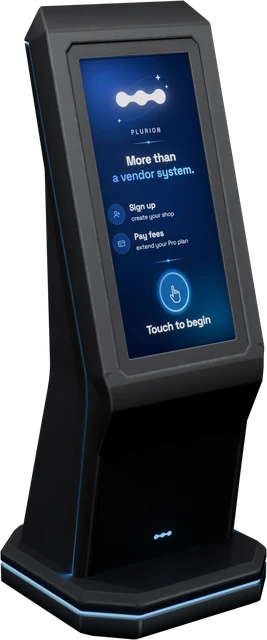
How do I create my account?No form, email or password: your avatar is your account. At Plurion HQ, touch the Merchants Terminal, choose Sign up, then Go to page → Create my account.
How long before my first sale?About 15 minutes from scratch, test purchase included; about 20 to convert your first existing vendor.
Account → shop → DropBox → product → vendor → first sale
Reading the manual
Create product
A button or text, exactly as on screen
Products
A page of the dashboard
“NOT LINKED…”
Text an object shows in Second Life
In Second Life
A step you do in your viewer
On the web
A step you do in your browser
✓ You’ll know it worked when…
The result you should see. If you don’t, follow the Troubleshooting link.
Follow Start here first; afterwards, use the menu on the left or press / to search. Under a chapter’s title, In the app tells you where its page is, when it has one.
02Getting started · 5 min read
Start here
From zero to your first sale, one step at a time.
You needA Second Life avatarLand where you can rez and run scripts (not a sandbox)About 15 minutesNothing up front — Free plan: 5% on sales made by Plurion objects
You needA Second Life avatarLand where you can rez and run scripts (not a sandbox)About 15 minutes, plus about 30 s per vendor you convertNothing up front — Free plan: 5% on sales made by Plurion objects
You needA Second Life avatarAbout 10 minutesNo land neededFree: no fee on imported or mirrored sales
01
Signing up, step by step
Sign up
Pick Sign up. Pay fees is for the Pro plan, later.
Go to page
Your sign-up link opens in your browser. It is yours alone.
Create my account
Check the avatar name, then one click.
Link expired? It works for 15 minutes: touch the terminal again for a fresh one. Already have an account? The terminal opens the sign-in page instead.
A Plurion [Starter Pack] folder appears in your inventory; you can take the box back.
Go to page
Wait for “[Plurion DropBox] registered. Touch me for your link.” in your chat, then touch it.
Linked
Within half a minute, your chat confirms it and the red text goes away.
“OFFLINE - URL denied” instead? The parcel has no free script URLs left: rez the box on another parcel. Can’t find the pack? Search your inventory for Starter Pack. Not there? On your Hub, Settings → Send it to me.
Connect your DropBox
The DropBox holds what you sell and hands a copy to each buyer.
In Second LifeRez Plurion [Starter Pack] → right-click → Open → Copy to Inventory.
In Second LifeFrom the new folder, rez Plurion [Dropbox] where it can stay; touch it → Go to page.
On the webThe page links it to your shop by itself.
Landed on a sign-in page? Type your avatar name → Login code → Send me a code: it arrives by IM.
You’ll know it worked whenthe red text above the box disappears.
It shows “Ready to connect” until it is linked. Only you, its owner, get the link.
Pick a product to sync
The page lists your Active products.
Allow access
Once per vendor. The wording is Second Life’s own.
Amber “Paused: accept DEBIT”? You clicked Deny or missed the dialog: click the vendor → Sync now → Allow access. Selling from your own vendor boards? See “Can I keep my own vendor prims?” below this guide.
Set up your vendor
The vendor is what customers click to pay.
In Second LifeFrom the same folder, rez Plurion [Vendor] where customers will see it; touch it → Go to page.
On the webClick your product.
In Second LifeClick Allow access when Second Life asks.
Plurion only uses this permission to refund buyers and pay shares (like its 5% on Free). Without it, no Pay button. Why DEBIT
You’ll know it worked whenthe poster reads “SYNC OK” (or shows your product’s picture).
Your system, the SL Marketplace, then your goal: here, Full migration.
Import your history
Only CasperVend, MD and Allomancy exports are recognised. Re-importing the same file is safe: duplicates are skipped.
Connect CasperVend
Block A: the URL for My Casper. Block B: the Webhook Salt Casper gives back. Sales made during the switch keep arriving.
Where to export: CasperVend — My Casper → Sales → Export CSV · MD — Admin panel → Reports → Export · Allomancy — dashboard → Sales → CSV.
On the webImport your history
Your past sales and customers come in; your shop keeps selling.
On the webOpen Migrate (under Admin, at the bottom of the menu) and answer its three questions; for the goal, pick Full migration.
On the webOpen Import your history, drop your sales CSV and click Import <n> sales.
On the webOn CasperVend: open Connect CasperVend, paste its URL in My Casper → Overview → Webhooks, tick both purchases, then paste the Webhook Salt back.
You’ll know it worked whenthe page says Import complete and counts the sales inserted.
Tick the box (1), Get my migration kit (2), then Copy (3). The lines work for this shop only: keep them private.
Plurion [Config]
Paste the two lines under the notecard’s text, then Save. Older than 7 days? Get new lines.
Drop the folder
It glows blue while it works, then Second Life asks for the DEBIT permission.
Still glowing blue after a minute? Drop the folder again. A vendor marked Needs setup? Touch it and pick its product.
Convert one quiet vendor
Same prim, same spot, same picture: only the old system inside it is replaced.
Can’t be undone: the kit deletes every script, notecard and texture inside the vendor that isn’t named Plurion. Objects stay — but take out the only copy of any no-copy item first.
On the webMigrate → Convert your vendors: tick the box → Get my migration kit → Copy (valid 7 days).
In Second LifeRez Plurion [Migration Kit] → Open → Copy to Inventory; paste the lines into its Plurion [Config] notecard and Save.
In Second LifeDrag the whole folder onto ONE quiet vendor, then click Allow access.
You’ll know it worked whenit shows up in the Live conversion feed as Matched.
Block A holds your private address. Keep this page open: you come back for block B.
Notifications
Note the old address, paste Plurion’s (1), save (2), then copy the salt LL shows (3). A sketch, not LL’s real page.
Paste back the salt LL gives you
Saved: Plurion checks the salt on the first notification LL sends.
On the webMarketplace: add its feed
Only if you sell on the SL Marketplace and don’t use CasperVend: CasperVend already forwards those sales, so on Connect Marketplace pick Keep Casper as your MP source.
On the webIn your plan, open Connect Marketplace and copy the URL in block A.
On the webOn the Marketplace, Store Settings → Notifications: note the address already there (pasting it back undoes this), paste Plurion’s, save.
On the webPaste the salt LL shows into block B → Save.
On the webBack on the Marketplace page, click Test.
You’ll know it worked whena test sale appears at the top of Sales within seconds.
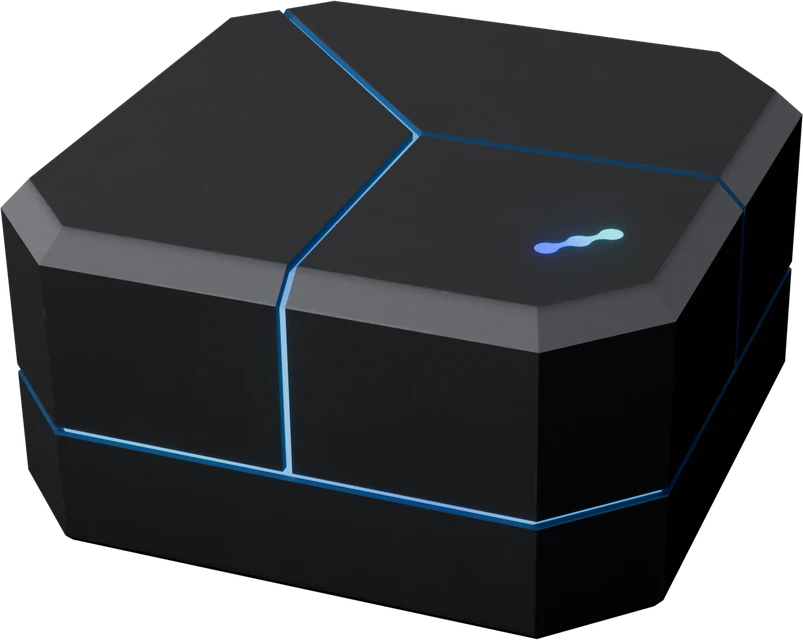
From Plurion: it sends you Plurion [Starter Pack] when you create your account. The folder holds the DropBox, the vendor, the Plurion Terminal, the visitor counter, the gacha machine and the migration kit. Didn’t get it, or declined it? On your Hub, click Settings → Send it to me. Still nothing? Ask on the Plurion Discord. See Your Plurion objects.
Why does Second Life ask to let my vendor take money?
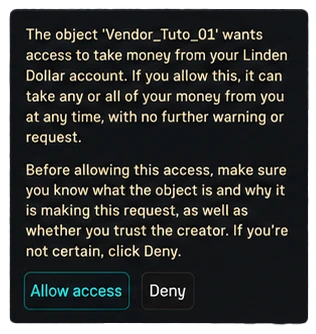
That is the DEBIT permission, and the warning text is Second Life’s own. Plurion uses it for three things only: refunding a buyer who paid the wrong amount or used a promo code or loyalty discount, paying your split partners, and sending Plurion’s 5% on the Free plan. See The DEBIT permission.
Can I keep my own vendor prims?
Yes. Take the Plurion [Vendor] script out of the Plurion [Vendor] object (right-click → Edit → Content, drag it to your inventory) and drop it into your own prim, keeping its name. No notecard needed. It shows your product’s picture on face 1 of that prim, replacing what is there. Coming from CasperVend, MD or Allomancy? The migration kit converts your existing vendors in place.
I opened an object’s link and landed on a sign-in page
That browser isn’t signed in to Plurion yet. Type your avatar name → Login code → Send me a code (it arrives by IM), type the code and click Sign in: you land on the page the object wanted to open. Use the avatar that owns the object. See Signing in with a code.
Can I try Plurion without disturbing my shop?
Yes: pick I’m keeping my current system at the question above. Your current system keeps selling, delivering and taking the money, and not one vendor is touched: Plurion only reads your sales. See Migrating to Plurion.
03Getting started · 7 min read
Your Plurion objects
The objects you rez in Second Life: the Starter Pack they come in, how each one joins your shop, its owner menu, copies and moves, and the DEBIT permission.
Every Plurion object you rez comes from your Starter Pack. Followed Start here? You’ve already unpacked the box and connected your DropBox: jump to The owner menu.
Only watching your current system for now? This chapter can wait: you have nothing to rez yet.
Plurion sends you this box, Plurion [Starter Pack], when you create your account: accept the inventory offer. Declined it, or lost it? On your Hub, Settings → Send it to me sends you the latest box.
Sent when you create your accountPlurion [Starter Pack]
In Second LifeRez the boxDrag it from your inventory onto your land.
In Second LifeOpen itRight-click it, choose Open, then Copy to Inventory.
In Second LifeFind the folderA folder Plurion [Starter Pack] appears in your inventory: the six objects below and a notecard, PLURION - START HERE.
In your inventory
What it does
Needed?
Plurion [Dropbox]
Holds the items you sell and hands them to buyers. DropBoxes
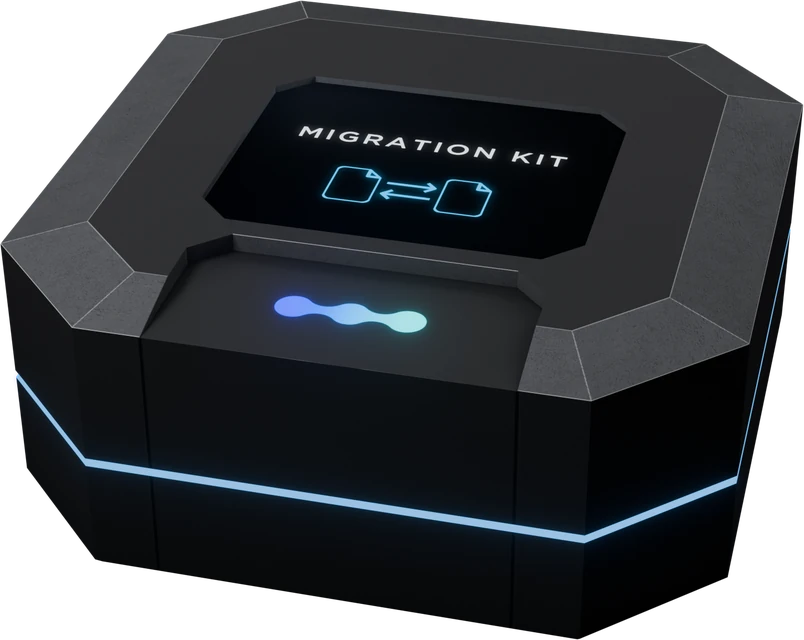
Turns CasperVend, MD or Allomancy vendors into Plurion vendors, where they stand. Migration
Only to switch
To sell you need two of them: a DropBox and a vendor. Didn’t get the Starter Pack? On your Hub, Settings → Send it to me. Still nothing? Ask on the Plurion Discord.
Create your shop on your Hub first: an object needs a shop to join. Then every object but the Migration Kit connects like this, with nothing to type (the kit works differently: Convert your vendors).
Example: a DropBox
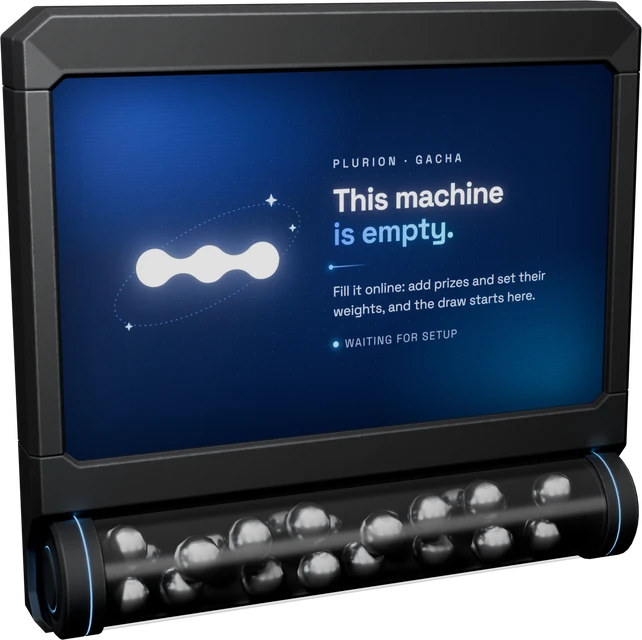
In Second LifeRez itRez it where it will stay, on land where scripts run. Until connected, it floats red “NOT LINKED - touch me for your link” (a vendor shows its “Ready to connect” poster instead, a gacha machine “This machine is empty”).
In Second LifeTouch itTouch it as its owner: Second Life opens a window with its setup link. Click Go to page. Only you get the link; it lasts 24 hours.
On the webConnect itThe link opens Connect an in-world object (a gacha machine: Link a gacha machine); sign in if asked. One shop: it connects by itself. Several: pick it under Link it to, then click Connect to <your shop>.
On the webFinish its setupIf there’s more to do, the page takes you there: a vendor asks which product to sell.
What each object says once connected
Object
Once connected
DropBox
“[Plurion DropBox] linked to your shop — deliveries start now.”
Visitors counter
“[Plurion Visitors] linked to your shop — counting starts now.”
Plurion Terminal
“linked: ready for customers.”, then it asks for DEBIT
Vendor
“linked - touch to pick the product”
Gacha machine
On your next touch: “linked to your shop — touch again for the owner menu.” Its “This machine is empty” poster stays until it has prizes, a price and DEBIT.
The owner menu
Touch an object as its owner to open its menu (a vendor with no product yet opens its setup link instead). Once a vendor or gacha machine is selling, a left-click opens Pay, even for you: right-click it and choose Promo on a vendor (for you, its owner, Promo opens this menu, not the promo-code box) or Touch on a gacha machine.
Vendors, gacha machines and the Plurion Terminal handle money, so each asks Second Life for one permission, DEBIT, and asks again after a copy or a re-rez. Second Life shows this window:
Second Life’s own window, and what each answer does
The warning is Second Life’s own, the same for every vendor system. Plurion’s scripts use the permission only to:
refund the buyer: a wrong amount, a promo code or loyalty discount, the difference when a price had just changed, a payment that can’t go through;
Nothing else is ever taken. No DEBIT, no Pay button: an object that can’t refund mustn’t take money.
Click Allow access, and stay in the region until every object has asked: Second Life shows the window only to an owner who is there.
Without DEBIT, and how to get the window back
Object
Without DEBIT
To be asked again
Vendor
No Pay button; it floats “Paused: accept DEBIT”. After a Deny it IMs you “DEBIT denied - Touch > Sync now, accept to sell”.
Touch it, pick Sync now, then click Allow access.
Gacha machine
No Pay button, and its “This machine is empty” poster stays up.
Take it and rez it again (a touch won’t ask), then click Allow access.
Plurion Terminal
It floats “Paused: accept DEBIT”; customers can’t buy credit or send gifts.
Touch it: it asks again.
DropBoxes and Visitors counters never ask: they don’t handle money. After the Migration Kit converts a vendor, the window comes from that vendor: click Allow access.
04Getting started · 8 min read
Your account & shops
Signing up at Plurion HQ, the three ways to sign in, an optional password, and moving between your shops from the Hub.
In the appYour Hub (app.plurion.io/hub) · sign in at app.plurion.io/login
Your Second Life avatar is your Plurion account: no email, no separate username, and Plurion never asks for your Second Life password. You sign up once, in-world. After that there are three ways in:
Way in
What you need
Who can use it
A login code by IM
Second Life open, with your avatar
Everyone with a Plurion account
A login code from your DropBox
Standing at your connected DropBox, in Second Life
Sign-up starts in Second Life: touching the Merchants Terminal at Plurion HQ is how Plurion knows the avatar is really yours. It takes two minutes.
In Second LifeGo to Plurion HQTeleport to Atlantic Coast 128, 129, 23, where the Merchants Terminal stands. The page app.plurion.io/signup has the same teleport button.
In Second LifeTouch the Merchants TerminalPick Sign up. Second Life then opens a box with your personal sign-up link: click Go to page.
On the webCreate your accountThe page shows Signing up as and your avatar name. Click Create my account: you’re signed in, and Plurion sends you Plurion [Starter Pack], your Plurion objects, in Second Life — accept the inventory offer (what’s inside).
On the webCreate your shopClick Open your hub, then Create a shop. Type its name — 2 to 60 characters, you can change it later — and click Create shop. Signing up created your account; your shop is this separate step.
On the webOpen itYour shop appears under My shops. Click its row: its dashboard opens.
Touch, open your link, one click
If you see
Do this
This sign-up link has expired
A link lasts 15 minutes and works once. Touch the Merchants Terminal again for a fresh one.
“You already have a Plurion account. Click to log in.”
This avatar is already signed up. Open the link and sign in (see below).
Go to app.plurion.io/login, the Merchant Hub sign-in. (Its Customer Hub link is for your buyers.)
Type your username, pick Login code, then type the 8 digits
On the webType your avatar nameUse your avatar’s username, not its display name: for Aurora Resident, aurora.resident, Aurora Resident or just aurora all work. Then click the Login code tile.
Get a codeClick Send me a code: within a minute an IM reaches you in Second Life — “Your Plurion login code: 12345678 — expires in 10 minutes. Never share this code.” Or, once you have a DropBox, touch it and pick Log in: the code appears in your local chat, for your eyes only.
On the webType it inType the 8 digits and click Sign in. You land on your Hub — or on the page you were heading to, like an object’s setup link.
A code works once, for 10 minutes. Five wrong tries cancel it.
You can ask for an IM code once a minute, up to ten times a day.
Asking for an IM code replaces the code your DropBox gave you: use one or the other.
Only the shop’s owner can get a code from a DropBox. Plurion then IMs you “Plurion: a login code was just issued by one of your DropBoxes. Not you? Delete any DropBox you don’t recognize on your dashboard.” — expected when it was you.
A password lets you sign in from your phone or any computer, without Second Life open. It belongs to your account, so it works for every shop you own or help run. A sign-in lasts 7 days, then you sign in again — one more reason to have one.
On the webOpen Settings on your HubOn your Hub, click Settings in the profile block, next to Edit profile and Billing. (Inside a shop, click Back to Hub first.) This is your account’s window, not a shop’s Settings page.
On the webSet a passwordType it twice — at least 10 characters — and click Set password. Next time, type your avatar name on the login page and pick Password.
To change it later, the same window asks for your Current password first, then Update password. Setting or changing a password signs out your other devices.
Second Life at a glance — residents online, sign-ups in the last 24 hours, the SLT clock — and Log out at its right end.
Inside a shop, click the shop’s name at the top of the left menu to switch: My shops, Member of (shops whose team you’re on) and Explore, with a read-only demo shop full of sample data — a good way to see what a busy shop looks like. Back to Hub brings you back here.
Each shop is independent: its own plan (Free or Pro), products, objects, customers and team. Going Pro on one doesn’t change the others. Your password is the exception — it belongs to your account.
Check three things. Type your avatar’s username, not its display name: the page answers the same way for any name, so a wrong name simply never gets an IM. Be logged in to Second Life with that avatar. And give it a full minute — you can ask again after that, up to ten times a day. Still nothing? Use your DropBox (Log in) or your password, or see Troubleshooting.
What if I lose access to my avatar?
Your avatar is your account, so there is no recovery by email. A Plurion password still lets you in: set one now. And invite someone you trust onto each shop’s team, so a shop never depends on a single sign-in.
Can someone else manage my shop without my password?
Yes, and that’s the right way to do it. Invite them onto your team with a role: they sign in with their own avatar, and you can remove them without touching your own access. See Teams, roles & permissions.
What happens to a shop I create and never use?
Nothing. It stays on Free and costs nothing. You can delete it from its own Settings page, with 30 days to change your mind. See Closing a shop.
05Set up your shop · 8 min read
DropBoxes: where your items live
The in-world box that holds what you sell and hands it to each buyer. Set it up first: your products are made from what it holds.
In the appCatalog → DropBoxes
A DropBox is the box that holds the items you sell. When someone buys, Plurion asks your DropBox to hand the item to the buyer, in-world. It works as long as its region is up — you don’t need to be online.
Plurion [Dropbox], from your Starter Pack (where to get it).
The items you sell, in your inventory. They must be transferable for you: Second Life only lets an object give what its owner may pass on.
A spot where your objects stay and scripts run: your own land, not a sandbox or a parcel with auto-return.
In Second LifeRez itDrag Plurion [Dropbox] from your inventory onto your land. After a few seconds a red text appears above it: “NOT LINKED - touch me for your link”.
In Second LifeClick itOnly you, its owner, can. A window opens: “Link this DropBox to your dashboard”. Click Go to page. The same link also lands in your local chat — it comes from your own object, and only you see it.
On the webConnect itYour dashboard opens and connects the box to your shop by itself. With several shops, pick one, then click Connect to Aurora (your shop’s name). You land on the DropBoxes page, where your box now appears. (Every Plurion object connects this way: how it works.)
In Second LifePut your items inCheck each item’s next-owner permissions first: they are what the buyer gets. Then right-click the box → Edit → Content tab and drag the items you sell from your inventory into the list. Leave the two scripts, Plurion [Dropbox] and Plurion [Dropbox Sync], where they are.
The link opens a sign-in page. Sign in (with a login code); the page then connects the box.
The page says “This link has expired”. A link lasts 24 hours. Click the box again for a fresh one.
Nothing happens when you click. Only the owner gets a link. Just after rezzing, the box answers “[Plurion DropBox] starting up — try again shortly.”: wait a few seconds.
About five seconds after you add, remove or rename something, the box sends Plurion the list of what it holds. That list is what you pick from when you make a product: you choose what is really there, with nothing to type.
Inside your DropBox — what Plurion lists, and what it ignores
Listed: objects, notecards, textures, sounds, animations, clothing, body parts and gestures. Products are made from objects, so put a loose notecard or texture in a box first, as most SL merchants already do.
Never listed: scripts, landmarks, and anything whose name starts with a dot. To keep a spare copy in the box without selling it, start its name with a dot.
Names must match exactly. A product delivers its item by its exact name. Rename the item in the box and that product can no longer deliver: it shows under No inventory in Products. To release a new version, see the Inbox.
No-copy items leave the box. If your own copy is no-copy, the box gives that very item away: it sells once, then the product has nothing to deliver until you put another one in. Keep a copiable master in the box: buyers still receive the next-owner permissions you set.
Nothing is capped: every item syncs and delivers, however many there are. But a box carrying your whole catalog is a single point of failure — if its region restarts, every sale waits — and its syncs take longer. So from 100 items its card on DropBoxes turns amber and reads Filling up (Crowded from 150, Overflowing from 200), and its counter shows a triangle: time to add a second box, ideally in another region, as a backup.
The DropBoxes page shows your boxes as a chain, in the order Plurion tries them for each delivery: the first box that is live and holds the item delivers. If it fails — its region is down, for example — the next one holding the item takes over.
The failover chain: the first live box holding the item delivers
Lower number = tried first. Every box starts at P100 (Default); a copy keeps its original’s number.
To change it, click the P-value on a card. In Where in the chain?, pick Primary · P1 for your main box or Fallback · P50 for a backup (or drag the gauge), then Save priority.
Same number: the box heard from most recently goes first. Each box checks in every 10 minutes.
To check, pick a product in Simulate: the page names the box that would deliver it. A box marked Offline · skipped is passed over.
Take it and rez it elsewhere. Same box, same priority, same items: it tells Plurion its new region by itself.
Add a second box
Copy it (Shift-drag, or take a copy and rez it). Chat says “[Plurion DropBox] copy ready — its own box now.”: the copy joins the same shop as a separate box, with the same priority and the items that were inside. From then on, stock each box on its own. More on copies.
Survive a region restart
Nothing to do: the box gets a new address on its own (“[Plurion DropBox] region restarted - refreshing URL”).
Connect it to another shop, or start over
Click the box → Reset Identity. Or on DropBoxes, hover its card, click the bin, then Delete DropBox — the box notices within 10 minutes, at once with Sync now. It then shows “NOT LINKED…” again: click it and pick the shop. Its items stay inside; its sales history stays on your dashboard.
Remove it for good
Take or delete the object in-world, then delete its card on DropBoxes so deliveries stop trying it.
Reload the Products page: it doesn’t refresh on its own. Still missing? Products are made from objects only, and scripts, landmarks and dot-names are never listed. Last resort: click the box → Sync now.
Where should I put it? Do customers need to reach it?
On land you control, in a region that rarely goes down — your mainstore is fine, and so is a back room. Customers don’t need to see or reach it: it delivers wherever they are in Second Life.
Can someone take items out of my box? Do they pass through Plurion?
No, and no. Only you can edit the box, and a customer’s click does nothing. Items leave it only when Plurion asks for a delivery — the box checks that every request is signed — and they go straight to the buyer, in-world: Plurion only says what to give and to whom.
06Set up your shop · 9 min read
Products: your catalog
Turn an item from your DropBox into a product with a price, then keep your catalog tidy and up to date.
In the appCatalog → Products
An item is what sits in your DropBox. A product is that item in your catalog, with a name and a price: your vendors show it and sell it, and the DropBox delivers it. Change a product once, and every vendor selling it follows.
You need an item in a connected DropBox. Then, on the dashboard:
On the webOpen ProductsYour new item waits in the Inbox at the top. Not there? Reload the page: it doesn’t refresh on its own.
On the webClick Make it a productQuick setup opens with the item already picked (1). You can also click New product — Create your first product while your catalog is empty — and pick the item yourself.
On the webCheck the name, type the priceThe name is cleaned up from the item’s name: edit it if you like (2). Type the price in whole L$ (3) — the only field you must fill.
On the webPick a vendor, if you have one waitingUnder Or sync to a waiting vendor (4), pick a vendor that is connected but not selling anything yet: it starts selling this product right away. Otherwise leave Just create the product — you can link a vendor later.
On the webClick Create product(5) You’re back on Products, with your new product in the list.
Quick setup — only the item and the price are required
The item isn’t offered. Reload the page. Only objects are listed (put a loose notecard or texture in a box first), and an item that already belongs to a product is hidden.
A price of L$0 means “not for sale” on a vendor: it shows the product without a Pay button.
Everything else gets a sensible default: an automatic product code (SKU), status Active, redelivery and online shop switched on, no permissions declared. Change them later on the product’s page, or open Advanced at the bottom of Quick setup.
A product can have two pictures, both optional. They don’t show in the same places:
In-world vendors
Your dashboard and online shop
SL texture (its UUID)
✓ Shown on the vendor
✓ Shown, unless there is an uploaded picture
Uploaded picture (PNG or JPG)
✗ Never
✓ Shown first
To get a texture’s UUID: in your inventory, right-click the texture → Copy Asset UUID (only offered on textures with full permissions for you). No SL texture? The vendor keeps its own picture — and linking a vendor fills the texture in from the vendor’s face when the product has no picture yet.
Every object sitting in a DropBox without a product waits in the Inbox at the top of Products — the first five, then a count of the rest. The page reads your DropBoxes when it opens: reload it after dropping something new.
The Inbox — a new item, and a new version of a product you sell
The Inbox shows
What you can do
A new item
Make it a product opens Quick setup with the item picked.
Update? — an item that looks like a newer version of a product
Review update opens that product with the new item swapped in: read the blue note, then Save changes. If it is really a separate product, click Or create new.
An item you don’t sell (a spare, a backup)
Ignore takes it off the list; it stays in the box. 1 ignored shows those items again, with Restore. This list lives in your browser only.
How Plurion spots a new version
It compares item names, ignoring upper and lower case, a version marker (v2, _v3) and a trailing boxed — nothing else. If a product delivers Aurora_Jacket_v2, then Aurora_Jacket_v3 is offered as its update; Aurora Jacket v3 (spaces instead of underscores) is not, and neither is an older version left in the box. Aurora_Boots and Aurora_Gloves stay separate products.
When in doubt it stays quiet: a wrong guess would cost you a product, a missing one costs a click. Nothing is created or changed until you click.
You can also swap by hand. Put the new version in your DropBox first, then open the product → Delivery → Item to deliver, pick the new item and click Save changes. The SKU and sales history stay; future sales and redeliveries send the new item. To tell past buyers, see Product updates.
Click a product (or its Edit button) to open its page. Change what you need, then click Save changes at the top: your linked vendors update within seconds. The page has six sections:
Online shop — whether it’s listed online, its description and its permissions.
Revenue splits — pay a partner on each sale (owners and admins; see Splits).
Advanced — SKU, private keywords, and Duplicate…
Danger zone — Delete…
On the right, Where it's sold says which vendors sell it and at what price right now, whether your online shop lists it (and if not, why), and which DropBox holds its item.
Status
On its vendors
In your online shop
Use it when
Active
For sale
Listed, if switched on and in a live DropBox
You sell it
Draft
Shown, no Pay button
Not listed
You’re preparing it
Sold out
Shown, no Pay button
Not listed
A limited edition ran out
Archived
Shown, no Pay button
Not listed
You retire it — its history stays
When you set up a vendor, only Active and Sold out products are offered. Duplicate… makes a Draft copy with the same item and settings — handy for an event price or a fatpack; split rules aren’t copied. Delete… asks you to type the SKU: linked vendors stop selling the product, its item is offered again in Quick setup, your sales history is kept, and the SKU stays reserved.
The search box looks in product names, SKUs and item names. The two icons next to it switch between a compact list and photo cards; your choice is remembered. Above the list, two sets of filters combine:
All, Active, Drafts, No inventory, Archived — by status.
Online shop: Listed or Not listed — what customers can see online. For example, Active + Not listed finds products for sale in-world only.
Edit many products at once
Tick the boxes in front of several products (Shift+click ticks a range, Escape clears). A bar appears at the bottom: set one Price for all, the Permissions, Online shop or Redelivery, then click Apply to 3 products (your count). Only what you touch changes, and a price change asks you to confirm. Owners, admins and managers can do it.
Plurion makes one from the item name. You can type your own under Advanced (letters, digits, dot, dash, underscore), like AURORA-JACKET, and rename it later on the product’s page: sales history, vendor links and update audiences keep working. Pick something durable — it’s how you’ll spot the product in exports.
Description and keywords
The description appears on the product sheet of your online shop, line breaks included (up to 4,000 characters). Keywords are private: customers never see them. They help you find the product, for example when you fill a gacha machine.
Pay a partner from this product
Owners and admins can add a partner and a share here, when creating or editing. These are the same rules as the Splits page. The share is computed on what the customer actually paid, after any discount, and sent in L$ at each sale.
If I change a price, do I have to touch my vendors?
No. Linked vendors get the new price within seconds. If a customer pays the old price in between, Plurion corrects it: it sells at the right price and refunds the difference, or refuses a payment that is too low — the vendor refunds it.
Are there product variants?
There’s no variant screen. For another price — an event price, a fatpack — use Duplicate…: a second product that delivers the same item, with its own price.
Can I sell something that isn’t in a DropBox?
No, by design. Second Life requires the giver of an item to own it, so the item has to sit in an object of yours: your DropBox. It’s also why nothing you sell ever passes through Plurion.
A teammate can’t edit products.
Owners, admins and managers can create and edit products; only owners and admins see Revenue splits. Other roles see “View only: your role can't edit products.” Roles are set on Team.
07Set up your shop · 9 min read
Vendors
Rez a vendor, connect it, pick what it sells — then manage all your vendors from one page.
In the appCatalog → Vendors
A vendor is the object your customers pay. It holds no stock: when someone pays, your DropBox gives them the item. You set a vendor up once, in about two minutes. After that, prices, products and pictures change from the dashboard — never in-world.
Land where you can rez objects and run scripts, and where your objects aren’t returned automatically.
To stay in the region until the end: Second Life asks you for a permission at the last step.
Using your own vendor prim instead
Take the Plurion [Vendor] script out of the object (rez it, Edit → Content, drag the script into your inventory) and drop it into your own prim’s Content tab. Keep the script’s name. Then follow the same steps.
The vendor shows its posters, then your product’s picture, on face 1 of the prim — the face CasperVend vendors use for their picture. Whatever texture was there gets covered. If the picture lands on the wrong side, rotate the prim.
In Second LifeRez itDrag Plurion [Vendor] from your inventory to where customers will see it. It shows “Reconnecting...” for a few seconds, then “Ready to connect”.
In Second LifeClick it and open its linkAs its owner, click the vendor. Second Life opens a window that says “Set up this vendor”: click Go to page. If the dashboard asks you to sign in, do — the page carries on afterwards.
On the webConnect it and pick the productWith one shop, the page connects the vendor on its own; with several, choose the shop and click Connect to …. Then, under Pick a product to sync, click your product. The page shows Vendor synced.
In Second LifeAccept DEBITBack in Second Life, a window asks to let the vendor take money from your account: click Allow access. The vendor uses it only to refund buyers and pay your partners (and, on the Free plan, Plurion’s 5%) — why Plurion needs it. Until you accept, it shows “Paused: accept DEBIT” and has no Pay button.
What the vendor shows, from rez to sale
You see
Do this
“Paused: accept DEBIT” above the vendor, no Pay button
You clicked Deny, or the window got away. Click the vendor and choose Sync now: Second Life asks again.
“linked - touch to pick the product” in your chat
The vendor is in your shop but sells nothing yet — you left the page before picking. Click the vendor: its link now opens the product list.
The page says This link has expired or This link is not valid
A link lasts 24 hours. Click the vendor again for a fresh one.
“delete it on Vendors, then touch” in your chat
This prim is still registered somewhere — an older entry, or another shop. Delete its row on Vendors in the shop it belongs to, then click it again.
No product under Pick a product to sync
Only Active and Sold-out products are listed. Create one with New product, or set yours back to Active (Products).
Your vendor has a menu only you can open. While it doesn’t sell yet, just click it. Once it sells, a click opens Pay for everyone, you included — so right-click it and choose Promo. You, the owner, get your menu; a customer gets the box to type a promo code.
The owner menu of a selling vendor
Button
What it does
Sync now
Reloads its settings from Plurion and reports its name and region (rename the prim, then Sync now). Asks for DEBIT again if it’s missing. Chat: “syncing...” and the script version.
Magic link
Opens its setup page, to pick another product — the same as Re-link on the dashboard.
Reset identity
The vendor leaves your shop and starts over as a new, unconnected vendor. Its past sales stay. Use it to move the vendor to another of your shops.
On Vendors, click Re-link on its row (or Magic link in its owner menu), then click another product. A vendor with no product yet shows Configure instead. If you run several shops, the link opens the right one.
To stop selling for a while, set the product to Draft or Sold out on Products: all its vendors hide their Pay button and keep their picture. Set it back to Active to sell again. If you delete the product, its vendors go back to “Ready to connect”.
Change a price, a product or its picture on the dashboard: Plurion sends it to every vendor concerned, and they update within seconds. You never edit a vendor in-world. A vendor that stops receiving changes is marked Unreachable on Vendors — see below.
What if someone pays an old price?
Plurion checks the price at the moment of each sale. So a vendor still showing an old price — a change on its way, a scheduled discount that just started or ended — never keeps the wrong amount:
The buyer paid more than the current price: the sale goes through and the vendor refunds the difference at once.
The buyer paid less: the sale is refused and fully refunded — except the price of a discount that ended less than 3 minutes ago, which is honoured.
Either way, the vendor receives the current price straight away.
A vendor shows its product’s SL texture. To set it, open the product on Products and paste the texture’s UUID into the SL texture (in-world vendors) box — in your inventory, right-click the texture → Copy Asset UUID. An uploaded picture shows on the web only. Edit image, the picture icon on a vendor’s row, is a shortcut for a product that has no SL texture yet.
I want to…
Do this
Another vendor for the same product
Copy a working one: in Edit, hold Shift and drag an arrow, or Take Copy and rez it — even in another region. The copy sells the same product right away. Accept DEBIT for it.
Move a vendor
Take it and rez it again, anywhere. Same vendor, same sales. Accept DEBIT again.
Put it in another of my shops
Owner menu → Reset identity, then click it and choose the shop.
Get rid of it
Delete it in-world, then remove its row with the bin on Vendors. Its sales stay.
Vendors lists every vendor of your shop. It opens grouped By region, each region folded into one line: click a region to open it, or choose All. By product groups them by what they sell, the two icons on the right switch between rows and a grid, and the search box finds a product, SKU or region. The page remembers your choice.
Vendors, grouped by region
On the page
What it means — and what to do
Green dot — Active
It answered in the last 24 hours. Plurion checks in with every vendor daily, so an idle vendor stays Active.
Amber dot — Stale
No answer for 1 to 7 days. Usually its region is down, or the vendor was taken back or deleted in-world.
1 · Ghosts
Vendors silent for over 7 days are kept off the list. Press Ghosts to see only them, tick them, then Delete. A ghost that still exists in-world starts over as a new, unconnected vendor: check it first.
2 · Unreachable
Plurion can’t send it changes any more; it keeps selling with its old settings. Take it and rez it again (or reset its script), then accept DEBIT — Sync now doesn’t fix this. If it no longer exists, delete it.
3 · v0.8.5 · update
Its script is older than the current one. It keeps selling.
4 · Re-link / Configure
Pick or change its product (see above). The picture icon opens Edit image; the bin deletes the vendor from the dashboard.
Three possible reasons: DEBIT isn’t accepted yet (“Paused: accept DEBIT” floats above it — click it, then Sync now); the product is Draft, Sold out or Archived; or no product is linked yet (the poster says “Ready to connect”).
Can one vendor sell several products?
No: one vendor, one product. For a wall of products, copy a vendor and link each copy to another product. For a random draw, see Gacha.
How many vendors can one DropBox serve?
As many as you like. Vendors aren’t tied to a DropBox: every sale, from any vendor, is delivered by whichever live DropBox of your shop holds the item. A second DropBox in another region is for safety, not volume.
08Set up your shop · 7 min read
Deliveries & redelivery
How a paid item reaches your customer, what Plurion does when it can’t, and how to send an item again.
In the appSales (filter Undelivered)
Every item sold by your Plurion objects or your online shop is delivered inside Second Life, by your own DropBox. If a delivery fails, Plurion tries again and keeps the record, so nothing gets lost silently.
One sale: the L$ go to you, the item comes from your DropBox
1–2 · The buyer paysThe L$ land in your account at once. If Plurion refuses the payment (a wrong amount, say) or can’t be reached, your vendor refunds the buyer in full (“Sorry, the sale failed - your L$ are returned.”) and tells you by IM.
3–4 · Plurion records the saleThe buyer gets “Thanks! Aurora Jacket is on its way.” The L$5 is Plurion’s 5%, on the Free plan only (how it’s taken). Partners get a share only if you set up splits.
5–6 · Your DropBox gives the itemUsually within seconds. The sale is marked delivered as soon as the box gives it; the buyer just has to accept the offer.
Each try asks your live DropBoxes one after another — those that hold the item first, then by priority — so a second box can take over within the same try when the first one’s region is down. Only when none of them delivers does Plurion wait and try again: 8 tries in all, over about 30 hours. If every live DropBox answers that the item is missing, Plurion doesn’t wait: the sale is marked failed at once.
One try, then the retries
If you fix the cause during the retries, the next try delivers — but it can be hours away.
After the last try — or at once if the item is missing everywhere — the sale is marked failed and waits for you: a number appears next to Sales in the sidebar, and the bell at the top lists the sale as never delivered. The cause is almost always the same: no live DropBox holds the item under that exact name. It was renamed or removed, it was a no-copy item already given away, or the box’s region is down.
What to do
On the webFind the saleClick its line in the bell. Or, on Sales, set the period to All time and press Undelivered.
On the webSee whyIn the sale, open Technical details. Delivery attempts lists each try with an error code — the table below says what it means.
In Second LifeFix the causeUsually: put the item back into a DropBox, under exactly the name in the product’s Item to deliver. The No inventory filter on Products lists every product in that state.
On the webRetry — or refundRetry delivery sends it again right away. If you refund the buyer in-world instead, click Mark refunded, then Confirm refund, so your books say what happened.
A failed sale: where the cause is, where to retry
Error code
What it means
What to do
perm_item_missing
The DropBox has no item with exactly this name: renamed, removed, or a no-copy item already given away.
Put the item back, or fix Item to deliver on the product. Then Retry delivery.
A box couldn’t be reached: its region is down or restarting.
Usually clears by itself. A second DropBox in another region covers it next time.
dropbox_429
The box was busy (more than 60 deliveries in a minute).
Nothing: Plurion tries again.
dropbox_401 · dropbox_400
The box refused Plurion’s request.
Ask for help on the Plurion Discord with the sale’s Transaction ID (in Technical details).
On their own page (the customer hub), the buyer sees the purchase as On its way during the retries, then Failed, with a Report button that opens a support ticket already attached to the order — so their message names the item and the day.
A customer lost an item, or never accepted the offer? There are three ways to send it again. None of them charges anyone or pays your partners again.
Way
Who
How
Redeliver
You (owner, admin or CSR)
Open the sale in Sales — or in the customer’s history on Customers — and click Redeliver. If the product doesn’t allow redelivery, Plurion says so and the button becomes Force redeliver, for this one customer.
Self-service
The customer
On their own page, Deliver next to the purchase. They get there from your Plurion Terminal or by signing in. Only for products that allow redelivery.
Share redelivery link
You (owner, admin or CSR)
On the customer’s page in Customers: it copies a link for you to IM them. It opens their page, works once, within 15 minutes.
A sale that was never delivered isn’t redelivered — it’s retried, with Retry delivery (above).
Rez a Plurion Terminal in your shop. A customer clicks it, picks Access my page, and finds every purchase they made from you, each with a Deliver button. Most “I lost my item” messages never reach you.
Redelivery is allowed by default. Turn Allow customer redelivery off on a product for limited editions or event exclusives — see Redelivery.
The buyer says they got nothing, but the sale shows delivered.
Second Life handed the item over, but the buyer probably missed or declined the inventory offer. Click Redeliver on the sale, or point them to your Plurion Terminal.
Do I have to be online for deliveries to work?
No. Deliveries come from your DropBox, which works as long as its region is up — you don’t need to be logged in. A second DropBox in another region covers the times the first region restarts.
Why doesn’t my customer see a Deliver button?
The product doesn’t allow redelivery; the purchase isn’t delivered yet (On its way or Failed); or the sale was imported from another vendor system and isn’t matched to one of your products — it is redelivered from that system.
09Set up your shop · 3 min read
Redelivery, online shop & permissions
Three settings on every product: can buyers get it again for free, is it in your online shop, and which permissions does its sheet show.
In the appCatalog → Products → a product → Delivery and Online shop
Each product carries three settings about what happens after the sale. The defaults suit most products — redelivery on, listed in your online shop, no permissions declared — so you mostly come here for exceptions, like a limited edition.
The three settings on a product’s page — then Save changes
On (the default), a buyer who lost the item can get it again for free, on their own: from their purchases in the customer hub — the page your Plurion Terminal opens for them — or with the Redeliver button of your online shop. Off, those buttons disappear, the online shop tells them “You already own this. Redelivery is turned off for this item.”, and they are asked to contact you.
Turn it off for limited editions, event exclusives, or no-copy items you don’t want handed out twice.
Your online shop is a page of the customer hub where customers spend their store credit — from a gift card, or credit bought at your Plurion Terminal. On (the default), this product can be bought there. Off, it keeps selling on your vendors but stays out of the online shop, without being archived.
On the create screen this same switch is called Show in store-credit catalog. Products created from a DropBox item for a gacha machine start switched off, so they can’t be bought on their own.
Three boxes — Modify, Copy, Transfer — tell customers what they will be allowed to do with the item. They show on the product sheet of your online shop as ✓ Modify · ✓ Copy · ✗ No transfer. Plurion doesn’t read them from the object: you declare them.
Tick them as the next-owner permissions of what the buyer ends up with. To check them, open the item’s Properties from your inventory.
A box and what’s inside it can carry different permissions: declare those of the content the buyer will use.
Nothing ticked = nothing declared: the sheet shows no permissions.
Modify alone can’t be saved: in Second Life the next owner always gets Copy or Transfer, or both.
10More in-world objects · 7 min read
The Plurion Terminal
The object your customers touch to open their page, buy store credit or send a gift. Set it up once; it then runs on its own.
In the appNo page of its own — what it sells shows in Sales and Marketing → Gift Cards
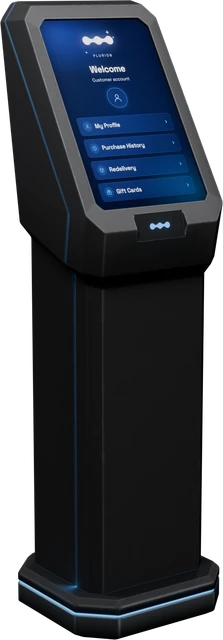
The Plurion Terminal is an object you put in your shop for your customers. They touch it and pick one of three things: open their own page at your shop, add store credit for themselves, or send store credit to someone as a gift. It saves you most “I lost my item” messages: customers get their purchases delivered again by themselves.
Not to be confused with the Merchants Terminal at Plurion HQ, where you signed up and pay your plan: that one belongs to Plurion. This one is yours, and it comes in your Starter Pack (see Your Plurion objects).
In your inventory — rez itPlurion [Terminal]
A customer touches the terminal
Access my page — their purchases, store credit and support requests
Buy credit — adds L$ to their own store credit at your shop
Allow two minutes, and stay in the terminal’s region until the end: Second Life only shows the DEBIT window to an owner who is in the region.
In Second LifeRez Plurion [Terminal] where customers will see itNear your entrance or your redelivery corner. It starts on its own; after a few seconds, red floating text appears above it: “NOT LINKED - touch me for your link”.
In Second LifeTouch it and open its linkYour viewer offers to open “Link this terminal to your shop” (the link is in your chat too). Click Go to page.
On the webConnect it to your shopSign in if asked, as the avatar who owns the terminal. With one shop, the page connects it by itself. With several, choose the shop under Link it to, then click Connect to ….
In Second LifeAccept DEBITBack in Second Life, within half a minute your chat says “linked: ready for customers.”, the floating text turns into “Paused: accept DEBIT” and Second Life asks you to let the terminal take L$ from your account. Click Allow access. The terminal only uses it to pay your split partners and Plurion’s fee when a customer buys credit, and to refund a payment it had to refuse — more on DEBIT.
Reading your terminal: the floating text says what to do
You see
Do this
No DEBIT window, or customers hear “payments are paused here for now.”
Touch the terminal yourself, while you are in its region: as long as DEBIT is missing, each of your touches asks again. Click Allow access.
The page says “This object belongs to a different avatar”
Sign in with the Plurion account of the avatar who owns the terminal in Second Life.
The page says “This link has expired”
Links last 24 hours. Touch the terminal for a fresh one.
A touch opens this menu, with your shop’s name on top. The terminal serves one customer at a time: anyone who touches it meanwhile hears “busy, touch me again in a moment.”
The terminal’s menu, as you — the owner — see it
To pay, the customer follows the terminal’s instruction — “Right-click me > Pay …” — and types any amount. Each step waits about a minute and a half; after that the terminal says “session expired, touch me to start over.”
Opens the customer’s own page at your shop, in their browser: their purchases from you, with redelivery where you allow it; their store credit and your online shop to spend it; their support requests. No account, no password: each touch makes a fresh link that works once, for 15 minutes, for that customer only — so a public terminal never shows anyone else’s history. See The customer hub.
The customer adds L$ to their own store credit at your shop. Once they have paid, their chat confirms: “L$100 added to your store credit at Aurora. Balance: L$100. Spend it: Access my page.” The L$ are real and reach you at once: the payment shows in Sales as a Top-up. They spend the credit later in the Online shop section of their page.
The customer types the recipient’s username — first.last, like jane.doe, not their display name — then confirms the name the terminal shows (“Gift to …?” → Confirm), adds a message or types skip, and pays any amount. The recipient gets an IM with no link in it — “🎁 Robin sent you L$500 store credit at Aurora! Spend it on your Plurion page.” — and the credit waits on their account. The buyer gets a card link to share. The full story: Gift cards & store credit.
Credit bought here — for oneself or as a gift — is real L$, in your account at once. At that moment the terminal also pays your shop-wide split partners and, on the Free plan, Plurion’s 5%. Spending the credit later moves no more L$.
A customer pays L$100 at the terminal
L$100 of store credit on their balance, and a Top-up in your Sales
At once, the terminal pays L$10 to your partner and L$5 to Plurion
You keep L$85
L$100 of credit — Free plan, one 10% shop-wide partner
Split rules set on a single product are not paid on credit: nobody knows yet what it will buy.
A customer you banned can’t buy credit, send a gift or receive one at your terminal. Buying credit and naming a banned recipient are refused before any money moves; a banned customer who pays for a gift is refused and refunded on the spot. A customer banned at level 2 or 3 can’t get a link to their page either — the terminal answers “error 403, tell the shop owner.” See Banning a customer.
Wrong shop, or want to start over? Touch the terminal → Reset identity, then touch it again for a fresh link and choose the right shop. The terminal has no page on the dashboard: this button is the way. Gifts and credit already sold stay recorded.
One more terminal: Shift-drag a linked terminal (or Take Copy and rez the copy) in the same region. The copy becomes a second terminal of the same shop, with nothing to link — just accept DEBIT for it.
Moving it: take it into your inventory and rez it again — it stays the same terminal. In another region a copy isn’t recognised as one; rez a new terminal from your Starter Pack folder there instead.
Giving it away: a terminal you give or sell forgets your shop and starts over for its new owner.
If you still have the old redelivery terminal or gift kiosk
They keep working, so nothing breaks while you switch. But each does only one of the three things: next time you tidy the shop, rez a Plurion Terminal in their place.
Yes. Once DEBIT is accepted, it runs without you. You only need to be in the region to accept DEBIT, or to touch it for a link.
Do my customers need a Plurion account?
No. Access my page signs them in by itself, for your shop — there is nothing for them to sign up for.
11More in-world objects · 12 min read
Gacha machines
A machine that sells a random prize from your catalog. Every pull is a real sale, delivered by your DropBox — and never redeliverable, which is the whole point.
In the appMarketing → Gacha
A gacha machine sells chance. A shopper pays a fixed price and gets one of the prizes you loaded, at random: common ones often, rare ones rarely. Every pull is a real sale, delivered by your DropBox. Linden Lab has allowed gacha machines again since May 2025, and a Plurion machine shows its odds to anyone who asks.
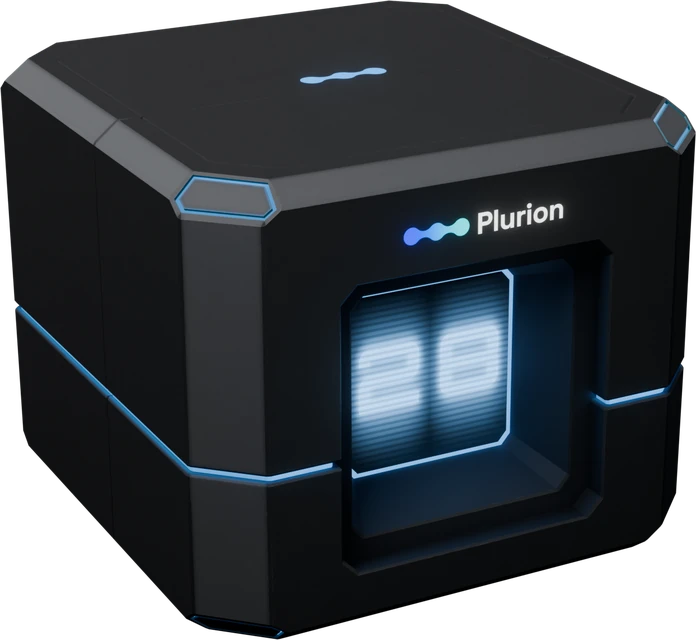
In your inventory — rez itPlurion [Gacha]
A shopper left-clicks the machine and pays its price
The server rolls against your odds
The pull is recorded as a real sale
Your DropBox delivers the prize, usually within seconds
What one pull does
The roll happens on the server, never in the object — nobody can influence it from in-world, and the odds you publish are the odds that run.
In Second LifeRez Plurion [Gacha]Drag it from your inventory onto your land. Its screen says “This machine is empty”: normal, it is waiting for setup.
In Second LifeAccept DEBITRight away, Second Life asks you to let the machine take L$ from your account. Click Allow access: without it, the machine never shows a Pay button. It uses it to refund a wrong payment and to pay your partner and Plurion’s commission, nothing else — more on DEBIT.
In Second LifeTouch it and open its linkYour chat says “registered. Touch the machine to get your claim link.” Touch it: your viewer offers to open “Link this gacha machine to your Plurion dashboard”. Click Go to page.
On the webConnect it to your shopSign in if asked, as the avatar who owns the machine. With one shop, the page connects it by itself; with several, choose the shop under Link it to and click Connect to …. You land on the machine’s page.
On the webName it, price it, add prizesIn Gacha settings, fill in Gacha name (it also feeds the prize suggestions) and Price per pull, then click Save changes. In Gacha composition, click Add prizes and pick at least one prize. With a price and a prize, the machine switches itself on.
In Second LifeLet it syncThe machine picks up your settings within five minutes — or touch it and choose Sync now. Its screen flips to “This machine is synced”.
The machine’s screen: empty until five things are true
You see
Do this
Your chat says “payments paused: DEBIT permission refused. Reset the script and click Allow.”
Take the machine into your inventory and rez it again: it asks again, and it stays the same machine — prizes and price kept.
The page says “This machine belongs to a different avatar”
Sign in with the Plurion account of the avatar who owns the machine in Second Life.
The page says “This link has expired”
Links last 24 hours. Touch the machine for a fresh one.
Click Add prizes in Gacha composition (once the machine has prizes, it is the + button at the top). The window lists your catalog, topped by “Suggested for …”: the products whose names match the machine’s. Nothing is added until you click it.
It also lists objects in your DropBox that are not products yet, marked from DropBox. Adding one creates a simple product for it, named after the object and priced at the pull price — no product page to write first.
Each prize has its own on/off switch, and a prize marked product unavailable (its product was deleted or archived) can’t be won until the product is back. Drag a row by its handle to reorder the list — the machine reads its odds out in that order.
The rarity badge is not something you type: it follows the odds. It is a prize’s chance next to the most likely prize of the machine — half as likely reads Uncommon, a quarter Rare, a tenth Ultra Rare, a twentieth Legendary. Equal chances everywhere means every prize is Common: nothing is rare when everything is equal. Pick a rung in the Rarity menu to set a prize’s weight on it; drag the slider afterwards and the badge moves with it.
The composition panel — five prizes, their rarity and their chance
Rarity
Its chance, next to the most likely prize
Reads as
Common
the same
The baseline — the most likely prize, or all of them when chances are equal
Uncommon
half
Half as likely as the most likely prize
Rare
a quarter
A quarter
Ultra Rare
a tenth
A tenth — the tag SL collectors know
Legendary
a twentieth
The chase item
The same menu has Note…: a private reminder on a prize. Buyers never see it — only the badge and the % reach them.
Tag 8 Common, 2 Rare and 1 Legendary that way, and you get:
~11.7% eachthe eight Common prizes
~2.9% eachthe two Rare prizes
~0.6%the Legendary one
Adjust any gauge from there. Equalize puts every weight back to the same value, and each gauge’s colour — green down to red — shows at a glance whether your rare prizes are really rare.
Why those numbers — and a trick with 100
A prize’s chance is its weight divided by the total of all weights. Weights are relative, so 100/100/100/5/5/5 behaves exactly like 20/20/20/1/1/1. Above: 8×100 + 2×25 + 5 = 855, and 100 ÷ 855 ≈ 11.7%. The big percentage beside each gauge is the real chance a buyer faces, live as you drag.
Bring Total weight to exactly 100 and it turns green with a check: from then on, each slider position is the percentage. Only a convenience — any total works.
Under each prize the page estimates how many pulls and how much money it takes to win it on average. Treat it as the average it is: a player can hit a 1% prize on their first pull or not see it in two hundred. To try your odds without paying, click Simulate pull in the Preview card: it rolls the same dice as a buyer, and nothing is sold or recorded.
One price per pull, whatever comes out. Discounts, promo codes and loyalty offers do not apply to pulls.
When you change the price, the prizes the picker created for you — still at the old pull price — follow it in your catalog. A prize with its own price never moves: a product you added from your catalog, or one you priced yourself, keeps exactly what you gave it.
A pull lands in Sales like any other purchase — buyer, prize, price — marked with a small dice, and it counts in your totals and customer records. Delivery goes through the same pipeline as a vendor sale, with the same retries and DropBox failover.
A machine can pay one partner a share of every pull — the creator who made the collection, or the sim owner hosting your event. In the Revenue split card, click Add a revenue split, type the partner’s avatar name and pick them, set their Share (%) (1 to 90) and click Save split. The card then shows what they get per pull at your current price; each pull pays it to them in L$ in-world, and they see it in My Earnings.
On the Free plan, every pull also pays Plurion’s 5% commission, as its own transfer. The rules on your Splits page never apply to pulls: a machine pays only its own partner, plus that commission.
Once it sells, a left-click opens Pay right away, with a single button at your price. A curious shopper can right-click it and choose Touch: the machine answers that person only — “[Aurora Street Gacha] Pay L$50 for a random prize! (left-click → Pay)”, then the odds if Show odds in-world is on. It never chats at people who did not ask.
One pull, from the shopper’s click to your dashboard
Announce wins in local chat is on by default — the classic buzz around a busy machine. Turn it off for a quiet corner: only the winner then gets a line.
Your owner menu
Once the machine sells, a left-click opens Pay for you too. For your menu, right-click the machine and choose Touch:
Right-click → Touch: the owner menu
Edits you make on the dashboard reach the machine within five minutes; Sync now fetches them at once — handy after fixing a price in front of a customer.
A pull either delivers or refunds. When the machine can’t sell, it gives the L$ back on the spot and tells the shopper why: they paid a different amount, the machine was switched off or ran out of prizes in the meantime, too many pulls were in progress at once (“the machine is busy”), or Plurion could not be reached after several tries. An interrupted pull picks up where it stopped instead of charging twice: one payment, one prize.
Linked to the wrong shop, before any prize or pull? On the machine’s page, in Wrong shop, or prim gone?, click Release this machine, then touch the machine for a fresh link and choose the right shop. Once it has prizes or pulls it can’t be released — its prizes belong to this shop’s catalog and DropBox: rez a new machine for the other shop.
Start over, or remove a machine:Reset identity in your owner menu, or Delete this machine on its page. Past pulls stay in Sales; the prim, if it still exists, comes back as a new, empty machine with a fresh link. Release and Delete are for the shop owner and admins only.
An Offline badge on the Gacha page means the machine hasn’t checked in for 15 minutes: check it is still rezzed, then touch it and choose Sync now.
Copies: Shift-drag a linked machine (or Take Copy and rez it) in the same region: the copy becomes a second machine on your dashboard, starting with the original’s prizes, price and settings — accept DEBIT for it too. In another region a copy isn’t recognised as one; rez a new Plurion [Gacha] from your Starter Pack folder there instead.
Yes. Every pull is an independent roll — there is no bag being emptied. Commons come out repeatedly, which is exactly what makes the rare ones feel rare.
Why only one partner?
A machine keeps its partner on its own page, so a rule on your Splits page never starts taking a cut of your pulls. Several partners live on ordinary vendors; if you need them on a gacha, tell us on Discord.
What happens if I remove a prize while the machine is selling?
It stops being winnable immediately and the remaining chances rebalance. Pulls already sold keep their history — a past sale always shows the prize that actually came out.
Are gachas allowed in Second Life?
Yes. Since May 2025 Linden Lab allows gacha sales again, and the prizes’ permissions are your choice. Showing the odds (Show odds in-world, on by default) is what makes a machine trustworthy.
12Sell more · 8 min read
Your online shop
Choose how your online shop looks to your customers, publish it, and keep items exclusive to an in-world event for a while.
In the appCatalog → Storefront
Your online shop is the page where customers buy your products from the web, with store credit, and receive them in-world from your DropBox. It lives inside each customer’s customer hub, not on a public website, and it already exists with default settings. The Storefront page decides how it looks and which items stay exclusive to an in-world event.
Store credit only, no L$ checkout on the web. Customers buy credit at your Plurion Terminal, or receive it as a gift sent from one. Without a Plurion Terminal in your shop, nobody can get credit to spend here.
Who sees it: anyone who opens their page from your Plurion Terminal (Access my page), and every customer who has bought from you, received credit from you or opened a ticket with you.
Your regular price. Scheduled discounts, promo codes and loyalty offers apply only at your in-world vendors (where reductions apply).
Delivered in-world by your DropBox, like a vendor sale. If the item can’t be delivered, the credit goes back to the customer automatically.
On the webOpen the pageIn your dashboard, open Catalog → Storefront. Settings are on the left, in four tabs. On the right, Preview · what a customer sees is your real page, with your real products.
On the webChange what you likeEach change saves on its own as a draft: you see Saving…, then Saved. Customers don’t see it yet, and the pill at the top reads Unpublished changes.
On the webPublishClick Publish: customers see the new version on their next visit. To throw the draft away instead, click Revert to published. Open full view shows the preview full size.
Come from your shop’s Settings: click Edit in Settings to change them (Shop settings). The online shop never has a second logo.
Tagline
One line under your name, 80 characters.
Shop colour
Tints the buttons, prices and highlights of your online shop only. If it says Too hard to read on the dark cards, pick another colour: Publish refuses it.
Banner
None, Preset 1 to Preset 3 (they follow your colour), or an image you upload. Wide images work best.
Announcement
Switch on Show an announcement for a one-line message under the banner, 160 characters.
Creator's note
A few lines next to your featured item, 400 characters. Plain text: links stay plain text.
Inworld store
Switch on Show my inworld store and paste your store’s map link (SLurl), with an optional label. Customers get a Visit in Second Life link.
A map link (SLurl) is the web address of a place in Second Life, like https://maps.secondlife.com/secondlife/Region/128/128/25. Copy it from your viewer’s World Map (Copy SLurl) or from maps.secondlife.com. Plurion keeps the region and coordinates, and always rebuilds a link to the Second Life map.
Layout → Cards. Picture shape (Square, Portrait, Wide), Density (Large, Standard, Compact: 2, 3 or 4 columns on a computer, always 2 on a phone) and Corners (Sharp, Soft, Round).
Layout → Sections. The order of Featured item & creator note, Events, Next drop and Full catalog: drag them or use the arrows, and the eye hides one. A section with nothing to show stays out of the page on its own.
Sections → Featured item. One product shown large, with a badge (FEATURED by default) and a short note. If it can’t be bought online right now, its card doesn’t show and the tab tells you why; your creator’s note still shows.
Sections → Next drop. A label, a date and time in SLT, and a note. Customers see a countdown, which disappears on its own when the time comes.
Clicking a product opens its sheet: picture, name and price, the permissions they will get, your description, and one action button. You write the description and tick the permissions on the product’s page, under Online shop (next owner permissions): Plurion shows what you declare, it doesn’t read the object. In your preview the sheet opens too, and buys nothing.
The button reads
When
Buy L$ 100
They have enough credit.
L$ 30 short
Not enough credit. The sheet tells them to buy more at your Plurion Terminal.
On its way…
Right after a purchase, until the delivery is confirmed, even if they reload the page.
Redeliver
They already own it and redelivery is on for that product.
Owned badge, and Buy
They own it, but you turned redelivery off for that product.
TP to buy
The item is exclusive to a running event (badge EVENT ONLY). The button opens the event’s place on the Second Life map; without a map link it reads “At” and the event name.
Releasing a piece at an in-world event first? Link it to an event: it disappears from your online shop until the event opens, shows as EVENT ONLY with TP to buy while it runs, and comes back on its own afterwards.
On the webAdd the eventOn Storefront, open the Events tab and click Add event. Give it a Title and an opening time, Opens (SLT).
On the webChoose how long it runsDuration: 2 weeks, 1 month or Custom end. An event lasts 90 days at most and opens within a year.
On the webLink the items and createTick them under Linked items. Add the Event location (SLurl) for the TP to buy button, and if you like an Image and a Note. Click Create event: it applies at once, no Publish needed.
When
What customers see online
Before it opens
The linked items are hidden everywhere in your online shop and can’t be bought with credit. The event card can already announce it.
While it runs
The items show EVENT ONLY and TP to buy. Buying them with credit is refused; a customer who already owns one keeps Redeliver.
After it ends
Everything comes back on its own. Nothing to switch off.
The tab lists your events under Live, Upcoming and Ended. An event with no linked item is just an announcement card. Deleting one (the bin icon on its row) frees its items at once.
Do my customers see the online shop before I publish anything?
Yes, with the default settings: a preset banner, your name and logo, and every product that meets the three conditions above. Events apply even if you never publish.
A customer says the price online is higher than at my vendor.
A scheduled discount is probably running: it lowers the price at your vendors only. Online, products always sell at their regular price (where reductions apply).
Why aren’t my gacha prizes in my online shop?
Products created for a gacha machine start with List in your online shop switched off, so nobody can buy a rare prize without playing. Switch it on for the ones you do want to sell online.
Can customers see my sales, or how many people own an item?
No. The online shop shows prices and what the customer looking at it owns, nothing else.
13Sell more · 6 min read
Scheduled discounts
Put your whole shop, or a few products, on sale for a set time: your vendors show the lower price, then go back on their own.
In the appMarketing → Discounts
A scheduled discount is a sale with a start and an end. You set it once in the dashboard: at the start your vendors show the lower price and customers pay it; at the end prices go back to normal on their own. Your regular prices are never overwritten, and there is nothing to do in-world.
At your Plurion vendors only. Not in your online shop, which always sells at the regular price, and not at gacha machines.
Two discounts never add up. If two cover the same item, one of them wins (which one).
A promo code or a loyalty offer adds to a running discount. A percentage is worked out on the regular price, not the sale price, and the vendor sends that part back right after the payment. In total, a buyer never gets back more than they paid.
Sending money back uses DEBIT. Those refunds are what your vendor’s DEBIT permission is for. A vendor without it doesn’t sell at all.
On the webOpen the formGo to Marketing → Discounts and click Create your first discount. Later it is New discount, or a shortcut such as Weekend −20% that fills the form for you.
On the webName it and set the amountThe name is for you: buyers never see it. Choose % (1 to 99) or L$, and type the amount. Just below, the preview shows your real prices before → after.
On the webChoose the scopeShop-wide covers every product. Specific products lets you tick the ones on sale.
On the webSet the dates and createBy default it starts now and runs 7 days. Change Starts at and Ends at (in your computer’s time zone), or click 24 hours, 7 days or Weekend. Then click Create discount.
The form says “The discount must be below the price of …” → a fixed L$ amount can never make an item free. Lower the amount, or untick that product. With Shop-wide, items priced at or below the amount simply keep their price.
One vendor still shows the old price → it probably appears as Unreachable on Vendors (vendor health). Nobody is charged wrongly in the meantime: its next sale is checked against the right price and updates it.
Your vendors switch to the sale price within about a minute of the start, and back within about a minute of the end. A buyer caught in that minute is protected:
Paid the old, higher price just after the start? The sale goes through at the sale price, and the vendor sends the difference back.
Paid the sale price up to 3 minutes after the end? The sale goes through at that price.
If you pause a discount or stop it with End discount, there is no grace period: a payment at the old sale price is refused and refunded in full.
Two discounts never add up. If a shop-wide and a product discount both cover an item, the product one wins; between two of the same kind, the older one wins. The form warns you with “Overlaps an existing discount” and names it. A promo code or a loyalty offer, on the other hand, does combine with a discount (how).
Statuses.Scheduled, Active, Paused, Ended (its window has passed) and Cancelled (you stopped it).
Pause and Resume — on its row, or on the card of the discount running. While paused, new sales pay the regular price; you can resume until its end date.
End discount on its row (or End now on the running card) stops it for good, and also cancels a scheduled one before it starts. This can’t be undone.
To change one, click Duplicate (copy icon): the form opens filled in, only the dates start again from now. Adjust, click Create copy, then end the old one. A discount can’t be edited in place.
Archive works on finished discounts only: it moves them to the Archived tab, where Restore brings them back. Nothing is deleted.
Results. Each row shows the revenue made during the discount and its number of sales. Click a discount (or View performance on the running one) for the detail and a curve over its window.
Not in place. Click Duplicate, set the new end date, create the copy, then end the old one.
Does my vendor show “SALE” anywhere?
No: only its price changes. Announce your sale yourself, with a group notice or a sign in your shop.
Does the discount apply in my online shop?
No. The online shop always sells at the regular price, and gacha machines keep their own price.
14Sell more · 6 min read
Promo codes
Codes your customers type on a vendor to get money back on their purchase: one public code for everyone, or a personal code for one customer.
In the appMarketing → Codes
A promo code gives one buyer a reduction at one vendor. The vendor keeps showing the regular price: the buyer types the code in a box on the vendor, pays, and gets the discount back in L$ right after. You create codes under Codes in your dashboard. To compare with discounts and loyalty offers, see which tool for which sale.
On the webOpen the formGo to Marketing → Codes and click Create your first code (later: New code).
On the webWhat is the code?Type the Code: letters, digits, ._-, and buyers can type it in any case. Choose the Discount in % or L$. Applies to is Whole shop unless you pick Specific products. The Description is for you only.
On the webWho can use it?Anyone, or One avatar: type their name and Plurion finds the avatar.
On the webAny limits?All optional (see the table below). Then click Create code.
Limit
What it does
Minimum purchase
The item’s regular price must reach this amount. Useful with a fixed L$ code, so “L$50 off” can’t make a L$40 item free.
Max uses (total)
How many times the code can be used, all customers together. Blank = unlimited.
Max per customer
How many times each avatar can use it. The default, 1, means one discounted item per customer: raise it if a customer may use the code on several items.
Limit to a time window
Tick it for Starts at and Expires at (your computer’s time zone). Unticked, the code is active at once and never expires.
In Second LifeRight-click the vendor → PromoOn the vendor of the item they want. A left click pays straight away, so the code comes first.
In Second LifeType the code → SubmitThe vendor answers privately in local chat, for example “Code SUMMER25 accepted: pay L$500 on this vendor and L$125 comes back right after (L$375 in the end).” If the code can’t be used, the sentence says why (table below).
In Second LifePay on the same vendorA left click, and pay the price shown. Right after, the vendor sends the discount back and says “Thanks! Aurora Jacket is on its way. Refunded L$125.”
The code counts for the vendor it was typed on, and for the next payment there. For a second item, the customer types it again on that item’s vendor, which works only if Max per customer allows it. Typing a code only checks it: a use is counted when the customer pays. Sending the discount back uses the vendor’s DEBIT permission.
“Code SUMMER25 doesn't apply to an item at this price.”
The price is under Minimum purchase.
Lower the minimum.
“Code SUMMER25 isn't valid.”
A typo, a revoked code, or a code reserved for another avatar. The box never says which, on purpose.
Check the spelling and who the code is for.
“Can't check the code now, try again.”
A passing hiccup.
Ask them to try again in a moment.
If a code runs out between the moment it was typed and the payment (the last use went to someone else), the sale still goes through at the price paid, without a refund, and the vendor’s thank-you line says “promo not applied”.
Edit (the pencil on its row): change the amount, the products, the assigned avatar, the limits and the dates. Only the code itself and its type (% or L$) are fixed.
Pause: in Edit, set Status to Paused, and back to Active to resume.
Revoke (the cross): disables the code for good; past uses stay in your sales history. A revoked code keeps its name, so to bring a code back, create one with a new name.
Follow it. The tabs Live, Personal, Paused and Ended sort your codes. Click a code to see who used it and when; each sale’s detail in Sales shows the Promo code used.
My customer’s right-click menu shows “Touch”, not “Promo”.
That vendor isn’t selling right now: no product or price yet, or DEBIT not accepted (it shows “Paused: accept DEBIT”, see DEBIT). Or its script predates the code box (version 0.8.8): use a Plurion [Vendor] from your Starter Pack.
Do codes work in my online shop or at gacha machines?
No. Codes work only at your Plurion vendors.
During a discount, the code’s answer quotes the regular price. Is that right?
Today the box’s sentence is worked out on the regular price. The Pay button shows the real, discounted price, and the code’s refund comes on top: a L$100 item at −20 % with a 10 % code is paid L$80, then L$10 comes back (how reductions combine).
15Sell more · 5 min read
Loyalty offers
Reward returning customers automatically: a discount for those who already own one of your products, or a free item with a purchase.
In the appMarketing → Loyalty
Loyalty offers reward your customers in two ways. In discount mode, a buyer who already owns one of your products gets money back on another. In gift mode, a buyer who buys one product also receives another, free. Everything happens at your vendors when they pay: the customer has nothing to type. To compare with discounts and promo codes, see which tool for which sale.
Bought Aurora Boots from you earlier
Buys Aurora Jacket at your vendor and pays the regular L$300
#Discount mode: owns one product → money back on another
The discount is a percentage or a L$ amount on the products you choose. The vendor shows the regular price; the buyer pays it, and the vendor sends the discount back right after (“Thanks! … is on its way. Refunded L$60.”), using its DEBIT permission. That line doesn’t name your offer, and nothing announces it before the payment: advertise it yourself, or it will reward people without bringing new sales. If several offers could reward one purchase, the buyer gets the largest saving; on a tie, the older offer wins.
Here the trigger is the purchase itself, so it works from a shop’s very first sale. The free product is delivered with the paid one, by the same DropBox system, at no cost in L$. It goes to whoever receives the purchase: the recipient, when the trigger was bought as a gift.
Before you start: the free product must be Active, and its item must sit in a DropBox that is online (it needs no vendor). Otherwise the paid item still arrives, but the gift doesn’t.
In your sales, the gift is recorded on the sale that triggered it, not as a separate L$0 sale: the row shows a loyalty gift badge, and its detail lists the Loyalty gift.
If several gift offers share a trigger, each free product is sent once.
Choose the reward first: it renames the cards above
On the webOpen the form and name itGo to Marketing → Loyalty and click Create your first offer (later: New offer). Fill in the Offer name: buyers never see it.
On the webChoose the reward firstIn the card Define the reward, under They get: % or L$ for a discount (type the amount), or Gift for a free item. The two cards above rename themselves to match.
On the webPick the trigger productsFirst card: If the buyer already owns (discount) or When the buyer buys (gift). Owning, or buying, any one of them is enough.
On the webPick the reward productsSecond card: The reward applies to (the products discounted) or They receive free (each one is sent free).
On the webSet the dates and createTick Limit to a time window to give it dates (30 days by default); unticked, it runs until you pause or cancel it. Then click Create offer.
Reach (discount offers only), under the first card, counts how many of your customers already own a trigger product. At 0 it shows “Nobody owns these yet”: nobody qualifies today, and the offer starts working as soon as someone buys a trigger product, or once you import and map your old sales. For a gift offer, ignore Reach.
Results. Each row shows the revenue of the sales the offer rewarded, with “N sales · M buyers”. The tiles at the top add up Loyalty sales, Returning buyers and Revenue generated.
Pause stops an offer for a while, Resume brings it back. Cancel offer stops it for good.
An offer can’t be edited: to change one, create a new one and cancel the old. A finished offer can be removed from the list; its history is kept.
My shop is new and Reach says nobody owns anything. Where do I start?
With a gift offer, which works from the first sale. A discount offer needs customers who already bought from you, through Plurion or in imported history.
Do offers apply in my online shop or at gacha machines?
No, only to purchases at your Plurion vendors. A purchase made in your online shop does count as owning the product, though.
Does a loyalty offer add to a promo code or a discount?
Yes. A percentage is worked out on the regular price, and the total sent back never exceeds what the buyer paid; if it would, the loyalty part is reduced first (how reductions combine).
16Your customers · 6 min read
Customers
Everyone who bought from you, what they spent, and the tools to help one of them — or ban them.
In the appPeople → Customers
Every avatar who buys from you gets a customer record on its own: there is nothing to set up. Use this page to see who your buyers are, send an item again to someone who lost it, and block someone who causes trouble. An avatar you ban before they ever buy also appears here, with no purchases.
The page opens on five cards, counted over all your customers. Three of them filter the list when you click them; click again to clear.
Card
Who it counts
Click it
VIP customers
Your top 10 % by what you received. It needs at least 10 paying customers — until then it reads “needs 10+ paying customers”.
Shows your VIPs
VIP going cold
VIPs with no purchase for 90 days, with the L$ they spent with you.
—
Anniversary soon
Customers whose first purchase was a year or more ago, with the anniversary in the next 30 days.
—
New this week
First purchase in the last 7 days.
Shows New (last 30 days)
Lost customers
No purchase for over two years, with what they spent before.
Shows Inactive (90 days)
The chips under the search box filter the same way: VIP, Loyal (5 purchases or more), New (first purchase in the last 30 days), Returning (last purchase 30 to 90 days ago) and Inactive (no purchase for 90 days). With only a few buyers, most cards read 0 — that is normal.
Each row shows the avatar, their purchases, their spend and First seen / Last seen — their first and latest purchase (store visits are in Visitors). The Gross / Net switch picks what the spend column shows: what the customer paid you, or what you actually received. Search looks through all your customers, not just the rows on screen, and Sort by orders them by lifetime spend, purchase count or last seen. A cyan in store pill means one of your visitor counters has seen that customer in the last 15 minutes.
Click a customer and a quick view opens on the right, without losing your place in the list: Sales, Spent and You got, the channels they bought through, their favourite product and their ten latest purchases. For everything else, click View full profile at the bottom — or Ctrl-click (Cmd-click on a Mac) their name to open the profile in a new tab.
One click opens the quick view; the full profile is one more click away
The full profile shows Purchases, Total spent, You received, Customer since (their first purchase), a Store credit card when they hold a balance, then every purchase, newest first. Sales imported from another system sit in the same history.
Redeliver on a purchase of the full profile (Send in the quick view) sends the item again from your DropBox, free. It appears on sales made through your Plurion vendors.
Share redelivery link, at the top of the profile, copies a link to their own page at your shop, where they can get every item they are allowed to again — imported purchases included once the product is mapped. It works once, within 15 minutes: send it while they are online, and tell them it comes from you.
Both are for the owner, admins and CSRs. Managers can open Customers but not send anything.
When an avatar is a problem — a scammer, a chargeback, harassment — you can ban them. A ban is per shop: no other merchant sees it or is affected. The levels add up: each one keeps everything the level before it blocks.
Level
What it blocks
In practice
Level 1
New purchases
They can’t buy from your vendors, buy credit at your Plurion Terminal or spend credit in your online shop. If they pay a vendor anyway, their L$ go back to them automatically.
Level 2
+ Redelivery and product updates
They can’t get an item again on their own page, you can’t redeliver to them, and they are left out of product updates.
Level 3
+ Your land
When one of your visitor counters sees them on land owned by your avatar, they are ejected with a private message.
One exception today: gacha machines don’t check bans, so a banned avatar can still play them.
Two ways to ban
From a profile — click Ban (or Manage ban if they are already banned), pick a level, add a reason if you want (only your team sees it), then Ban. The profile shows “Banned · Lv N”. To lift it: Manage ban → Unban.
Before they ever buy — on Customers, click Ban an avatar and type their name. Plurion looks it up in-world, which can take up to a minute; if it finds nothing, paste the avatar’s key (UUID). Only Level 1 and Level 3 are offered: blocking redelivery means nothing for someone who never bought.
Banning and unbanning are for the owner and admins.
If a buyer asks to be forgotten (GDPR), open their full profile and use Erase purchase proof at the bottom. It deletes their proof of purchase for your shop, so they can never get those items again through Plurion. Your sales records stay as they are — revenue and split history are untouched. You type their name to confirm, then Erase permanently. It can’t be undone, and it is for the owner and admins only.
Only when they try, and they are not told why. A vendor refunds them with “Sorry, the sale failed - your L$ are returned.”, and you get an IM: “payment rejected (403) - buyer refunded”. A Level 3 ejection comes with a private line: “You are banned from this shop and are being removed.” Nothing is announced to anyone else.
I clicked New this week and the list shows more people than the card. Why?
The card counts first purchases in the last 7 days; the filter it switches on, New, keeps the last 30 days. Same for Lost customers (two years) and the Inactive filter (90 days). Filters also apply to the customers loaded on the page — the top 200 for the current sort; search finds anyone else.
A customer changed their avatar name. Is their history lost?
No. Everything is tied to the avatar itself, not to the name: the history follows and the new name shows up on its own.
Why does a customer show purchases I don’t recognise?
History you imported from another system joins the same profile as your Plurion sales, so a buyer you brought over arrives with everything they bought from you before. See Sync your catalog.
17Your customers · 5 min read
The customer hub
The page your buyers use to get an item again, spend their credit and write to you — and what to tell them about it.
In the appYour customers’ side: app.plurion.io/me/login (not in your sidebar)
Your customers have their own Plurion page: their purchases from you, each with a button to get it again, their store credit, and their support tickets. You set nothing up — it exists from their first purchase. Their Second Life avatar is the account: no email, no sign-up.
The account belongs to the avatar, not to your shop. Someone who bought from three Plurion shops sees all three after one sign-in, each kept separate.
Your terminal opens your shop; the sign-in page opens all their shops
Way in
What they do
Best for
Your Plurion Terminal
They touch your Plurion [Terminal] and choose Access my page. A link valid 15 minutes opens their page at your shop. No terminal yet? See The Plurion Terminal.
Someone standing in your shop.
A code by IM
At app.plurion.io/me/login they type their avatar name and choose Code by IM. An IM arrives at once: “Your Plurion login code: … — expires in 10 minutes. Never share this code.” They type the eight digits and click Verify code.
Coming back later, from anywhere — as long as they are logged into Second Life.
A password
Optional. Once signed in with a code, they set one in Account settings. Then avatar name + Password works from anywhere.
Someone who isn’t in Second Life right now.
Another way in comes from you: on their profile in Customers, Share redelivery link opens the same page as the terminal and works once, within 15 minutes — see Helping a customer.
It depends on the way in. From your terminal or your link, they land straight on their page at your shop — and only your shop: to see their other shops, they sign in with a code or a password. From the sign-in page, they land on their shop list: what they have spent across all Plurion shops, their purchases, credit and open tickets, then Shops you buy from, one row per shop. Clicking your shop opens their page at your shop.
A side menu with three sections and a Report a problem button. Here is what your customer sees, so you can guide them word for word:
What your customer sees: Deliver to get an item again, Report to write to you
Purchases — every purchase from you, searchable. Deliver sends an item again; Report opens a ticket about that purchase. An imported purchase whose product you haven’t mapped shows where it came from (via Casper, via Marketplace, or imported for MD and Allomancy) instead of a button. Their store credit, when they have some, sits at the top, and the switch Receive product updates from … at the bottom.
Support — their conversations with you. See Support tickets.
Online shop — what they can buy with their credit at your shop. See Your online shop.
Most “where do I get my item?” questions disappear when buyers know the way in. Put a line like this in your landmark notecard, your group notice or a sign in your shop — and drop the terminal half if you haven’t rezzed one:
For your notecard or group notice
Lost an item, or have store credit to spend?
Touch our Plurion Terminal and choose Access my page,
or sign in at app.plurion.io/me/login with your avatar
name (a code arrives by IM - be logged in to SL).
A terminal link is a random code that works once, within 15 minutes, for the avatar who touched. After that, the session lives in a cookie, not in the address: a page copied or pasted in chat hands over nobody’s history. Every request is checked again: a customer only sees the shops they bought from, received credit from or opened a ticket with — there is no directory — and only their own rows.
They see nothing of your shop beyond their own purchases, and nothing you can’t already see in Customers.
No. They buy the way they always have; the account exists afterwards, because their avatar is the identity.
My customer says the code never arrives.
Check four things: the avatar name is typed correctly; they are logged into Second Life; they asked less than a minute ago (one code a minute, ten a day); and they have bought from, received credit from or written to a Plurion shop — for anyone else no code is sent, and the page doesn’t say so. Your terminal or a Share redelivery link gets them in meanwhile.
How long do they stay signed in?
Thirty days on the same browser, renewed each time they come back. Sign out ends it.
18Your customers · 7 min read
Gift cards & store credit
Customers offer store credit to another avatar at your Plurion Terminal; the recipient spends it in your online shop.
In the appMarketing → Gift Cards
A Plurion gift card is store credit for a named avatar, bought at your Plurion Terminal. The buyer pays any amount in L$; the recipient spends it on your products in your online shop, and your DropBox delivers. There is no card object to hand over, lose or resell: the credit belongs to the recipient's avatar from the moment it is paid.
The buyer pays your Plurion Terminal (any amount)
The recipient gets store credit and an IM (no link)
Everything happens at the terminal, in Second Life. This is what your buyer does:
In Second LifeTouch the terminal, choose Send a giftA left-click opens its menu, with three buttons.
In Second LifeType the recipient’s usernameTheir username, like robin.resident — not their display name. The terminal looks the avatar up.
In Second LifeConfirm, then add a messageClick Confirm under “Gift to Robin Resident?”. Type a message (up to 200 characters), or type skip.
In Second LifeRight-click the terminal → PayThe terminal says “Right-click me > Pay to gift Robin Resident.” Enter any amount and pay.
At the terminal — what your buyer sees
Then, within seconds:
The recipient gets an IM from the terminal: “🎁 Max Resident sent you L$500 store credit at Aurora! Spend it on your Plurion page.” There is no link, on purpose — a link arriving by IM looks like a Second Life scam. Offline? Second Life delivers the IM at their next login, and the credit waits anyway.
The buyer reads in local chat “Gift sent to Robin Resident! 🎁 Card to share: …” — a page that says “Max Resident sent you a gift”, to forward for the surprise. Its button only takes the recipient to sign in: the card itself can’t spend anything.
You get a Gift card sold row in Sales and a new line on the Gift Cards page.
Store credit is spent on the web, in your online shop — never at your in-world vendors. To reach their page for your shop (all the ways in), the recipient touches your Plurion Terminal and chooses Access my page, or signs in at app.plurion.io/me/login with a code Plurion sends by IM.
There, Online shop (or Spend it → on the credit banner) lists what they can buy. They pick a product, your DropBox delivers it like any sale, and the balance drops at once. Recent credit activity on their page lists every gift, purchase and refund, so the balance always adds up.
Someone paid at your terminal to give credit to another avatar.
Yes
Top-up
A customer bought credit for themselves — Buy credit at the terminal (more).
Yes
Store credit, tagged “credit use”
A customer spent their credit on a product.
No — you were paid when the credit was bought
Outstanding liability, on the Gift Cards page, is the credit your customers can still spend. You already have that money: it isn’t a debt you pay out in L$, it’s products you’ll deliver. Credit doesn’t expire. Where the money comes from has the full accounting.
If a product bought with credit can’t be delivered, Plurion puts the credit back automatically. Products missing from your DropBoxes aren’t offered in the first place; this refund covers the rare item that disappears in between. The customer sees it in Recent credit activity.
Outstanding liability — the credit customers can still spend (“money you already have, not a debt”).
Credit sold (lifetime) — everything sold at your terminals, gifts and top-ups. Redeemed — the share of it already spent. Average gift.
Credit sold vs spent · 6 months — the two curves, month by month.
By gift — your 100 most recent gifts: buyer → recipient, amount, message, date. By customer — who holds credit, filtered by Unspent, Partial or Spent. Click any row to see that customer’s credit history.
Why a gift can’t be misused
A terminal linked to your shop can only credit your shop: the shop comes from the terminal’s own signed identity, never from what a buyer sends. Nobody can use your terminal to top up a balance elsewhere. The terminal checks the recipient before it accepts any money, so a banned avatar can’t receive a gift and no L$ moves. And the shareable card spends nothing: only the recipient, signed in as their avatar, can.
No. Credit is spent only in your online shop, on the web. Your in-world vendors take L$ only.
Does store credit expire?
No. It stays on the customer’s account until they spend it.
A buyer wants their gift money back. What can I do?
The credit can’t be removed or adjusted from the dashboard. You can refund the L$ yourself in-world, but the credit stays on the recipient’s account — so settle it with both of them first.
Can I give a customer credit myself, as a make-good?
Not directly: credit only comes in by being paid for at your terminal. For a make-good, a personal promo code aimed at one avatar is the tool — see Promo codes.
19Your customers · 5 min read
Product updates
Send the new version of a product, free, to everyone who already has it — with a short in-world message.
In the appMarketing → Updates
You fixed a bug or added colours: Updates sends the new version to your past buyers, with an optional in-world IM. Nobody is charged — an update is never a second sale. Owners, admins and managers can send updates.
#Before you start: point the product to the new version
Plurion doesn’t store versions: an update sends whatever item the product delivers right now, from your DropBox. So the order matters:
In Second Life — put the new version (say Aurora Jacket v3) in your DropBox
Products → Inbox → Review update: the product now delivers v3, to new buyers too
Updates → Test send: you receive it first
Send to N buyers: everyone who has the product gets v3
A new version, in four steps
Step 2 is the one people miss: until you click Review update, the product still delivers the old item — and so would your update. See The Inbox.
On the webPick the product and what to sendIn Updates, choose the product. Under Delivery mode: Current version, Current + bonus item (pick the bonus among your DropBox items) or Message only.
On the webWrite a message (optional)Up to 250 characters, sent as an in-world IM. Click one of the ready-made messages to start from it.
On the webChoose whenSend now, Tonight 8pm SLT, Tomorrow noon SLT, Weekend kickoff (Saturday 7pm SLT) or Custom, up to 90 days ahead. For a test, keep Send now.
On the webSend a test to yourselfClick Review & send (Review test if nobody has bought it yet). Test send is already chosen: click Send test. It goes only to your shop’s main avatar, whose name is shown.
In Second LifeCheck it in Second LifeWithin a minute or two, the IM and the item arrive from your DropBox. Open the item: is it the new version?
On the webSend it to everyoneThe message box empties after each send, so write or pick the message again. Click Review & send, choose Send to N buyers, tick I understand this will notify N past buyers. and click Send to N buyers.
Test on yourself first; sending to everyone asks you to confirm
An IM with your message, then an inventory offer for the item (and the bonus), both sent by your DropBox — buyers see its object name, so rename the object in Second Life if “Plurion [Dropbox]” means nothing to them. They accept the item like any gift; offline buyers get both at their next login.
Everyone who received that product from you — for a gift, the person it was given to — including sales history you imported (CasperVend, MD, Allomancy or the Marketplace) once the product is mapped. Left out automatically: customers who switched off updates from your shop, and customers banned at Level 2 or 3. The review shows how many will be notified and the first five names.
Customers decide for themselves: the switch Receive product updates from … sits on their page at your shop (see their page). Turning it off only stops future updates; it never touches what they own.
History groups your updates by day. A scheduled update shows Queued and can be stopped with Cancel until it starts; it then goes Fanning out (building the list) and Sent. Click an update to see each recipient:
Recipient
What it means
What to do
Queued
Waiting its turn.
Nothing.
In flight
Your DropBox is sending it.
Nothing.
Retrying
A temporary problem (no DropBox live, a box not answering). Plurion tries again about once a minute, five times.
Make sure a DropBox is live.
Delivered
Sent: the item, the IM, or both.
—
Failed
Five tries failed, or the item isn’t in any live DropBox.
Fix the cause, then send a new update.
Updates go out in small batches — about twenty a minute at most — so a list of several hundred buyers takes a while. Nothing is stuck.
No — the product does. Once you have clicked Review update in the Inbox, every new sale delivers the new version, whether or not you send an update.
Can I resend only to the buyers who failed?
Not one by one. Fix the cause and send a new update: it goes to the whole list again.
A buyer declined the item. Can they still get it?
Yes. Deliver on their page at your shop sends them the product’s current version at any time — unless you turned redelivery off for that product.
20Your customers · 6 min read
Support tickets
A customer writes to you from their page, you answer from your dashboard, and the conversation stays tied to the purchase.
In the appPeople → Support
Support in Second Life is often an IM read too late or a notecard nobody opens. Here, the customer opens a ticket from their own page, you get an IM, and you answer from Support. The thread stays attached to the customer — and, when they pick one, to the exact purchase.
From their page at your shop (see The customer hub): they click Report a problem, can pick the order it is about under About an order (optional), write, and click Send. The Report button on one of their purchases opens the same form with that order already chosen. If they ask you in-world, give them the path: touch your Plurion Terminal → Access my page → Report a problem — or sign in at app.plurion.io/me/login.
Customer — on their page at your shop: Report a problem
You — an IM to your avatar, a push on your phone if you turned it on, the ticket in Support
You — reply, or fix it in one click
Customer — one IM: “Aurora replied to your support ticket”
Customer — reads your answer on their page
One ticket, both sides
Both IMs go out through one of your live DropBoxes.
A new ticket sends your avatar an IM — “New support ticket from …” — and a new message on a thread you have read sends “New reply from …”. If you turned on notifications on your phone, it buzzes too. When you reply, the customer gets one IM saying you answered, and no other until they have read it: each IM pauses your DropBox for about two seconds, so Plurion never sends a stream of them.
Four counters on top: Waiting on you (and how old the oldest is), Median first reply over tickets opened in the last 30 days, Resolved (7d), and Refunded (7d) — the L$ your personal codes gave back.
Then the tickets, newest activity first: customer, subject, a short reference like #A3F2, status, and how long it has waited on you. The left edge turns amber after 4 hours and red after 24.
Filter with Active, Unread, Resolved or All, search by name, subject or reference, or switch on Assigned to me.
A ticket: actions on top, the purchase, the thread, the fixes — and the customer on the right
(1) The top bar says how long the ticket has waited on you and holds Personal code, Redeliver and Mark resolved. (2) Ticket about is the purchase the customer picked, if any. (3) The thread, then the reply box. (4) The one-click fixes. (5) The customer: what they spent with you, their orders and tickets, what they asked for recently — with a Frequent claimer flag when it adds up — their recent purchases, each with its own Redeliver, and their past conversations. Use the menu at the top right to assign the ticket to a teammate, and ← Inbox to go back.
The reply box has two tabs. Reply goes to the customer. Internal note stays with your team: it shows in amber in the same thread, and the customer never sees it — their view is built separately, not filtered from yours. Use it for “third time for this buyer” or “already refunded in-world”. A note doesn’t change the ticket’s status and doesn’t notify anyone.
There is no screen to create saved replies yet, so every reply starts empty. Keep your usual answers — how to get an item again, sizes, which body it fits — in a notecard or a text file, and paste them.
Under the reply box, three buttons do the whole gesture: the action, a message to the customer, and marking the ticket resolved. Each asks you to confirm and lists what will happen.
Fix
What it does
Redeliver + resolve
Sends the purchase the ticket is about again from your DropBox (a failed delivery is retried), posts a short apology, resolves the ticket.
Send code + resolve
Creates a one-time personal code, locked to that avatar and valid 30 days: they pay full price at a vendor and get 5, 10, 15, 20, 25 or 50 % back right after — you choose. It posts the code with the instructions (right-click one of your vendors → Promo) and resolves. The code also appears in Promo codes.
Mark refunded + apologise
Marks the purchase refunded, posts an apology naming it, resolves. Only offered when that delivery failed — and Plurion moves no L$: you pay them back in-world yourself.
Redeliver and refund act on the purchase the ticket is about. On a ticket without one, only the code is available: use Redeliver next to a purchase in the customer panel instead. Personal code in the top bar sends a code without resolving. If a step fails, the next ones don’t run, and the message says what was done.
The owner, admins, managers and CSRs can read tickets. Replying, notes, assigning, codes, redelivering and resolving are for the owner, admins and CSRs — a manager reads but doesn’t answer. Banning goes through the customer’s profile (the ban button in the customer panel opens it) and is for the owner and admins only — see Banning a customer and Team, roles & permissions.
The top-bar Redeliver and the fixes act on the purchase the customer attached. On a general ticket there is none: use the Redeliver next to one of their purchases in the customer panel.
Does Mark refunded send the L$ back?
No. Plurion can’t move L$. It records the refund on the sale so your books say what happened, and you pay the customer back in-world. That is why it is only offered on a delivery that failed.
I can’t reply to a ticket any more.
The customer closed it. A closed conversation is read-only; if they need help again, they open a new one with Report a problem.
Can a banned customer still write to me?
Yes — support stays open, so a ban never cuts the only way someone has to reach you. Their ban shows in the customer panel.
21Money & team · 8 min read
Revenue splits
Pay a partner a share of each sale automatically, in L$, the moment a customer pays.
In the appPeople → Splits
A split is a standing rule: “pay this partner X% of these sales”. When a customer pays one of your vendors, the vendor sends each partner their share in L$ right away, straight to their Second Life wallet. No payout day, nothing to reconcile: you keep the rest.
A customer pays your vendor (L$)
Each partner’s share
Plurion 5% (Free plan only)
You keep the rest
One payment, shared at once in L$
Your vendor pays, from your L$. That’s why vendors ask for the DEBIT permission — without it, a vendor doesn’t sell at all.
Your partner needs nothing — no Plurion account, no object. The L$ simply arrive in their wallet.
A rule counts from the next sale. It never touches past sales.
On the webOpen Splits, click New splitIn the sidebar, People → Splits (owner and admin only). The button is at the top right.
On the webChoose what it applies toUnder Apply to, pick Product, Vendor or Shop, then the product or vendor in the list. A Shop rule needs no pick.
On the webName your partner, press ResolveType their avatar name (First Last) and wait until it turns into a checked chip: Plurion has found the avatar in Second Life. If it can’t, it offers a box to paste their avatar key (UUID) instead.
On the webSet the share, click Create ruleA whole percentage. More partners: Add another beneficiary. Leave the dates alone — the rule starts now and has no end unless you add one.
The New split rule window
You can also add partners while creating or editing a product, in its Revenue splits section: same fields, same rules.
Every matching rule pays, and the shares add up. 20% + 10% + 5% = 35% leaves; you keep 65%. Rules never override each other.
On the net, after discounts. A discount campaign, a promo code or a loyalty offer also lowers what your partners get.
Rounded down, in your favour. Each share is rounded down to the L$; a share under L$1 isn’t sent — for example the 5% commission on an item under L$20.
Capped at 100%. Plurion refuses to save a rule that would push a sale past 100%. On the Free plan the 5% commission counts, so partners can share 95% at most.
Four counters on top: Paid out · 30 days, You keep on average, Beneficiaries, Active rules.
A red block, only when a share failed to pay (see below).
By product, By vendor, By shop — one card per target, with its partners, their % and “You keep N%”. A rule’s ⋯ menu holds End now (the deal reached its end) and Cancel rule (you’re pulling it).
By person — one card per partner: what they were paid over 30 days, and the rules that pay them. Not on Plurion · invite invites them to read their own statement, My Earnings.
History — rules you ended or cancelled. ↻ puts one back to work from the next sale; the bin only tidies your list. Past payouts stay on record either way.
Split calculator — pick an item, type a price and an optional discount to see exactly what leaves and what you keep, with the server’s arithmetic. How splits stack, next to the page title, recaps the rules.
On the Free plan you’ll find one rule you didn’t create, under By shop: Plurion commission, 5%, marked Plurion · locked. It’s how the Free plan is paid: 5% of each sale’s net, sent by your vendor like any other share — also on credit bought at your terminal and on gacha pulls. You can’t edit it; going Pro removes it (Plans & billing).
A share is a real L$ transfer made by your vendor, so Second Life can refuse it: the vendor lost DEBIT, your L$ balance was too low at that moment, or Second Life’s rate limit kicked in. Every failed share is listed at the top of Splits, in a red block — who, how much, why, and a link to the sale — with Retry next to it.
Failed shares, at the top of the Splits page
Retry sends the share again through one of your vendors that is online and owned by the avatar who received the payment — the L$ leave that avatar’s wallet. Then:
“Sent to the vendor…” — it’s on its way. The badge turns Paid once the vendor confirms.
“Not sent — …” — the vendor didn’t get it. Retry in a minute; if it says “vendor unreachable”, first restart that vendor’s script in-world (or take it and rez it again) and accept DEBIT if it asks — see vendor health.
“Retry failed (no_live_vendor).” — none of your vendors can pay right now. Bring one back online, or pay your partner by hand in-world.
Plurion only moves L$ for sales it controls — your in-world vendors. The Second Life Marketplace pays sellers itself, so Plurion never transfers anything for a Marketplace sale. You can still declare who shares a listing, to see your real net and give your co-creators an estimate.
Declaring Marketplace co-creators
On the webOpen the Marketplace settingsIn Migrate, open Connect Marketplace (once it’s connected), then Advanced settings — ANS routing & distributions.
On the webDeclare a distributionUnder Revenue distributions, pick the listing from your sales (or paste its exact title), tie it to a product if you like, then add each co-creator and their %.
Declared shares are estimates, for your records: they’re computed on what really reached you (the price minus the Marketplace commission), never show as “Paid”, and never mix with your in-world split totals.
If I refund a buyer, does my partner give their share back?
No. Plurion never takes a share back — it was paid at the sale. Settle it with your partner directly.
I removed a partner from my Team. Are they still paid?
Yes. Team membership and payments are separate: to stop paying them, use End now or Cancel rule on their split.
How can my partner see what they earned?
Invite them with Not on Plurion · invite on their card. They get their own statement, My Earnings, with only their shares.
A sale has more than three partners. Are they all paid at once?
The vendor pays the first three straight away; the others follow a moment later. If the vendor can’t be reached, Plurion keeps retrying on its own.
22Money & team · 4 min read
My Earnings
For partners paid with a split: your statement across every shop, and how to get in.
In the appYour Hub (app.plurion.io/hub) → My earnings
This page is for the partner — someone a shop owner pays a share of their sales with a split. If that’s you, the good news first: you don’t need Plurion to be paid. Your share lands in your Second Life wallet at each sale. My Earnings is your statement: what you were paid, by which shop, for which product.
Already have a Plurion account with that avatar? Your shares are linked to it automatically: open your Hub and go straight to step 5. Otherwise:
On the webAsk the shop owner for an invitationThey send it from their Splits page, with Not on Plurion · invite. It’s a link, valid 7 days, that only works for your avatar.
On the webOpen it, press Accept invitationThe page names the shop. Plurion then sends a login code to your avatar.
In Second LifeRead the code in Second LifeAn IM: “Your Plurion login code: 12345678 — expires in 10 minutes. Never share this code.” Offline? Second Life delivers it at your next login.
On the webType it, press Confirm and joinYour Plurion account is created on the spot — no password, no in-world object.
On the webOpen My earnings in your HubClick the Revenue shares card under My earnings. Until your first share is paid, the shop’s row under Shops you collaborate on opens the same page.
Your Hub: the way into My Earnings
Next time, sign in at app.plurion.io/login with your avatar name and a code by IM — see Signing in. To see the invitation page before you open it: what an invitee sees.
Total earned (all time) and Last 30 days — only shares that actually reached your wallet.
Pending — shares still unconfirmed 5 minutes after their sale (see below).
Breakdown — your top shops or products (By shop / By product), counting paid and pending shares.
Recent activity — one row per sale where your share applied, the 50 newest, each with its status. A row may read “Store credit top-up” or “Gift card” instead of a product: that’s your share of credit someone bought at the shop’s terminal.
Marketplace distributions — shares a shop declared on its Marketplace listings. Estimates only: the Marketplace pays you directly.
You only see your own shares — never a shop’s other sales, customers or settings. And a shop owner never sees what you earn from other shops.
I accepted, but My Earnings says “No earnings yet”.
No sale has paid you a share yet: a split only counts from the next sale after it was set up. Your first share shows here as soon as it is paid.
Can I be paid by several shops?
Yes. Each shop that adds you to a split pays you separately, and this page adds them all up — that’s why it lives in your Hub, not inside a shop.
A share I was promised never arrived.
Look for the sale in Recent activity. Failed: ask the owner to press Retry. Pending: check your Second Life history. No row at all: the sale wasn’t covered by your split — ask the owner which product, vendor or shop the rule covers.
23Money & team · 5 min read
Team, roles & permissions
Give helpers access to your shop — each with their own avatar, and only what they need.
In the appPeople → Team
Bring people in to help run your shop — a co-owner, an assistant who builds your catalog, a friend who answers customers — and give each one a role. They sign in with their own avatar: you never share your account.
Owner is you, the account that created the shop: that role can’t be given away or removed, and only the owner can delete the shop. The Permissions tab of Team shows the exact list, page by page.
What the server enforces
The menu shows each role only the pages it needs. Behind the menu, every change is checked by the server against the role, whatever the screen shows. Splits and Gift Cards — who receives which share, how much credit is outstanding — are refused to everyone but owner and admin, even for reading. The other pages are hidden, not locked: a teammate who knows how could still read the shop’s sales and customers. Invite people you would trust with those.
On the webOpen TeamPeople → Team (owner and admin). On Members, click the dashed Invite member card — or Invite your first teammate while it’s just you.
On the webName them, pick a role, Send invitationType their avatar name and press Resolve. Pick a role: the line under the roles says what it allows.
On the webSend them the linkPlurion doesn’t send it for you: click Copy link and paste it to them by IM, Discord or email. It works for 7 days, only for that avatar. The Invitations tab lets you copy it again, or revoke it.
The link opens a page that names your shop and their role. If they aren’t signed in to Plurion:
On the webPress Accept invitationPlurion IMs a login code to their avatar.
In Second LifeRead the code in Second Life“Your Plurion login code: … — expires in 10 minutes. Never share this code.”
On the webType it, press Confirm and joinTheir Plurion account is created on the spot — no password, no in-world object. In their Hub, your shop appears under Shops you collaborate on: one click opens it.
What your invitee sees
Already signed in as that avatar? Accept invitation joins in one tap, with Decline right next to it.
Members — everyone and their role. Change a role in place, or remove someone; what they did stays on record. You can’t change your own role or remove yourself, so you can’t lock yourself out.
Invitations — invitations not yet accepted, with their expiry, Copy link, and revoke.
Permissions — the grid of which pages each role opens. For one role at a time, use What each role sees at the top of the page.
Activity — your team’s recent actions: codes, discounts, loyalty offers and splits created, invitations sent, support replies, products mapped. It’s not a full audit log: updates, gacha, DropBoxes and store-credit movements don’t record who did them, so they never appear.
No. Billing lives in your own Hub, which only you open — not in the shop.
Can a CSR create promo codes?
Not on the Codes page: it is read-only for a CSR, and the owner, admins and managers create codes there. From a support ticket, though, a CSR can send a one-time personal code (Send code + resolve).
Can someone help several shops?
Yes. Each shop that invites them appears in their Hub under Shops you collaborate on; one click switches.
24Analytics · 7 min read
Sales & transactions
Every sale in one list: check your takings, find a purchase, fix a delivery that went wrong.
In the appSales
Sales lists everything you sold: sales on your vendors and gacha machines, top-ups and gift cards bought at your terminal, your Marketplace and CasperVend sales once you have connected them, and any history you imported. Open it to check a day’s takings, find one customer’s purchase, or fix a sale whose delivery failed.
What you received over the period, and how many sales. The chips set the period for the whole page.
2
Search and Undelivered
Find a sale by product, buyer, gift recipient or transaction ID. Undelivered keeps only the sales that were paid but never delivered.
3
Sources
Keep one channel: Plurion, Casper live, Marketplace or CSV. With none selected you see everything, including top-ups, gift cards and store-credit purchases, which have no chip of their own.
4
Performance over period
Your sales over time, in L$ or in number of sales (L$ / Qty). It plots full prices (gross); Trend adds a smoothed line.
5
Sales count · Gross · Received
The totals of the list: number of sales and average per sale, the full price of those sales, what you received.
6
Breakdown
Click to open your top products and top locations for the period. Click a line to filter the list to it.
7
The list
One line per sale. Click ⓘ to open it. Click a product or a location to filter the list on it, or a buyer’s name for a quick look at that customer (Ctrl-click opens their full profile in a new tab).
Gross is the full price. Received is what buyers paid after any discount: a sale campaign, a promo code or a loyalty offer.
Sales opens on Today. Live is the same day, refreshed every 30 seconds while no filter is on. Week is the last 7 days, Month starts on the 1st, 90 days and 12 months count back from today, and Custom lets you pick two dates.
The full price; the main amount is what you received
A grey amount tagged credit use
Paid with store credit: not counted as revenue (see below)
A red line with ⚠ instead of ⓘ
The delivery failed, or the sale was marked refunded
(unknown) as the product
A top-up or a gift card sold at your terminal: there is no product
The number next to Sales in the sidebar counts the sales that were paid but never delivered. The bell at the top of the page lists them (“… — never delivered”) and opens each one directly.
Click ⓘ (or ⚠ on a red line) to open a sale: the item, the buyer, the price and any discount, promo code or loyalty gift, where and when it was sold, and the Splits it paid, if any. Technical details, folded at the bottom, hold the transaction ID: copy it when you ask for help. The buttons at the bottom depend on what happened to the sale:
Situation
Click
What happens
A customer lost an item they had received
Redeliver
The same item goes out again to the recipient, usually within a minute. If the product is set not to be redelivered, Plurion says so and offers Force redeliver for this one customer.
The delivery failed and you have fixed the cause (item back in the DropBox, box rezzed again)
Retry delivery
Delivery runs again. Partners are not paid a second time.
The delivery failed and you refunded the buyer yourself, in-world
Mark refunded
The sale stays in the list, marked refunded, and still counts in your totals. Plurion sends no L$, and shares already paid to partners are not taken back: the confirmation tells you how much.
You refunded a delivered sale, or the sale should not be there
Delete transaction
The sale leaves Sales, the dashboard and your totals, and can no longer be redelivered. There is no undo.
A partner’s share failed
Retry on its line, under Splits
The share is sent again through a live vendor of your shop. Every failed share of the shop is also listed on the Splits page: see When a transfer fails.
Redeliver, Retry delivery and Mark refunded are open to Owners, Admins and CSRs; Delete transaction to Owners and Admins only (roles).
When Redeliver refuses
“This product is set non-redeliverable…” — you chose that in the product’s settings. Click Force redeliver to make an exception for this customer (redelivery settings).
“Redelivery failed (buyer_banned).” — the buyer is banned at level 2 or higher. Lift the ban on their customer page first (banning a customer).
“Can’t redeliver — transaction is in a state that doesn’t allow it…” — the sale was deleted, or it is an imported sale that matches none of your products. A failed sale uses Retry delivery instead.
A customer added L$ to their own store credit at your Plurion Terminal
Yes
Gift card sold
Someone bought store credit as a gift for another avatar (gift cards)
Yes
Store credit
A purchase paid with store credit
No — listed in grey, left out of every L$ total
A gift card or a top-up is counted once, when its L$ come in: spending that credit later adds nothing to your totals, on Sales or anywhere else. If a store-credit purchase can’t be delivered, the credit goes straight back to the buyer and the sale says so. See When a delivery cannot complete.
Why is “Received” lower than the price on my vendor?
Because of discounts. A sale campaign lowers the price your vendor shows, and a promo code or a loyalty offer is paid back to the buyer by the vendor right after the purchase. On the line, the full price is struck through above what you received.
A sale is missing. Where do I look?
If a Clear button shows, click it: it removes every filter (and brings the period back to Today). Then pick All time: Sales opens on Today, and older sales are outside it. Search accepts a product, a buyer, a gift recipient or a transaction ID.
Can I export my sales?
Not from this page. Owners and Admins can download everything, sales included, from Settings → Export your data → Download summary: a readable JSON file. See Exporting your data.
Do gacha pulls show here?
Yes, as ordinary sales marked with a small dice: the buyer, the prize that came out, the price paid. Unlike a normal purchase, the buyer can’t get a pull again from their customer hub or your terminal. See Every pull is a real sale.
25Analytics · 4 min read
Dashboard & Analytics
Your daily glance: how today is going, the trend, your best sellers, who visits — and Analytics to dig deeper.
In the appDashboard · Analytics
Dashboard is the page your shop opens on: how today is going, readable in a few seconds. Nothing to set up: it fills itself from your sales and refreshes on its own. To dig deeper, Analytics and Sales take over.
A new shop’s dashboard is mostly empty. That is normal, not a fault. You will see:
Received · today at 0 L$, with no comparison to yesterday: there is nothing to compare yet.
In the band under it: “Your shop is settling in.” It gives way to real signals once a vendor or a DropBox is live, or a sale comes in.
A card “Coming from CasperVend or the Marketplace?” with Open /migrate, until your first Plurion sale. Its ✕ hides it in this browser. See how to move your shop to Plurion.
Shop traffic: “No traffic data yet — rezz a Visitor Counter on your land…”, until you set one up. See Visitors.
What you received since the start of the day (what Received counts). The pill compares with yesterday at the same hour (“▲ 12.4% vs yesterday”); it is hidden when yesterday had nothing to compare with.
2
The bars
One bar per hour of the day, the busiest in cyan. Hours are UTC: hover a bar to see it.
3
The column
New customers (first-time buyers today), Average sale, and Conversion: today’s buyers divided by today’s visitors. Conversion needs a visitor counter that has seen visitors in the last 30 days; until then the slot shows Items delivered today.
4
The Pulse band
One short message at a time about your shop (see below).
The whole top of the page always shows today, and a day starts at midnight UTC: 5 PM SLT in summer, 4 PM in winter (more on this).
The band under the top shows one message at a time, drawn from your real activity: sales up or down against last week, a product carrying the shop, an offline DropBox, a busy or a quiet day. Hover it to pause; click the small dots to step through. When there is nothing worth saying, it says so calmly: it never makes up a number.
The dot’s colour tells you how much a message matters. A message that deserves action opens into a card titled Advisory, with a next step: an offline DropBox comes first.
Sales rhythm draws what you received day by day over 7d, 30d or 90d (it opens on 30). The dashed line is your daily average, and the line under the chart gives the total and your best day. Best sellers lists your top four products over the same days. These chips move only these two panels: the top of the page stays on today.
With a visitor counter, two panels appear. Visitors today places each visit on a 24-hour line (UTC). Shop traffic gives today’s visitors, your unique visitors over 30 days and the share who bought. With two counters or more, open the selector at the top of Shop traffic to follow one counter or All counters.
At the bottom, Today’s ledger lists your latest sales of the day, up to eight. All sales → opens Sales.
Analytics, just under Sales in the sidebar, answers what sells, where, and through which channel, over a period you choose. It opens on the last 90 days.
Gross, Received, Sales, Avg per sale, and Concentration: the share of your revenue that your top product carries.
Top products and Top locations: click › on a line, then Open Sales, to see those sales in Sales.
Sales activity: a grid of weekdays against times of day, in SL time, to see when you sell.
By source: your vendors, Marketplace, CasperVend and imports side by side.
Product profile: one dot per product, units sold against revenue.
L$ / Qty switches every chart between money and number of sales. Compare adds the change against the previous period of the same length.
In the late afternoon my dashboard dropped back to 0. What happened?
A new day started. Days begin at midnight UTC, which is 5 PM SLT in summer and 4 PM in winter. The sales from before are under Yesterday in Sales.
Why doesn’t the top follow the 7d / 30d / 90d chips?
On purpose: the top answers “how is today going?”, the chips answer “how is the month going?”. Two questions, two controls.
Do the totals include store-credit purchases?
No. They appear in your sales, but they stay out of every L$ total: the money was already counted when the credit was bought. See Where the money comes from.
26Analytics · 7 min read
Visitors
Count who comes into your shop, see who is there right now, and how many visitors end up buying.
In the appPeople → Visitors
A visitor counter is a small object you place in your shop. It notices every avatar who comes by, by name, so you can see your traffic, who is in the shop right now, and how many visitors buy. It is optional — but it is what feeds the conversion figures on your Dashboard and what enforces Level 3 bans.
It is discreet: once connected it shows no text, and visitors receive no notice, as with the counters SL shops have used for twenty years.
In your inventory — rez it in your shopPlurion [Visitors]
In Second LifeRez it where your shoppers areDrag Plurion [Visitors] from your inventory onto the floor of your shop, near the entrance. It does not need to be in plain sight. After a few seconds, red text appears above it: “NOT LINKED - touch me for your link”.
In Second LifeTouch it, then click Go to pageOnly you, its owner, get an answer. A window opens with “Link this visitor counter to your Plurion dashboard”: click Go to page. The same link is posted in your chat. If it says “no link yet — touch again in a few seconds.”, do just that.
On the webConnect it to your shopSign in if asked. With one shop, it connects by itself; with several, pick the shop and click Connect to …. You land on the counter’s own page (connecting an object).
On the webChoose how it countsA new counter starts in Radius mode: the avatars within 30 m of it. If your shop is its own parcel, click Edit settings, choose Parcel, then Save changes. The counter applies it within 5 minutes, or straight away if you touch it and choose Sync now.
In Second LifeCheck that it countsStay near it for a minute, then look at the counter’s page: your own name appears under Right now. You count like any visitor.
Steps 1 and 2, in Second Life
Nothing happens when you touch it → only the owner gets an answer. Check that the counter belongs to you (right-click → Edit, General tab).
“ALREADY LINKED - delete on dashboard, then touch” → this object was connected to a shop before and lost its memory. On Visitors, open that counter, click Delete, then touch the object again.
The numbers look low for a busy shop → it is probably still in Radius mode (30 m, 16 avatars at most per scan). Switch it to Parcel (step 4).
Visitors shows, from top to bottom: four figures for the last 30 days across all your counters (Unique visitors, Conversion · 30d, Returning rate, Spend / visitor); Monthly visitors, a chart you can switch to today, 7, 30 or 90 days; then one line per counter, with its visits today, over 7 and over 30 days.
Two ways of counting sit side by side. Unique visitors counts each avatar once. The charts count an avatar once per day. The Today, 7d and 30d columns count one visit per hour an avatar stays: someone who spends the afternoon in your shop is one visitor, but four visits.
Conversion is the share of visitors who bought. It turns green above 5%, stays neutral between 1 and 5%, and turns a soft amber below 1%. A dash means no visitor in the last 30 days; with visitors but no sale, it reads 0%.
Click a counter to open its page. Right now lists the avatars it detected in the last 5 minutes; customers who already bought from you are highlighted in green. Below come its own visitors chart, Peak hours (switch UTC / SLT), and three views of the people who came by:
View
What it is for
Swarm
A cloud of dots: the shape of your traffic at a glance
Funnel
First visit → Returning → Customer → Top customer, with the drop-off between each
Table
One line per person: filter by tier, search, sort by visits or spend
Your Dashboard carries the short version: Visitors today and Shop traffic. With two counters or more, Shop traffic lets you follow one counter or All counters.
Touch a connected counter (as its owner) for its menu. Sync now sends its name, region and latest visits straight away: use it after renaming the object or changing its settings. Print Info writes its details in your chat. Reset Identity starts it over as a new counter (see below).
Another counter in the same region: Shift-drag a connected counter. The copy says “[Plurion Visitors] copy ready — counting as its own counter.” and joins the same shop with the same mode and radius.
A counter in another region: rez a new Plurion [Visitors] from your inventory there. Don’t rez a copy of a connected counter in another region: it would take over the original’s identity, and the two would count as one.
Moving it: take it into your inventory and rez it again. It stays the same counter; nothing to redo.
Wrong shop, or the object is gone: on the counter’s page, click Delete (Owner or Admin), then Delete it. Its visits stay in your stats. If the object still exists, it starts over as a new counter at its next check-in: touch it for a fresh link. In-world, Reset Identity in its menu does the same.
No notice is shown, and once connected the counter displays no text. What Plurion keeps about a visitor is short: their name, their avatar key and when they were seen. No chat, no inventory, no trail beyond the counter that saw them.
Are my staff counted?
Yes. A counter counts every avatar it sees, you and your team included. There is no list of people to leave out.
Two of my counters see the same person. Is it counted twice?
No. Within the same hour, a visit counts once for the shop, on the counter that saw the avatar first. So adding up your counters gives the shop’s total, with no one counted twice.
27Analytics · 4 min read
Your network map
See at a glance where you sell, replay how your regions grew, and choose what other merchants see of your shop.
In the appNetwork
Network draws your shop as a small constellation: your regions around your shop, and sales lighting up as they land. There is nothing to set up: it builds itself from your vendors. It also holds the one decision on this page: what other Plurion merchants may see of you. By default, almost nothing.
A star is a region where you have at least one active vendor that checked in during the last 7 days. When a sale lands there, a small light travels from the star to your shop in the centre. A star’s size is not your revenue.
2
A faint ember
A region you used to sell from. History · N shows the embers; Hide history hides them again.
3
The card of a star
Click one of your stars: its orders and L$ volume, and View vendors (N) → to open the vendors of that region. Rename, the colours and Mark resting only change how the star looks to you.
4
The timeline
Hover a month to preview it; click it to lock the map on that month (stars resize to that month’s sales, past regions light up again); click again to come back to now. ▶ replays your whole story month by month.
5
Operational / Plurion Network
Switches between your view and the wider network (below). Zooming out of your view also takes you there.
6
The pill
Shows what you share, and opens Network visibility (last section).
On a phone, the ? button lists the gestures: one finger rotates the view, two fingers move it, pinch zooms, double-tap resets.
Click Plurion Network to see the other shops as neighbouring constellations around yours, with a timeline of the network growing month by month. Click another shop’s centre to see what it shares: its name and how many regions it holds, or just “Private merchant” if it stays anonymous. This view never shows another shop’s sales, revenue, customers or prices — and nobody sees yours.
Click the pill (Join the Network at first) to open Network visibility. Two switches decide what other merchants see: Brand name and Region names. Only the shop’s owner can change them; for anyone else the change fails with “Failed to update (…). Try again.”
Your switches
Other merchants see
The pill reads
Both off (the default)
“Private merchant”, and one unnamed “Private region” dot per region where you sell
Join the Network
Brand name on
Your shop’s name; your regions stay unnamed dots
Partially visible
Region names on
“Private merchant”, with your regions named and how many active vendors each holds
Partially visible
Both on
Your shop’s name and your named regions, with how many active vendors each holds
Visible on the network
Turning either switch on, for any of your shops, unlocks the Constellation badge on your Hub.
A star needs at least one active vendor in that region that checked in during the last 7 days. A paused vendor doesn’t count, and neither does a vendor gone silent for a week (a ghost, see vendor health).
Can other merchants see the names and colours I gave my stars?
No. Rename, the colours and Mark resting are kept in this browser and only change your own view.
28Moving from another system · 18 min read
Migrating to Plurion
Coming from CasperVend, MD Vendor or Allomancy? Bring your sales history and your customers across, then convert your existing vendors where they stand — at your pace, without closing your shop.
In the appAdmin → Migrate
Migrate brings what you built elsewhere into Plurion: your past sales, your customers and, if you want, your vendors themselves — converted where they stand, without re-rezzing anything. You keep selling the whole time. Only the shop's owner and its admins see this page.
You choose how far to go. With Watch first, your shop doesn't change: Plurion only reads your sales, so you can try the dashboard on your real numbers. With Full migration, you also convert your vendors, one by one. No other system yet? This chapter isn't for you — start with the Quick Start.
Your migration plan — only the last card touches your vendors
The first time you open Migrate, it asks three questions. Your answers decide which cards appear on your plan:
What you sell with today — tick every system you use: CasperVend, MD Vendor, Allomancy, Other / plain prims.
Whether you also sell on the SL Marketplace — Yes or No.
Your goal — Watch first (your shop stays as it is), Full migration (you'll also convert your vendors) or Not sure yet (starts as Watch first).
Then Your migration plan lists your steps in the recommended order. The next one stands out with its button, but you can open any card at any time; Your plan, at the top of every step, brings you back. Adjust profile reopens the questions, How it works sums up each step.
Card
Appears if you answered
Connect CasperVend
CasperVend
Import your history
CasperVend, MD Vendor or Allomancy
Connect Marketplace
Yes, you sell on the Marketplace
Sync your catalog
CasperVend, MD Vendor or Allomancy
Convert your vendors
Full migration — or only Other / plain prims
The cards your answers left out wait, folded, under Everything /migrate can do.
Four cards out of five only add information to Plurion: nothing moves in Second Life, and your current system keeps working. Converting a vendor is the exception — it happens inside the vendor, in-world, and it is final.
Step
What it changes
To go back
Connect CasperVend
Nothing in-world. CasperVend keeps selling and delivering.
Disconnect in the step. Sales already mirrored stay in Plurion.
Import your history
Nothing in-world.
Imported sales stay. You can delete one from its detail in Sales.
Connect Marketplace
Nothing in-world. But your Marketplace store keeps a single notification address: Plurion’s replaces the one there.
Disconnect in the step, then put the previous address back in your Marketplace settings.
Sync your catalog
Creates or links products in your catalog.
Reset mapping on a name. Products it created stay in Products, where you can delete them.
Convert your vendors
Inside each vendor: the old system’s scripts, notecards and textures are deleted and the Plurion vendor takes over.
CasperVend is the only vendor system that can tell Plurion about each sale as it happens. MD Vendor and Allomancy have no live feed: import a newer export whenever you want to catch up.
It takes two copy-pastes, in opposite directions. Plurion gives you an address — a webhook, the address CasperVend calls after each sale — that you paste into CasperVend. CasperVend gives you back a secret — the Webhook Salt — that you paste into Plurion, so Plurion can check that each message really comes from CasperVend.
One address out to My Casper, one salt back
On the webCopy Plurion’s addressOn your plan, open Connect CasperVend. Under Paste this URL into My Casper, click Copy.
On the webPaste it into My CasperIn My Casper, open the Overview tab → Webhooks. Paste the address, tick Product purchase and SL Marketplace purchase, and save.
On the webBring the salt backMy Casper then shows a Webhook Salt. Copy it, paste it under Paste back the Webhook Salt and click Save.
Mirrored sales are records only: CasperVend still delivers the item, and Plurion delivers nothing and takes no commission on them. Keep the feed connected as long as a CasperVend vendor is still selling.
One CSV export brings years of sales — and the customers behind them — into Plurion. Plurion recognises exports from CasperVend, MD Vendor and Allomancy on its own: you never pick a format. Keep the file you export: it is also your own backup.
You sell with
Where to export (as the import page tells you)
CasperVend
My Casper → Sales → Export CSV
MD Vendor
Admin panel → Reports → Export
Allomancy
dashboard → Sales → CSV
On the webOpen the cardOn your plan, open Import your history.
On the webChoose your fileClick Choose CSV file (50 MB at most). Plurion shows the format it detected and four counts: Ready, Skipped, Date range, Total gross.
On the webImportIf the dates and the total look right, click Import … sales and wait for Import complete.
Unrecognized CSV format… → the file isn’t a sales export from one of those three systems. Export the sales report again.
Rows counted as Skipped → open Why some rows were skipped, under the counts, to see why.
More sales since? Import a newer export: sales already in Plurion are skipped, nothing is counted twice.
Imported sales are history: Plurion delivers nothing for them. Once their names are synced (below), your past buyers can redeliver them by themselves, and your updates can reach them.
If you also sell on the SL Marketplace, Linden Lab can tell Plurion about each Marketplace sale directly, with no one in between. Your Marketplace store keeps a single notification address: pasting Plurion’s replaces the one already there.
On the webCopy Plurion’s addressOpen Connect Marketplace. Under Drop this URL into Marketplace → Notifications, click Copy.
On the webPaste it on the MarketplaceOn the SL Marketplace, open Store Settings → Notifications. Replace the address that is there with Plurion’s, and save.
On the webBring the salt backThe Marketplace then shows a long string under the address field — the salt. Copy it, paste it under Paste back the salt LL gives you and click Save.
Several brands on one Marketplace store
Once the feed is connected, Advanced settings — ANS routing & distributions appears at the bottom of the step. If your account owns other shops, Multi-shop routing (Marketplace) sends each Marketplace sale to the right shop by a keyword of the listing title, in the order you set. A sale that matches no rule stays on this shop.
Set the rules on the shop that holds the Marketplace connection: a rule saved on another shop never fires. Rules apply to new sales only — adding or removing one never moves a past sale.
The same panel declares co-creator shares on your listings, under Revenue distributions — see Marketplace sales in Splits.
Imported sales carry product names, not Plurion products. Syncing links each imported name to a product of your catalog. That is what lets past buyers redeliver, your updates reach them — and the migration kit recognise your vendors.
On the webLet auto-sync do most of the workOpen Sync your catalog. When the Auto-sync matched products banner appears, click Review & sync. It lists the products Plurion can create: imported names that exactly match an item in your DropBoxes and sold above L$0.
On the webCheck, then syncUntick anything that looks wrong and click Sync the … kept. Each product takes the price of your most recent sale of that item — if that sale was discounted, fix the price in Products.
On the webLink the rest by handClick a name that is left: Create new Plurion product then Sync to Plurion, or Match to existing, pick a product and Map to selected. A name you no longer sell: Mark as no equivalent.
A wrong link? Open the name and click Reset mapping. Synced names are remembered for your later imports. Not ready? Skip for now on the card lets you move on — but sync before you convert your vendors: the kit relies on it.
The migration kit turns each of your existing vendors into a Plurion vendor where it stands: same object, same place, same picture. No re-rez, no rebuilding your layout. You drop it on each vendor in turn, about ten in a row, and each takes about 30 seconds.
In your Starter Pack — rez it, then OpenPlurion [Migration Kit]
What to prepare, system by system
Leaving
Before converting
CasperVend
Import your history and sync your catalog. Connect the live feed early: a vendor that sells in the meantime gets its product created for it.
MD Vendor
Put the item each vendor holds in your DropBox and make it a product — from the Inbox in Products, or with auto-sync when your MD history uses the same names. The kit recognises the vendor by that item.
Allomancy
Import your history and sync your catalog: the vendors are recognised by their name.
Other systems, plain prims
Create your products first (Products): a vendor that holds the item is recognised by it. Otherwise you pick each product by touching the vendor.
How the kit finds each vendor’s product
At the drop, Plurion looks for the vendor’s product in this order and stops at the first match:
Its own past sales. CasperVend records which vendor made each sale. If you synced that product’s name, the vendor gets that product — and if the vendor has sold since you connected the live feed, Plurion can even create the product for you.
The item inside it. MD and CasperVend keep a copy of the item they sell in the vendor. If one of your products delivers an item of exactly that name, the vendor gets that product.
Its name. If the vendor’s name is exactly an imported name you synced. A trailing “Vendor”, as Allomancy’s Quick Setup adds, doesn’t count.
Nothing found. The vendor still converts and waits for you to pick its product — Needs setup, below.
What the kit removes, and what stays
Inside one vendor, before and after
The kit deletes every script, notecard and texture inside the vendor whose name doesn’t start with “Plurion” — the old system’s machinery. Everything else stays in the prim: objects (including the item the vendor used to give), sounds, animations, landmarks. The vendor keeps its name, its place and its picture: the picture is painted on the prim, not read from its Content.
Prepare the kit (once)
In Second LifeUnpack the kitIn your inventory, open the Plurion [Starter Pack] folder (your Plurion objects). Rez Plurion [Migration Kit] on your land, right-click it → Open → Copy to Inventory. A folder Plurion [Migration Kit] appears in your inventory: that folder, not the box, is what you use from now on.
On the webGet your two linesIn Migrate, open Convert your vendors. Check that the shop at the top of the sidebar is the right one, then tick I understand the kit erases the old system's scripts and settings. Click Get my migration kit, then Copy. The lines work for 7 days, for this shop only.
In Second LifePaste them into the kitIn the new folder, open the Plurion [Config] notecard. Paste the two lines under the text that starts with #, then click Save.
Copy on the dashboard, paste into Plurion [Config], save
Convert one vendor, then the rest
In Second LifeTry one vendorPick a quiet vendor of yours. Drag the Plurion [Migration Kit] folder from your inventory onto the vendor itself — onto the object, not into its Content tab. It pulses blue for up to 25 seconds while the kit reads its picture.
In Second LifeAccept the debit permissionSecond Life asks whether the vendor may take money from you: click Allow access. Each converted vendor asks once. Without it the vendor shows “Paused: accept DEBIT” and no Pay button — why Plurion needs it.
On the webCheck the feedOn Convert your vendors, the vendor appears in the Live conversion feed within seconds. Matched means it found its product; the other statuses are explained below.
In Second LifeDo the rest, about ten at a timeDrop the same folder on the next vendors, about ten at a time, and stay in the region to accept each permission. Dropped on many vendors at once, some conversions miss their turn.
Nothing happens when you drop the folder → you can only drop items into an object you own and can modify.
“…your 2 lines are expired or wrong…” → get new lines (step 2 of the kit), replace them in the notecard, drop again. The vendor was not changed.
“…couldn't reach Plurion…” → drop the folder again. The vendor was not changed.
The live conversion feed
Status
What it means
What to do
Matched
Linked to its product. It sells as soon as you allow access.
Nothing.
Needs setup
Converted, but its product wasn’t found. It keeps its picture, shows no Pay button, and your chat says “linked - touch to pick the product”.
Touch it, open the page it offers (“Set up this vendor”) and click its product, as for a new vendor (Vendors). Then allow access.
Needs photo pick
Two pictures were equally likely on the vendor.
Click Candidate 1 or Candidate 2 in the feed, then look at the vendor in-world.
Photo locked
The kit couldn’t read the vendor’s picture.
Give the product a picture in Products.
If the kit says something else in your chat
Whenever the kit doesn’t convert, it removes itself and leaves the old system’s scripts in place. Its lines start with “[Plurion] Migrate kit:”.
The chat says…
What to do
“waiting for the 'Plurion [Config]' notecard...”
Nothing: the folder’s items are still arriving.
“no 'Plurion [Config]' notecard in the kit…”
The notecard is missing or renamed. Keep its exact name, Plurion [Config], then drop the folder again.
“paste your 2 lines from … into 'Plurion [Config]'…”
Paste the two lines, click Save, drop the folder again.
“your 2 lines are expired or wrong…”
Get new lines on Convert your vendors, replace them in the notecard, drop again.
“couldn't reach Plurion…”
Drop the folder again.
“nothing to convert here…”
Nothing was converted: that object holds no other system — it is already a Plurion vendor, or empty. An empty prim now holds a Plurion vendor script: delete it from its Content if you don’t want a vendor there.
“this is a Plurion object, nothing to convert…”
Drop the folder on a vendor instead, and delete from that Plurion object’s Content the items the kit added.
Rarely, after a stopped attempt, the old vendor no longer shows its Pay button: reset its scripts from your viewer’s Build menu (Scripts → Reset Scripts).
Finish the vendors still in Needs setup: touch, pick the product, allow access.
Check your prices in Products: products created during the migration take your most recent sale price.
The objects you had stocked in your vendors are still inside. Plurion doesn’t use them — delivery comes from your DropBox — so leave them or take them back, as you prefer.
Keep Connect CasperVend connected while a CasperVend vendor is still selling, or while CasperVend forwards your Marketplace sales.
When you are through, click Mark as done on the Convert your vendors card. It only ticks the card, and you can undo it.
No. Imported sales stay in Plurion, and your new Plurion sales join the same history and the same customer records.
Does my shop close while I convert?
No. Only the vendor you are converting pauses, for about 30 seconds. It sells again once you allow access — or, if it shows Needs setup, once you pick its product. The vendors you haven’t converted keep selling with your old system.
Can my old vendors and Plurion vendors run side by side?
Yes, as long as you like. With CasperVend connected, Plurion sees the sales of both.
I dropped the kit on the wrong object.
If that object holds no other system — a Plurion object, an empty prim, a vendor already converted — nothing is converted and your chat says so (see the table above). Any other object you can modify is converted like a vendor, so drop the folder on vendors only.
Can my past buyers redeliver what they bought before?
Yes, by themselves, once the name of what they bought is synced to a product whose item is in one of your DropBoxes — at your Plurion Terminal or on their customer hub.
29Settings & plans · 5 min read
Plans & billing
Every shop starts on Free: every feature, 5% of each sale. Pro removes the 5% for prepaid time, paid at the Merchants Terminal. Running out never breaks anything.
In the appYour Hub (app.plurion.io/hub) → Billing
Every new shop starts on Free: there is nothing to pay to start, every feature is included, and Plurion takes 5% of each sale. Pro removes that 5% in exchange for prepaid time. The plan belongs to each shop, so you can run some shops on Free and others on Pro.
On Free, your vendor sends Plurion 5% of what the buyer actually paid (after any sale, promo code or loyalty discount, rounded down), at the moment of the sale, the same way it pays a split partner. Nothing is invoiced and nothing builds up, so there is never a bill to settle. Sending it is one of the reasons your vendor asks for the DEBIT permission.
A L$1,000 SALE ON FREE
Charged: sales made by your Plurion vendors, gacha pulls (on the pull price), and store credit or gift cards bought at your Plurion Terminal — once, when they are bought, never again when the credit is spent.
Never charged: sales imported from another system, or mirrored live from CasperVend or the Marketplace. They did not go through a Plurion object.
Small sales: under L$20, the 5% rounds down to 0 and nothing is sent.
On Splits, the commission shows as a locked line, Plurion commission (see The Plurion commission rule). It counts in the total, so on Free your own split rules can share at most 95% of a sale.
Second Life payments only go one way: an object can be paid, it can never charge you. So Pro is prepaid, in one place: the Merchants Terminal at Plurion HQ, the one you signed up at. Teleport to Plurion HQ (Atlantic Coast 128, 129, 23) on the avatar that owns the shop.
In Second LifeTouch the terminalA menu opens. Choose Pay fees.
In Second LifePick the shop“Which shop to extend?” lists the shops your avatar owns. Click the one to put on Pro.
In Second LifePick a plan“Choose your plan:” click Monthly (L$3,900, 30 days) or Yearly (L$39,000, 365 days).
In Second LifePay the price it showsChat gives you the exact price. Right-click the terminal, choose Pay and press the only amount offered. Keep going: the terminal waits 90 seconds between two steps.
WHAT YOU SEE AT THE TERMINALIf the terminal answers something else
The terminal says
What to do
“[Plurion] busy with another payer - try again in a few seconds.”
It serves one payer at a time. Wait a few seconds and touch it again.
“[Plurion] session expired - touch the terminal again to start over.”
More than 90 seconds passed between two steps. Nothing was charged: start again.
“[Plurion] no Plurion shop on your account yet - touch again and pick "Sign up" to create one.”
This avatar owns no shop. Sign up first, or come back on the avatar that owns the shop.
“[Plurion] backend error (…) - your payment is recorded; the owner will sort your Pro time.”
Your L$ reached Plurion but the time could not be added on its own. Plurion is alerted and adds it by hand. To follow up, write on Discord with the time you paid.
Pro is prepaid time, not a subscription: nothing renews by itself and nothing is ever taken from your wallet. Pay again whenever you like. The new days stack onto what is left, so paying early never wastes time.
On your Hub, click Billing (next to Edit profile and Settings). Each shop you own has a card: Free, or Pro with “Pro · expires in N days” and the end date. History lists every payment. The page explains and confirms; it never takes payment.
No. The terminal only lists the shops owned by the avatar who touches it, so the owner pays, on the avatar that owns the shop. An admin or manager of your shop sees nothing to pay for it.
Does Pro stop the 5% straight away?
Yes. The commission line is removed the moment your payment is credited. Sales made before that keep their 5%.
I stopped selling. Is unused Pro time refunded?
No. Time already paid is not refunded: the shop stays on Pro until its time runs out, then returns to Free.
A 5% transfer failed. What happens?
Like any split share, it can fail, for example if the vendor lost DEBIT or your wallet was momentarily too low. It then appears with the other failed shares on Splits. See A share wasn’t paid.
30Settings & plans · 3 min read
Shop settings
Your shop’s name and logo, notifications, data export, signing out and closing the shop: one page, for owners and admins.
In the appAdmin → Settings
Settings is the control page of the shop you are in: its name and logo, your notifications, your data export, signing out, and closing the shop. Owners and admins find it at the bottom of the sidebar, under Admin (on a phone: More → Settings).
Type the shop name (2 to 60 characters), or click Upload a logo (PNG / JPEG): up to 5 MB, cropped to a square for you. Reset to default icon removes it. Then click Save changes.
Customers see this name and logo on your online shop, on their own page and redelivery page, and in your Plurion Terminal’s messages, which pick up a new name within a few minutes. The name also labels the shop on your Hub; the sidebar shows it the next time you change page.
Export your data: download a readable summary or a full technical backup, whenever you like. See Export your data.
Sign out: ends the session on this device only. Your account and your shops are not affected.
Danger zone → Delete this shop: closes the shop at once, with 30 days before anything is erased. Only the shop’s owner can do it. Read Closing a shop first.
You can skip this section. Every Plurion object you get today connects to your shop without a token, through the link it gives you when you touch it (see Connecting an object to your shop). On the page, the panel is Bootstrap token (in-world objects).
Only if you still run objects set up with a notecard
Objects on an older notecard script read this token from their config notecard and send it once, when they first register; after that each one signs with its own secret. Show current token reveals it; Rotate token replaces it.
Rotating breaks nothing that is already running. Only the next registration of an older object needs the new value: put it in its config notecard before its next reset. Treat the token like a password: anyone holding it could register an older-script object to your shop.
Only the shop’s owner can see or rotate it. An admin sees the panel with “No token yet — generate one to start.”: that does not mean anything is wrong.
31Settings & plans · 4 min read
Notifications on your phone
A buzz on your phone or computer when you sell, when a gacha machine is played, or when a customer writes. Off until you switch it on, device by device.
In the appAdmin → Settings → Notifications
Plurion can notify your phone or computer the moment you make a sale or a customer needs help, even when Plurion is closed. It stays off until you switch it on, and you switch it on per device: enabling your phone does not enable your computer.
On an iPhone, start with the iPhone steps: iOS needs Plurion installed first.
On the webOpen your shop’s SettingsEnter a shop and click Settings at the bottom of the sidebar (on a phone: More → Settings). Notifications is the second panel. Only owners and admins see Settings; for your team, see the questions at the end.
On the webClick Enable on this deviceYour browser asks whether Plurion may send notifications: allow it. The device joins Your devices, and three switches appear below, all on.
On the webSend yourself a testClick Send a test notification. Every device you enabled receives it.
Apple only lets an app installed on the Home Screen send notifications: a page in a Safari tab cannot. Until Plurion is installed, the panel shows the install steps instead of the button. It takes a minute:
On the webAdd Plurion to your Home ScreenIn Safari, open app.plurion.io, tap Share, then Add to Home Screen.
On the webOpen Plurion from the new iconIt opens full screen, like an app. If it shows the sign-in page, sign in again: a password is the quickest on a phone, or use a login code.
On the webEnable itOpen your shop, tap More → Settings → Enable on this device, then Allow.
INSTALL, OPEN, ENABLE, ALLOW
Android phones and computer browsers enable notifications without installing anything.
A sale is paid: in Second Life, on the Marketplace, or through the live mirror of the system you are moving from (imported history never notifies). Gift cards, top-ups and store-credit purchases count too.
A customer opens a ticket, or replies after you have read it. Several replies you haven’t read yet give a single notification.
A sale notification leads with the amount and the item, like “L$60 · Aurora Jacket”, with the buyer’s name below; tapping it opens that sale. A gacha pull opens Gacha; a ticket opens the ticket.
The switches belong to your account: they apply to every shop you own or work on, on all your devices. You cannot mute a single shop. To silence one device, remove it from the list.
The panel lists every device you enabled, with the date it was added. The bin icon removes one: useful for a phone you replaced or a computer that is no longer yours. Nothing else about the device is stored.
If you see
Do this
“Notifications are blocked for this site. Enable them in your browser settings, then reload this page.”
You refused once, so the browser no longer asks. Allow notifications for app.plurion.io in your browser’s site settings, then reload the page.
“This browser doesn't support push notifications.”
Use another browser. On an iPhone, Plurion must be installed (see above) and iOS must be 16.4 or later.
A device that used to work receives nothing
Its browser data was cleared or the app reinstalled. On that device, click Enable on this device (or Re-enable on this device) again, and remove its old line from the list.
No Notifications panel at all
Notifications are temporarily unavailable on Plurion’s side. Nothing to fix on yours.
Yes, on the devices each person enabled, for every shop they work on as owner, admin, manager, CSR or viewer. Enabling happens in Settings, which only owners and admins see; a teammate who owns a shop of their own can enable from there and is then notified for yours too. Split partners are never notified.
Why did I get an IM and a notification for the same ticket?
Support tickets always reach you as an IM in Second Life too, through your DropBox, with nothing to set up. The phone notification is an extra. See How each side finds out.
32Settings & plans · 6 min read
Security & privacy
How you sign in, how to spot a real Plurion message, why your objects can’t be faked, where your money goes, where your data lives, exporting it, and closing a shop.
In the appAdmin → Settings (export and closing a shop)
What protects your account, your money, your in-world objects and your data, and the few habits that keep you safe.
Your avatar is your identity: Plurion never receives your Second Life password. You sign in with an eight-digit login code, sent to your avatar by IM (Send me a code on the sign-in page) or shown by your DropBox (Log in in its owner menu), or with an optional Plurion password you set on your Hub. A code expires after 10 minutes. After 5 wrong passwords, you wait up to 15 minutes before the next try. A session lasts up to 7 days; Sign out, at the bottom of your shop’s Settings, ends it on that device. Details: Your account & shops.
Phishing by IM is common in Second Life, and merchants are a target. Three facts tell a real Plurion message from a fake one:
A login code IM reads exactly “Your Plurion login code: … — expires in 10 minutes. Never share this code.” It carries no link, and nobody from Plurion will ever ask you for the code.
Setup links only appear right after you touch your own object: in Second Life’s “Load web page” box (for a vendor: “Set up this vendor”), sometimes also in your local chat. Never in an IM.
The dashboard lives at app.plurion.io. Before typing a password, look at the address bar.
Each Plurion object receives its own secret key when it connects to your shop, and signs every message with it. A message that isn’t signed with that key, or that replays an old one, is refused. A fake object or a stolen script therefore cannot record a sale or trigger a delivery in your name, and one object can never speak for another.
The technical detail
Every message an object sends is signed with HMAC-SHA256 and carries a timestamp. Messages that change something, such as a sale or a split report, also carry a one-time nonce, so a forged or replayed one is rejected; routine check-ins, harmless to repeat, are accepted only within five minutes of their timestamp. The mechanism, attack by attack, is set out on the security page.
Where are my items?In your DropBox, on your land. It hands one over only on an order signed by Plurion; a no-copy item leaves it once given.
Where does my money go?Straight into your wallet: Second Life pays the L$ to whoever owns the Plurion object the buyer paid (your vendor, say). Nothing is held for you, so there is no payout to wait for. The L$ paid for store credit at your Plurion Terminal reach you the same way; Plurion only records what each customer can still spend.
What can leave my wallet?Only money tied to a payment your Plurion objects received, and sent by them with the DEBIT permission you gave them: a refund, your partners’ shares and, on Free, Plurion’s 5% (how it’s taken). That 5%, and the Pro time you buy yourself at the Merchants Terminal, are all Plurion ever receives.
For each customer we keep their avatar key and name, their purchases, and what they send us: support messages and an optional customer-hub password, stored hashed. Visitor counters also record the avatars they detect. No real-life identity, no address, no payment details. Each shop’s data is kept apart from every other shop’s. Inside your shop, what each teammate sees depends on their role: see Teams, roles & permissions.
Your database and its cache, the dashboard, your sales archives and error monitoring are hosted in the EU, and Plurion’s backend runs in Frankfurt, next to the data: a sale from a North American region is processed in Europe. Requests first enter a network edge close to whoever sends them, and the image proxy runs close to the caller. Two things sit outside that list: short-lived request logs kept by the network provider, and any email you send us.
On the webOpen your shop’s SettingsScroll to Export your data. Owners and admins can export.
On the webPick a fileDownload summary (recommended): a readable file with your shop, products and their sales, transactions, customers and vendors. Download backup: a complete technical copy, for moving to another system; secrets are left out.
On the webIt downloads at onceNo waiting period, nothing to request.
Only the shop’s owner can close it: Settings → Danger zone → Delete this shop, then I’m sure, continue, type DELETE and click Schedule deletion. The shop closes at once: its vendors stop selling and refund anyone who pays. Your Plurion account and your other shops are not touched. Export first if you might want a copy.
Do not use it to sign in. Plurion’s sign-in page lives only at app.plurion.io: type the address yourself, or get a fresh link by touching your own object. If someone has your login code, request a new one: only the latest code works.
What can my teammates see?
It depends on their role. Settings, Splits, Gift Cards, Team and Migrate are for owners and admins only, and a split partner sees nothing of your shop. See Teams, roles & permissions.
Start from what you see, on an object in Second Life or on your dashboard: the cause and the fix, then where to ask for help.
Find what you see in one of the three tables below: on an object in Second Life, on your dashboard, or with customers, sign-in and Pro. Each row gives the cause and the fix; the fixes that take more than a line follow the tables.
“Paused: accept DEBIT” above a vendor or a Plurion Terminal, and no Pay button; or a gacha machine saying “payments paused: DEBIT permission refused…”
The DEBIT permission was refused.
Stand in the same region. Vendor: touch it → Sync now. Plurion Terminal: touch it. Gacha: reset its script. Then click Allow access. The DEBIT permission
No Pay button, and no floating text
The product is Draft, Sold out or Archived, or its price is 0.
Open the product on Products and make it Active, with a price. Editing a product
Left-clicking your own vendor opens Pay
Normal: a vendor that sells pays on left click, for you too.
Right-click it → Promo. For you, its owner, that opens the menu: Sync now, Magic link, Reset identity. How a vendor stays in sync
“NOT LINKED - touch me for your link” above a DropBox, a Plurion Terminal or a visitor counter
“ALREADY LINKED - delete on dashboard, then touch” above it, or your chat says “delete it on Vendors, then touch”
An older entry for this object is still on your dashboard.
Delete that entry on your dashboard (the bin icon on Vendors or DropBoxes; for a counter, Delete on its page in Visitors), then touch the object again. Connecting an object
“OFFLINE - URL denied” above a DropBox
The region has no web address left for scripts, so the box can’t receive deliveries.
Your other live DropBoxes deliver meanwhile, and this one retries every 5 minutes. Free some URLs on the region (remove scripted objects you don’t need) or move the box. Failover
A copy you rezzed already works, as part of the original’s shop
Normal: a copy of a connected object is a second object of the same shop. A vendor copy sells the same product; a DropBox copy keeps the items that were inside, and is stocked on its own from then on.
To use it for another shop, open its owner menu → Reset identity, then connect it again. Connecting an object
Touching it does nothing at all
You are not its owner, or its script isn’t running (scripts switched off on the parcel).
Touch it with the avatar that owns it, and check that the parcel allows scripts.
Your IMs say “payment rejected (…) - buyer refunded”
Plurion refused that payment, or couldn’t be reached in time. The vendor refunded the buyer in full, with “Sorry, the sale failed - your L$ are returned.”
The buyer can pay again. Rarely, after a timeout, the sale shows in Sales anyway: then the item is on its way, so don’t make them pay twice. If it keeps happening on one vendor, see A vendor isn’t updating.
Your shop’s region restarted
Nothing in a region runs while it restarts.
Nothing to do: your objects there reconnect on their own. Meanwhile, the vendors there can’t sell, and deliveries go to your other live DropBoxes holding the item (Failover).
This is the most common case, with one usual cause: the item is in no live DropBox. It was renamed, removed, or its box is offline.
On the webOpen the saleOpen the bell at the top right and click the “… — never delivered” line: Sales opens on that sale. (Or, on Sales, set the period to All time and press Undelivered.) Its delivery log shows every attempt and the last error.
On the webPut the item backOn Products, the No inventory filter lists every product whose item no DropBox holds. If the product is in that list, put its item back in a live DropBox, named exactly as the item name on the product. If the item only sits in an offline box, check that box on DropBoxes.
On the webRetry, or refundRetry delivery sends it again. To refund instead, pay the buyer back in Second Life, then click Mark refunded: Plurion never held the L$, so it cannot reverse the payment for you.
Price and product changes reach your vendors on their own. When one is behind, its row on Vendors tells you why:
“Unreachable” on its row: Plurion’s last updates failed to reach it. In-world, reset its script, or take it and rez it again; the row clears shortly after. Sync now does not fix this one.
An amber dot: no answer for over a day, although Plurion checks every vendor daily. Check that the region is up and the vendor still rezzed.
A green dot but an old price: right-click the vendor → Promo → Sync now.
Not in the list at all: press Ghosts. It shows only the vendors that haven’t answered for over 7 days, usually ones deleted in-world. If one still exists, try its Sync now before you delete it: Delete makes it start over as a new vendor.
Here the safety net did its job. The item could not be delivered, usually because it left your DropBoxes (renamed, removed, or its box went offline) after the customer bought it, so their credit went straight back to their balance. Put the item back under the product’s exact item name and the product returns to your online shop on its own. To stop selling it online meanwhile, open the product and switch off List in your online shop. See Delivery & store-credit settings.
Most shares leave with the sale, paid in L$ by your vendor. One that couldn’t leave then is sent later through one of your vendors: Plurion does it on its own. A failed share is different: it goes out only when you click Retry. Shares fail for Second Life reasons: the vendor lost DEBIT, your wallet was momentarily too low, Second Life’s rate limit, or no vendor could be reached. Open Splits: failed shares are listed at the top in red (“… shares failed to pay out · L$… still owed”), each with its reason and Retry.
Retry sends it again through one of your live vendors. If it answers “Retry failed (no_live_vendor).”, none of your vendors can pay right now: reset the script of one vendor in-world first, or pay your partner by hand. Your partner sees the same amount and reason on My Earnings; only you can retry. See When a transfer fails.
A terminal link works once, within 15 minutes. Once used or expired, the customer touches the terminal again. It should never be shared.
A customer banned at Level 2 or 3 gets no link at your terminal, by design.
Away from your shop, they sign in with an eight-digit code sent by IM (they only need to be logged in to Second Life; the IM comes from Plurion, not from your shop) or with their password. See Three ways in.
First check you are on the right avatar: a Plurion account belongs to one avatar. Then use a login code, the door that always works: on the sign-in page choose Login code → Send me a code (it arrives by IM), or touch your DropBox → Log in (the code appears in your chat). See Signing in with an in-world code.
Forgot your password? Sign in with a code, then open Settings on your Hub within 15 minutes: it sets a new password without asking for the current one, and signs out your other devices. See Signing in with a password.
A machine gives the money back rather than half-deliver, for example when it was busy with other pulls or could not reach Plurion. The full list: When the machine gives money back.
On the Free plan, 5% of each sale goes to Plurion, sent from your account by the Plurion object that took the payment, usually at the moment of the sale. None on Pro. See The Plurion commission rule.
Customer hub
Your buyers’ own page, app.plurion.io/me: their purchases, store credit and support tickets, in every Plurion shop. See The customer hub.
Dashboard
The website where you run a shop, app.plurion.io. With a capital D, its first page: today at a glance. See Dashboard & analytics.
DEBIT
The Second Life permission that lets an object pay money from your account — for refunds, split shares and the 5% commission. See The DEBIT permission.
Text an object shows above itself. Plurion objects only show it when you need to act, like “Paused: accept DEBIT”. See On an object in Second Life.
Free plan
The plan every shop starts on: nothing to pay up front, 5% of each sale to Plurion. See Plans & billing.
Gacha machine
An in-world machine that sells a random prize from your catalog; every pull is a real sale. In your inventory: Plurion [Gacha]. See Gacha machines.
Ghost vendor
A vendor Plurion hasn’t heard from in over 7 days — usually one deleted in-world. The Ghosts filter on Vendors lists them for clean-up. See Vendor health.
Your account page, app.plurion.io/hub: your shops, earnings and password. See The Hub.
Inbox
On Products: items in your DropBoxes that aren’t products yet. Make it a product turns one into a product. See The Inbox.
Item
What a buyer receives — usually the boxed object you sell, waiting in your DropBox. See Products: your catalog.
Login code
An 8-digit code Plurion sends you in Second Life, by IM or from your DropBox, to sign in. See Signing in with a login code.
Loyalty offer
A reward for buyers who already own one of your products: a discount on another, or a free gift. See Loyalty offers.
Magic link
What the vendor’s owner menu and poster call its setup link. See Connecting an object.
Merchants Terminal
Plurion’s own object at Plurion HQ: you touch it to sign up, and to pay for Pro. See Creating your account.
Migration Kit
Turns CasperVend, MD or Allomancy vendors into Plurion vendors where they stand. In your inventory: Plurion [Migration Kit]. See Converting your vendors.
My Earnings
What other merchants’ shops pay you through revenue splits. See My Earnings.
Network map
A live map of the regions your shop sells in and, if you choose, of the wider Plurion network. See Your network map.
Online shop
Your shop’s page on the customer hub, where buyers browse and spend store credit. You design it on Storefront. See Your online shop.
Owner menu
The menu an object opens when its owner touches it, with buttons such as Reset identity. See The owner menu.
Parcel
A piece of land inside a region. Its settings decide whether you may rez objects and run scripts there — Plurion objects need both. See Welcome to Plurion.
Partner
Someone who gets a share of your sales through a split: a co-creator, a model, a store manager. See Revenue splits.
Plurion Terminal
Your customers’ in-world kiosk: they get an item again, buy store credit and send gifts. In your inventory: Plurion [Terminal]. See The Plurion Terminal.
Pro plan
Prepaid time with no commission: L$3,900 for 30 days or L$39,000 for 365, paid at the Merchants Terminal. See Plans & billing.
Product
One thing you sell: a name, a price, an optional picture and the item to deliver. See Products & catalog.
Product update
A new version of a product, sent free to everyone who bought it, with an in-world message. See Product updates.
Promo code
A code a buyer types on a vendor (right-click → Promo); the discount comes back to them right after they pay. See Promo codes.
Redelivery
Sending a buyer their item again: they do it from their customer hub or your Plurion Terminal, or you send them a link from your dashboard. See Three ways an item gets re-sent.
Region
A Second Life simulator, named in every location: Atlantic Coast 128, 129, 23 is a spot in the Atlantic Coast region. Your DropBoxes deliver to buyers in any region. See Deliveries & redelivery.
Reset identity
A button in an object’s owner menu: the object forgets its shop and starts over as a new one. See Copies, moves and starting over.
Salt
A secret that CasperVend (its Webhook Salt) or the Marketplace gives you. Pasted into Plurion, it proves each incoming sale is genuine. See Mirroring future sales.
Setup link
The private link an object gives its owner when touched, to connect it to a shop. It lasts 24 hours; touch again for a fresh one. See Connecting an object.
Shop
One brand, with its own products, objects, customers, history and plan. One account can own several. See The Hub.
SKU
A product’s short reference code, unique in your shop. Plurion makes one for you; you can change it. See Products & catalog.
SLT
Second Life Time, the grid’s clock (US Pacific time). Event times on your online shop use it. See Events.
Split
An automatic share of each sale, paid to a partner by the Plurion object that took the payment, usually at the moment of the sale. See Revenue splits.
Starter Pack
The box Plurion sends you when you create your account, with every Plurion object. See Your Plurion objects.
Store credit
L$ a customer holds in your shop, to spend in your online shop. They add it at your Plurion Terminal, or receive it as a gift. See Gift cards & store credit.
Storefront
The dashboard page where you design your online shop. See Your online shop.
Support ticket
A conversation a customer opens from their customer hub; you answer it from Support. See Support tickets.
Team
People you invite to help run a shop, each with a role that sets what they can do. See Teams, roles & permissions.
UUID (key)
The unique ID Second Life gives every avatar, object and texture. Plurion asks for an avatar’s name wherever it can; a product picture can be a texture’s UUID. See Creating a product.
Vendor
The in-world object that shows one product and takes payment. In your inventory: Plurion [Vendor]. See Vendors.
Visitors counter
An in-world object that records who visits your shop, and when. In your inventory: Plurion [Visitors]. See Visitors.
Watch first
The goal in Migrate for merchants not ready to switch (in Start here, the answer “I’m keeping my current system”): Plurion reads your current system’s sales, nothing changes in-world. See Start here.
Webhook
An address Plurion gives you to paste into CasperVend, so each new sale reaches Plurion as it happens. The Marketplace calls its own a notification URL. See Mirroring future sales.