02Getting started · 4 min read
Start here
From zero to your first sale, one step at a time.
You needA Second Life avatarLand where you can rez and run scripts (not a sandbox)Nothing up front. The Free plan takes 5% of sales made by Plurion objects
You needA Second Life avatarLand where you can rez and run scripts (not a sandbox)Nothing up front. The Free plan takes 5% of sales made by Plurion objects
You needA Second Life avatarNo land neededFree: no fee on imported or mirrored sales
Signing up, step by step
- Sign up
Pick Sign up. Pay fees is for the Pro plan, later.
- Go to page
Your personal sign-up link opens in your browser.
- Create my account
Check the avatar name, then one click.
Link expired? It works for 15 minutes. Touch the terminal again for a fresh one. Already have an account? The terminal opens the sign-in page instead.
Sign up at Plurion HQYour avatar is your login. There’s no email or password.
- In Second LifeTeleport to Plurion HQ and touch the Merchants Terminal.
- In Second LifePick Sign up, then Go to page.
- On the webClick Create my account.
- In Second LifeAccept the
Plurion [Starter Pack]box Plurion sends you.
Just watching? You won’t need the pack.
You’ll know it worked whenthe page greets you by your avatar name.
Not what you see? Troubleshooting · Full chapter: Creating your account →
- Sign up
Creating your shop
- Create shop
On a new account, the Hub shows this panel under
My shops. - Create shop
Your customers see this name. You can change it later in
Settings. - My shops
Creating the shop doesn’t open it. Click its row.
On the webCreate your shopYour shop is your brand. Your products and sales live in it.
- On the webClick Open your hub.
- On the webClick Create shop.
- On the webType your brand name → Create shop.
- On the webClick it under
My shopsto open it.
You’ll know it worked whenyour shop’s
Dashboardopens, with the menu on the left.Not what you see? Troubleshooting · Full chapter: The Hub and your shops →
- Create shop
You are here
One question, and it picks steps 04–07 for you
How will you use Plurion?
Setting up your DropBox
- Copy to Inventory
A
Plurion [Starter Pack]folder appears in your inventory. You can take the box back. - Go to page
Wait for “[Plurion DropBox] registered. Touch me for your link.” in your chat, then touch it.
- Linked
Within half a minute, your chat confirms it and the red text goes away.
“OFFLINE - URL denied” instead? The parcel has no free script URLs left: rez the box on another parcel. Can’t find the pack? Search your inventory for
Starter Pack. Not there? On your Hub, Settings → Resend Starter Pack.Connect your DropBoxThe DropBox holds what you sell and hands a copy to each buyer.
- In Second LifeRez
Plurion [Starter Pack]→ left-click → Copy to Inventory. - In Second LifeFrom the new folder, rez
Plurion [Dropbox]where it can stay; touch it → Go to page. - On the webThe page links it to your shop by itself.
Landed on a sign-in page? Type your avatar name and click Login code. The code shows up at once in your local chat.
You’ll know it worked whenthe red text above the box disappears.
Not what you see? Troubleshooting · Full chapter: Set up your DropBox →
- Copy to Inventory
Your first product
- Content
Leave the two Plurion scripts alone. The counter on the box goes up by one.
- Make it a product
Only objects show here. No row yet? Wait a few seconds and come back to the page, or reload it.
- Create product
Your price in whole L$ (1), then Create product (2). The photo can wait.
Add your item, make it a productA product is your item with a price.
- In Second LifeRight-click the DropBox → Edit → Content, and drag in your item (objects only: put clothing, textures or notecards in a box first).
- On the webOpen
Products, or come back to it if it’s already open. In theInbox, click Make it a product. - On the webType a price in L$ → Create product.
The item must be transferable by you, or the DropBox can’t give it.
You’ll know it worked whenyour item is in
Products, marked Active.Not what you see? Troubleshooting · Full chapter: The Inbox →
- Content
Setting up your vendor
- Set up this vendor
It shows “Ready to connect” until it’s linked. Only you, its owner, get the link.
- Pick a product to sync
The page lists your Active products.
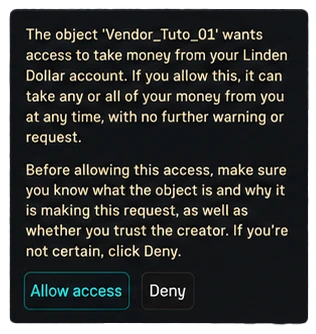 Allow access
Once per vendor. The wording is Second Life’s own.
Amber “Paused: accept DEBIT”? You clicked Deny or missed the dialog. Click the vendor → Sync now → Allow access. Selling from your own vendor boards? See “Can I keep my own vendor prims?” below this guide.
Set up your vendorThe vendor is what customers click to pay.
- In Second LifeFrom the same folder, rez
Plurion [Vendor]where customers will see it; touch it → Go to page. - On the webClick your product.
- In Second LifeClick Allow access when Second Life asks.
Plurion only uses this permission to refund buyers and pay shares (like its 5% on Free). Without it, there’s no Pay button. Why DEBIT
You’ll know it worked whenthe poster reads “SYNC OK” (or shows your product’s picture).
Not what you see? Troubleshooting · Full chapter: Vendors →
- Set up this vendor
Your first sale
- Pay
One button, with your price on it.
- Receive
The item comes from your DropBox, under its name, and the vendor says thanks in your local chat.
- Sales
The new sale on top, from source Plurion.
Nothing arrived? On
Sales, open the sale (ⓘ). It says what went wrong, or that Plurion is still retrying and what to check. A failed sale also shows under Undelivered, and one still not delivered after 15 minutes under Late.Buy it yourselfOne real purchase tests the whole setup.
- In Second LifeLeft-click your vendor and pay. Use your own avatar, an alt or a friend.
- In Second LifeAccept the item your DropBox sends.
- On the webOpen
Sales.
It’s a real sale. On Free, Plurion’s 5% applies (L$5 on L$100).
You’ll know it worked whenthe sale is at the top of
Sales.Not what you see? Troubleshooting · Full chapter: How delivery works →
- Pay
Bringing your history in
- What's your goal?
Your system, the SL Marketplace, then your goal: here, Full migration.
- Import your history
Only CasperVend, MD and Allomancy exports are recognized. Re-importing the same file is safe. Duplicates are skipped.
- Connect CasperVend
Block A: the URL for My Casper. Block B: the Webhook Salt Casper gives back. Sales made during the switch keep arriving.
Where to export. CasperVend: My Casper → Sales → Export CSV · MD: Admin panel → Reports → Export · Allomancy: dashboard → Sales → CSV.
On the webImport your historyYour past sales and customers come in, and your shop keeps selling.
- On the webOpen
Migrate(under Admin, at the bottom of the menu) and answer its three questions. For the goal, pick Full migration. - On the webOpen
Import your history, choose your sales CSV and click Import <n> sales. - On the webOn CasperVend: open
Connect CasperVend, paste its URL in My Casper → Overview → Webhooks, tick both purchases, then paste the Webhook Salt back.
You’ll know it worked whenthe page says Import complete and counts the sales Imported.
Not what you see? Troubleshooting · Full chapter: Import your history →
- What's your goal?
Your DropBox, then your catalog
- Go to page
Wait for “[Plurion DropBox] registered. Touch me for your link.” in your chat, then touch it. The page links it by itself.
- Content
The counter shows how many items are inside. They must be transferable by you, or the DropBox can’t give them.
- Review & sync
Keep the right matches, untick the others, and confirm.
Names with no matching item wait on the same page, to link by hand.
Set up your DropBox, sync your catalogYour current vendors keep selling, and nothing in them changes yet.
- In Second LifeUnpack your Starter Pack (left-click → Copy to Inventory), rez
Plurion [Dropbox], touch it → Go to page. - In Second LifeRight-click it → Edit → Content, and drag in every item your vendors sell.
- On the webIn
Migrate, openSync your catalog→ Review & sync → Sync the <n> kept.
You’ll know it worked whenthe page says Auto-sync complete, with the number of products created.
Not what you see? Troubleshooting · Full chapter: Sync your catalog →
- Go to page
Converting a vendor
- Create config
Tick the box (1), Create config (2), then Copy (3). Your config works for this shop only. Keep it private.
- Plurion [Config]
Paste your config under the notecard’s text, then Save. Older than 7 days? Create a new one.
- Drop the folder
It glows blue while it works, then Second Life asks for the DEBIT permission.
Still glowing blue after a minute? Drop the folder again. A vendor marked Needs setup? Touch it and pick its product.
Convert one quiet vendorThe vendor keeps its prim, its spot and its picture. Only the old system inside it is replaced.
Can’t be undone: the kit deletes every script, notecard and texture inside the vendor that isn’t named Plurion. Objects stay, but take out the only copy of any no-copy item first.
- On the web
Migrate→Convert your vendors: tick the box → Create config → Copy (valid 7 days). - In Second LifeRez
Plurion [Migration Kit], left-click it → Copy to Inventory. Paste your config into the folder’sPlurion [Config]notecard and Save. - In Second LifeDrag the whole folder onto ONE quiet vendor, then click Allow access.
You’ll know it worked whenit shows up in the
Live conversion feedas Matched.Not what you see? Troubleshooting · Full chapter: Convert your vendors →
- Create config
Testing, then the rest
- Pay
A left-click on the converted vendor opens Pay, at your product’s price.
- Sales
The test sale on top, from source Plurion.
- Live conversion feed
Matched: it sells already. Needs setup: touch it and pick its product.
Nothing arrived from the test sale? On
Sales, open it (ⓘ). It says what went wrong, or that Plurion is still retrying and what to check. A failed sale also shows under Undelivered, and one still not delivered after 15 minutes under Late.Test it, then convert the restMake sure one works before you touch the others.
- In Second LifeLeft-click the vendor you converted and pay. Use your own avatar, an alt or a friend.
- On the webCheck the sale at the top of
Sales. - In Second LifeDrop the same folder on each other vendor, about ten in a row, and click Allow access for each.
Count about 30 s per vendor, and stay in the region. The ones you haven’t converted keep selling.
You’ll know it worked whenevery vendor in the
Live conversion feedis Matched or set up.Not what you see? Troubleshooting · Full chapter: After the switch →
- Pay
Bringing your history in
- What's your goal?
Your system, the SL Marketplace, then your goal: here, Watch first.
- Your migration plan
No vendor conversion in it: watching changes nothing in Second Life.
- Import your history
Re-import whenever you like: duplicates are skipped.
On the webImport your historyYour charts and customer list start with your history already in them.
- On the webExport your sales CSV. CasperVend: My Casper → Sales → Export CSV · MD: Admin panel → Reports → Export · Allomancy: dashboard → Sales → CSV.
- On the webOpen
Migrate(under Admin, at the bottom of the menu) and answer its three questions. For the goal, pick Watch first. - On the webIn your plan, open
Import your history, drop the file and click Import <n> sales.
Skip
Sync your catalog. It needs a DropBox in Second Life.You’ll know it worked when
Saleslists your past sales, with their source.Not what you see? Troubleshooting · Full chapter: Import your history →
- What's your goal?
Connecting CasperVend
- Paste this URL into My Casper
Keep this page open. You’ll come back for block B.
- Webhooks
Paste (1), tick both purchases (2), save, then copy the salt (3). A sketch, not Casper’s real page.
- Paste back the Webhook Salt
Plurion checks the salt on the first sale Casper sends.
On the webCasperVend: turn on the live feedMD and Allomancy have no live feed. Skip this step, and re-import a CSV when you want fresh numbers.
- On the webIn your plan, open
Connect CasperVendand copy the URL in block A. - On the webIn My Casper → Overview → Webhooks: paste it, tick Product purchase and SL Marketplace purchase, save.
- On the webPaste the Webhook Salt Casper shows (a secret word that proves each sale really comes from Casper) into block B → Save.
You’ll know it worked whenblock B says Salt saved.
Not what you see? Troubleshooting · Full chapter: Connect CasperVend (live feed) →
- Paste this URL into My Casper
Connecting the Marketplace
- Connect Marketplace
Block A holds your private address. Keep this page open. You’ll come back for block B.
- Automatic Notifications (ANS)
Click Edit and note the old address, paste Plurion’s (1), save (2), then copy the Notification salt LL shows (3). A sketch, not LL’s real page.
- Paste back the salt LL gives you
Once it’s saved, Plurion checks the salt on the first notification LL sends.
On the webMarketplace: add its feedSkip this if your Marketplace store is linked to CasperVend, since its sales already arrive with Casper’s. On
Connect Marketplace, pick Keep it on Casper.- On the webIn your plan, open
Connect Marketplaceand copy the URL in block A. - On the webOn the Marketplace: My merchant home → Automatic Notifications (ANS) → Edit. Note the address already there (pasting it back undoes this), paste Plurion’s and save.
- On the webPaste the salt LL shows into block B → Save.
- On the webBack on the Marketplace page, click Test.
You’ll know it worked whenLL confirms the test. A test isn’t a sale, so it doesn’t show in
Sales.Not what you see? Troubleshooting · Full chapter: Connect the Marketplace →
- Connect Marketplace
- Watch a sale arrive
Check that Plurion reads your sales.
- In Second LifeMake a sale as usual, or wait for the next one.
- On the webOpen
Sales.
MD or Allomancy: re-import your CSV to see it.
You’ll know it worked whenit sits at the top of
Saleswith its source: Casper live, Marketplace, or MD CSV / Allomancy CSV after a re-import.Not what you see? Troubleshooting · Full chapter: Where sales come from →
0 of 7
✓You’re live.
Your shop sells, delivers and records every sale with Plurion.
When you’re readyAdd your product’s pictureRez the Plurion TerminalA phone alert for each saleA backup DropBox
✓Your shop sells with Plurion.
Your converted vendors sell, your DropBox delivers, and your history is already here.
When you’re readyRez the Plurion TerminalA backup DropBoxA phone alert for each sale
✓You can see it all.
Your sales, customers and history are in your dashboard. Nothing moved in Second Life, and imported or mirrored sales carry no fee.
When you’re readyA visitor counterYour customers
Stuck? Ask on the Plurion Discord.
Common questions
Why does Second Life ask to let my vendor take money?
Can I keep my own vendor prims?
Plurion [Vendor] script out of the Plurion [Vendor] object (right-click → Edit → Content, drag it to your inventory) and drop it into your own prim, keeping its name. No notecard needed. It shows your product’s picture on face 1 of that prim, replacing what’s there. Coming from CasperVend, MD or Allomancy? The migration kit converts your existing vendors in place.