11More in-world objects · 8 min read
Gacha machines
In the appMarketing → Gacha
A shopper pays a fixed price and gets one of the prizes you loaded, at random. Common ones come out often, rare ones rarely. Linden Lab allows gacha machines again, and a Plurion machine shows its odds to anyone who asks.
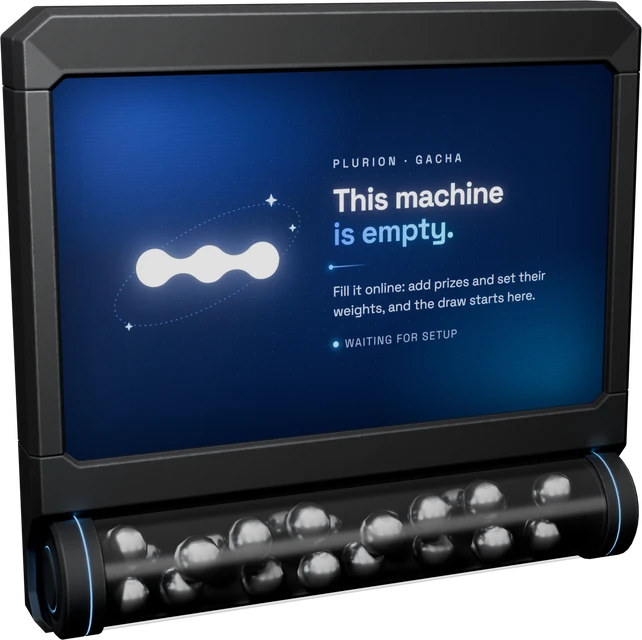
Rez it from your inventoryPlurion [Gacha]
- A shopper left-clicks the machine and pays its price
- The server rolls against your odds
- The pull is recorded as a real sale
- Your DropBox delivers the prize, usually within seconds
The roll happens on the server, not in the object. Nobody can influence it from in-world, and the machine uses exactly the odds you publish.
Setting one up
- In Second LifeRez
Plurion [Gacha]Drag it from your inventory onto your land. Its screen says “This machine is empty”, which is normal before setup. - In Second LifeAccept DEBITSecond Life asks right away to let the machine take L$ from your account (why). Click Allow access. Without it, the machine never shows a Pay button.
- In Second LifeTouch it and open its linkTouch the machine, then click Go to page in the “Link this gacha machine to your Plurion dashboard” window.
- On the webConnect it to your shopSign in if asked, as the avatar who owns the machine. With one shop, the page connects it by itself. With several, choose the shop under Link it to and click Connect to …. You land on the machine’s page.
- On the webName it, price it, add prizesIn
Gacha settings, fill in Gacha name (it also drives the prize suggestions) and Price per pull, then click Save changes. InGacha composition, click Add prizes and pick at least one prize. With a price and a prize, the machine turns on by itself. - In Second LifeLet it syncThe machine picks up your settings within five minutes, or at once if you touch it and choose Sync now. Its screen flips to “This machine is synced”. If that face has your own picture, the machine keeps it.
If something’s off
| You see | Do this |
|---|---|
| It floats “Paused: accept DEBIT”, and your chat says “payments paused: DEBIT permission refused - touch me, then Allow access.” | Touch the machine, and it asks again. Click Allow access. Your prizes and price are kept. |
| The page says “This machine belongs to a different avatar” | Sign in with the Plurion account of the avatar who owns the machine in Second Life. |
| The page says “This link has expired” | Links last 24 hours. Touch the machine for a fresh one. |
Loading the prizes
Click Add prizes in Gacha composition (later, the + at the top). The window lists your catalog, with products matching the machine’s name on top. It also lists DropBox objects that aren’t products yet, and adding one creates a product priced at the pull price.
Each prize has its own on/off switch. A prize marked product unavailable (deleted or archived) can’t be won until its product is back. Drag rows by their handle to reorder them, and the machine reads its odds in that order.
Setting the odds
The rarity badge follows the odds. It compares a prize’s chance with the machine’s most likely prize (see the table below). Pick a rung in the Rarity menu to set a prize’s weight to that level. If you drag the slider afterward, the badge moves with it. The same menu has Note…, a private reminder on a prize that buyers never see.
| Rarity | Its chance, next to the most likely prize |
|---|---|
| Common | the same (the most likely prize) |
| Uncommon | half |
| Rare | a quarter |
| Ultra Rare | a tenth |
| Legendary | a twentieth, the chase item |
Drag a gauge to fine-tune. Equalize sets every weight back to the same value, and each gauge’s color, from green to red, shows whether your rare prizes are really rare.
An example, and the math
Tag 8 Common, 2 Rare and 1 Legendary that way, and you get:
- ~11.7% eachthe eight Common prizes
- ~2.9% eachthe two Rare prizes
- ~0.6%the Legendary one
A prize’s chance is its weight divided by the total of all weights. Weights are relative, so 100/100/100/5/5/5 behaves exactly like 20/20/20/1/1/1. Above: 8×100 + 2×25 + 5 = 855, and 100 ÷ 855 ≈ 11.7%. The big percentage beside each gauge is the buyer’s real chance, updated as you drag.
Bring Total weight to exactly 100 and it turns green with a check. Each slider position then is the percentage. Any other total works too.
Under each prize, the page estimates how many pulls and how much L$ it takes to win it on average. To test your odds for free, click Simulate pull in the Preview card. Nothing is sold or recorded.
The price, and your catalog
One price per pull, whatever comes out. Discounts, promo codes and loyalty offers don’t apply to pulls.
When you change the price, prizes the picker created at the old pull price follow it in your catalog. A product you added from your catalog, or priced yourself, keeps its own price.
Every pull is a real sale
A pull shows in Sales like any other purchase (buyer, prize, price), marked with a small dice. It counts in your totals and customer records. Delivery works like a vendor sale, with the same retries and DropBox failover.
Paying a partner
A machine can pay one partner a share of every pull, like the collection’s creator or the sim owner hosting your event. In the Revenue split card, click Add a partner, pick their avatar, set their Share (%) (1 to 90) and click Save split. Each pull pays them in L$, and they see it in My Earnings.
On the Free plan, every pull also pays Plurion’s 5% fee, as a separate transfer. The rules on your Splits page don’t apply to pulls. A machine pays only its own partner, plus that fee.
| One pull | Partner at 20% | Plurion | You keep |
|---|---|---|---|
| L$100, Free plan | L$20 | L$5 | L$75 |
| L$100, Pro plan | L$20 | — | L$80 |
| L$15, Free plan | L$3 | — (5% rounds down to 0) | L$12 |
What it looks like in-world
A shopper who right-clicks it → Touch gets the price and, if Show odds in-world is on (the default), the odds, in lines only they see.
Announce wins in local chat is on by default. Turn it off for a quiet corner, and only the winner gets a line.
Your owner menu
Once the machine sells, a left-click opens Pay for you too. For your menu, right-click the machine and choose Touch:
When the machine gives money back
A pull either delivers or refunds. The machine gives the L$ back on the spot, with the reason, when the amount is wrong, it was switched off or ran out of prizes, it’s busy, or Plurion can’t be reached. A banned customer is refunded too. An interrupted pull picks up where it stopped, so the shopper pays once and gets one prize.
Fixing mistakes
| I want to… | Do this |
|---|---|
| Fix the wrong shop (no prize or pull yet) | On the machine’s page, click Release this machine in Wrong shop, or prim gone? (owner and admins only), then touch the machine for a fresh link. Once it has prizes or pulls, use Reset identity in its owner menu instead. It starts over empty, with a fresh link. |
| Start over, or remove it | Reset identity in your owner menu, or Delete this machine on its page (owner and admins only). Past pulls stay in Sales, and the prim comes back as a new, empty machine. |
| Clear an Offline badge | The machine hasn’t checked in for 15 minutes. Check it’s still rezzed, then touch it → Sync now. |
| Add a copy | Shift-drag a linked machine (or Take Copy and rez it), in any region. The copy starts with the original’s prizes, price and settings. Accept DEBIT for it. In another region it takes a few minutes. |