04Getting started · 2 min read
Your Plurion objects
Only watching your current system? This chapter can wait.
The Starter Pack
Plurion sends you this box, Plurion [Starter Pack], when you create your account. Accept the inventory offer. Declined or lost it? On your Hub, Settings → Resend Starter Pack sends the latest box.
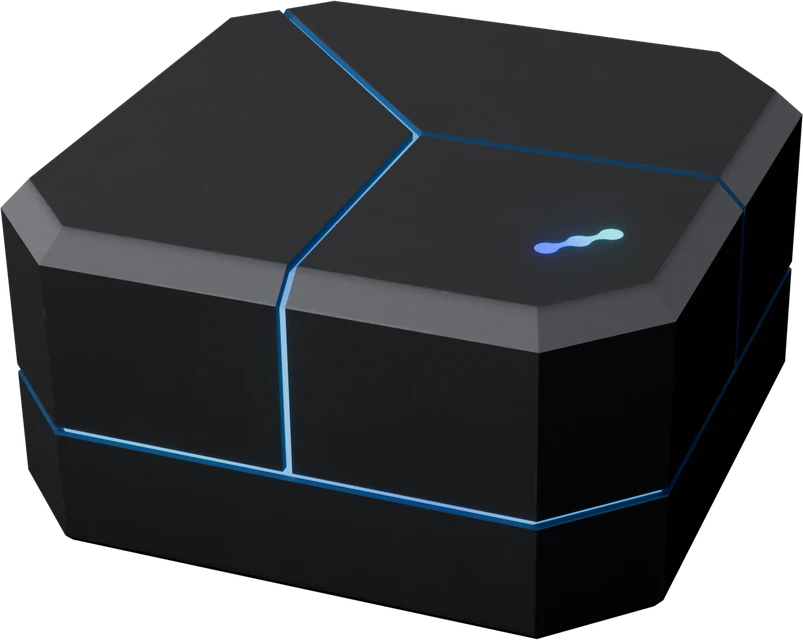
Sent when you create your accountPlurion [Starter Pack]
- Drag the box from your inventory onto your land.
- Left-click it, then Copy to Inventory.
- Open the new
Plurion [Starter Pack]folder in your inventory. It holds seven objects and a notecard,PLURION - START HERE.
What’s in the Starter Pack
| In your inventory | What it does | Needed? |
|---|---|---|
Plurion [Dropbox] | Holds the items you sell and hands them to buyers. DropBoxes | Yes |
Plurion [Vendor] | Shows one product and takes payment. Vendors | Yes, to sell in-world |
Plurion [Terminal] | Lets your customers get a past purchase again, buy store credit and send gifts. The Plurion Terminal | Optional |
Plurion [Visitors] | Counts the avatars who visit your shop. Visitors | Optional |
Plurion [Gacha] | Sells a random prize from your catalog. Gacha machines | Optional |
Plurion [Demo] | Hands out your demo on touch and shows who bought after. Demo boxes | Optional |
Plurion [Migration Kit] | Turns CasperVend, MD or Allomancy vendors into Plurion vendors, where they stand. Migration | Only to switch |
Connect your first object
Create your shop on your Hub first. Every object except the Migration Kit then connects the same way, with nothing to type. For the kit, see Convert your vendors.
Rez it where it will stay, on land where scripts run. A vendor shows a “Ready to connect” poster instead of the red text. The link is yours alone and lasts 24 hours. With several shops, pick one under Link it to. If there’s more to set up, the page takes you there (a vendor asks which product to sell).
The owner menu
Touch an object as its owner to open its menu. Once a vendor or gacha machine is selling, a left-click opens Pay, even for you, so right-click it and choose Promo (vendor) or Touch (gacha machine). Each menu is explained with its object: vendor, DropBox, Visitors counter, gacha machine, Plurion Terminal, demo box.
Copies, moves and starting over
If the original is still rezzed, what you rez is a copy. If it’s gone, it’s the same object, moved.
| What you do | What happens |
|---|---|
| You copy it (Shift-drag, or rez a copy while the original stays) | A second object in the same shop, with the same settings and contents, and nothing to connect. From then on, stock each DropBox on its own. |
| You take it and rez it again, anywhere | The same object: same shop, same settings. |
| You give or sell it to another avatar | It forgets your shop, and its new owner connects it to theirs. |
| You want to start over, or picked the wrong shop | Pick Reset identity in its owner menu, or delete it in Settings → Devices. It comes back unconnected. Touch it for a new link. Its sales history stays. |
- After a copy or a re-rez, a vendor, gacha machine or Plurion Terminal asks for DEBIT again. Stay in the region and click Allow access.
- A vendor with no product yet has no menu, so delete it to start over.
- After a delete, a vendor starts over at once, and other objects within 10 minutes.
- A gacha machine that starts over loses its prizes and price.
Copies work in any region. A copy rezzed in another region also becomes a second object in the same shop. There, a Plurion Terminal, gacha machine or Visitors counter takes a few minutes for this, and needs a current script (gacha 0.17, Terminal 1.8, Visitors 0.9.9 or later, from the Fleet Updater HUD). Until then, the dashboard may show the original in the copy’s region.
Why Plurion asks for DEBIT
Vendors, gacha machines and the Plurion Terminal ask for the DEBIT permission, because Second Life requires it before an object can send L$. Plurion uses it to refund buyers, pay your split partners and send the 5% Free plan fee.
Without it, the object shows no Pay button, so it never takes money it can’t refund.